 BossKin
Personal info
View your profile, send requests to edit your details, my documents, dependents, theme, two-factor authentication, change password.
For: All employees
Open Personal info in the My space group (or click your avatar → Personal info).
View your profile
The Work information section shows your employee code, department, position, work email and start date. HR manages this information; you cannot edit it yourself.
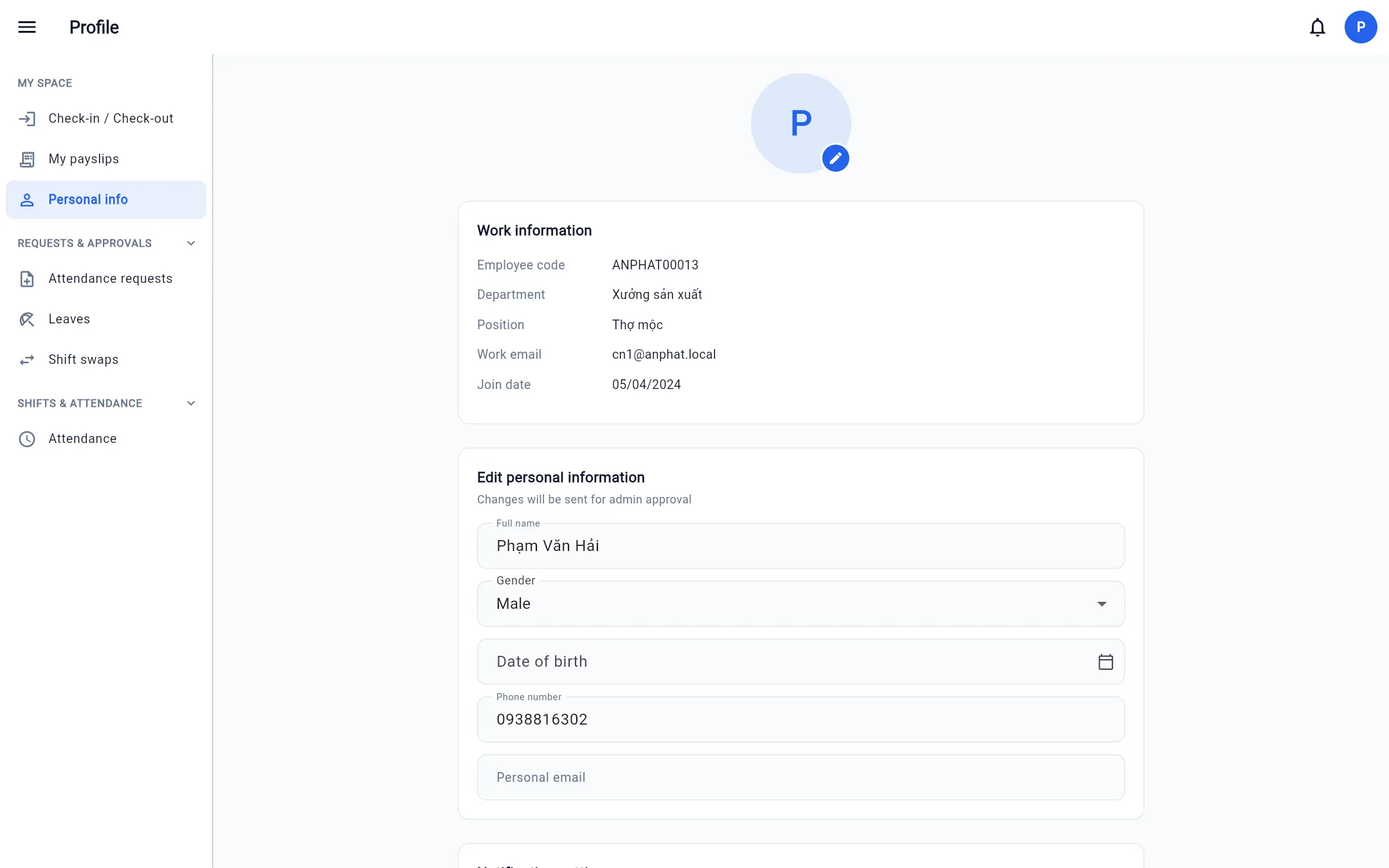
Click the pencil icon on the avatar to change your photo.
Send a request to edit your details
Full name, gender, date of birth, phone number and personal email are changed through an edit request — HR approves it before your profile is updated.
- Edit the fields you want to change in the Edit personal information box.
- Click Send request.
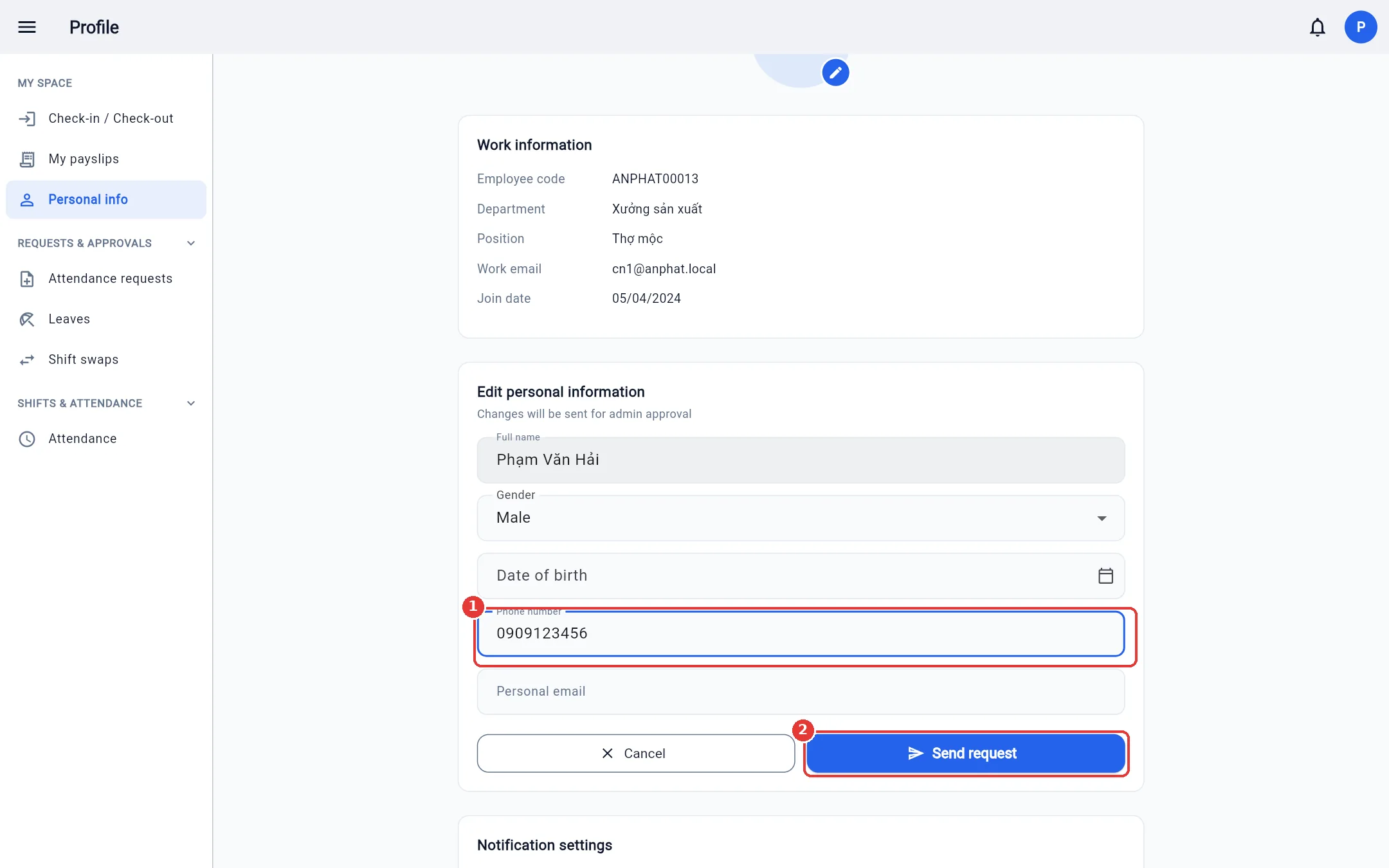
You get a notification when it is approved or rejected. A rejected request includes the reviewer's reason.
Notification settings
Notification settings now live under the Notifications menu (My space group) → Settings tab, not on this page. See Getting started for details.
My documents
Where you submit your own documents to HR (ID card (CCCD), degrees, health certificate…).
- Click Submit document.
- Choose the document type, choose a file (PDF, image or Word, up to 10 MB), and enter the issue / expiry date if any.
- Click Upload. The document stays Pending until HR approves it; while pending you can delete it and resubmit.
Note: Documents are private data. View / download links work for only a few minutes, and every time one is opened it is logged.
Dependents
The list of dependents registered for the family deduction (entered by HR). Each person shows the deduction period and the registration status with the tax authority. To add or edit, send the documents to HR.
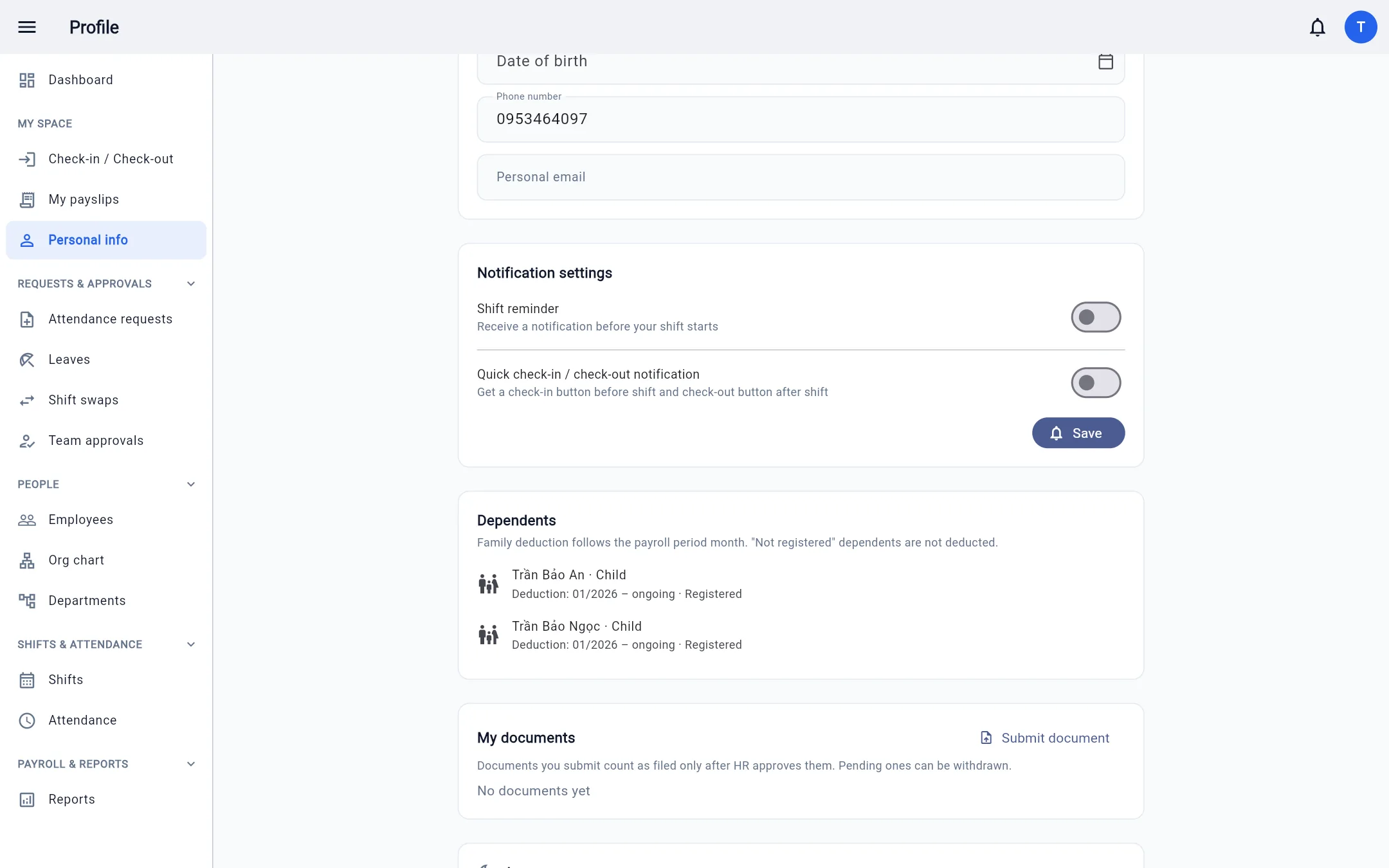
Light / dark theme
Choose System (follows your device setting), Light or Dark. The choice is saved per device.
Two-factor authentication
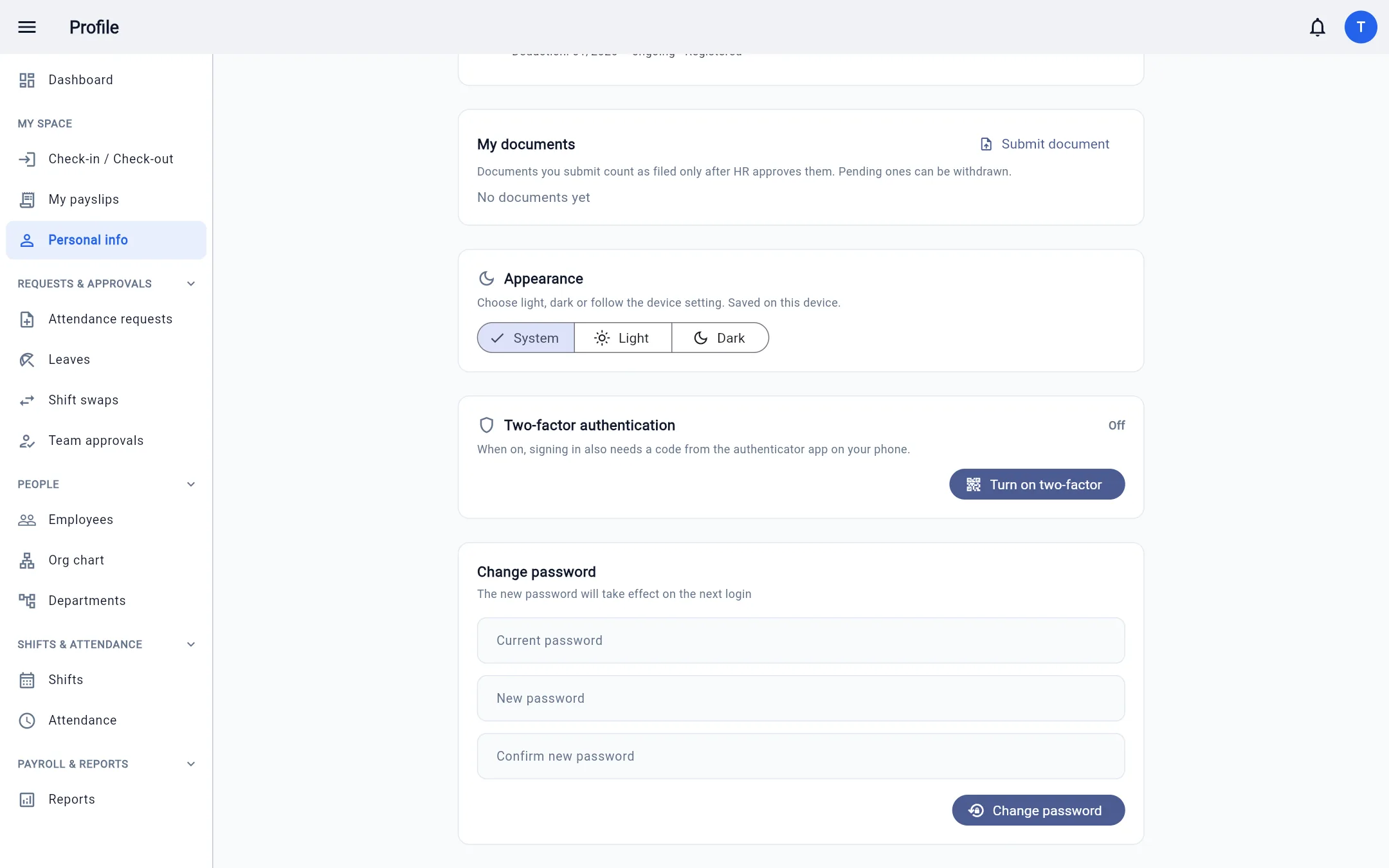
Recommended for manager, HR and accounting accounts. When on, every sign-in also requires a 6-digit code from the Google Authenticator app (or a similar app) on your phone.
- Click Turn on two-factor.
- Open your authenticator app, scan the QR code, and enter the 6-digit code shown.
- Copy the 8 backup codes and keep them somewhere safe — each can be used once if you lose your phone.
If you lose your phone and run out of backup codes: ask an administrator to remove 2FA for you in Roles → Users.
Change password
Enter your current password and the new password twice, then click Change password. Every other device signed in to this account is signed out.