 BossKin
Permissions and users
Roles and permissions, department scope, assigning roles, resetting / exporting temporary passwords, removing 2FA, approving profile edit requests.
For: Company administrator
Roles
Open Roles → the permissions tab. Two roles come built in: Admin (full access) and Employee (the default for new people: self check-in, request leave, etc.). The Admin role is a system role and is locked (padlock icon): you cannot edit its permissions, rename it or delete it. The company's first admin account is the highest authority: no other admin can change its role, permissions, reset its password, remove its 2FA or lock it, so the company always has someone in charge. You can still create new roles and assign Admin to other people as usual. Create extra roles for managers, HR and accounting.
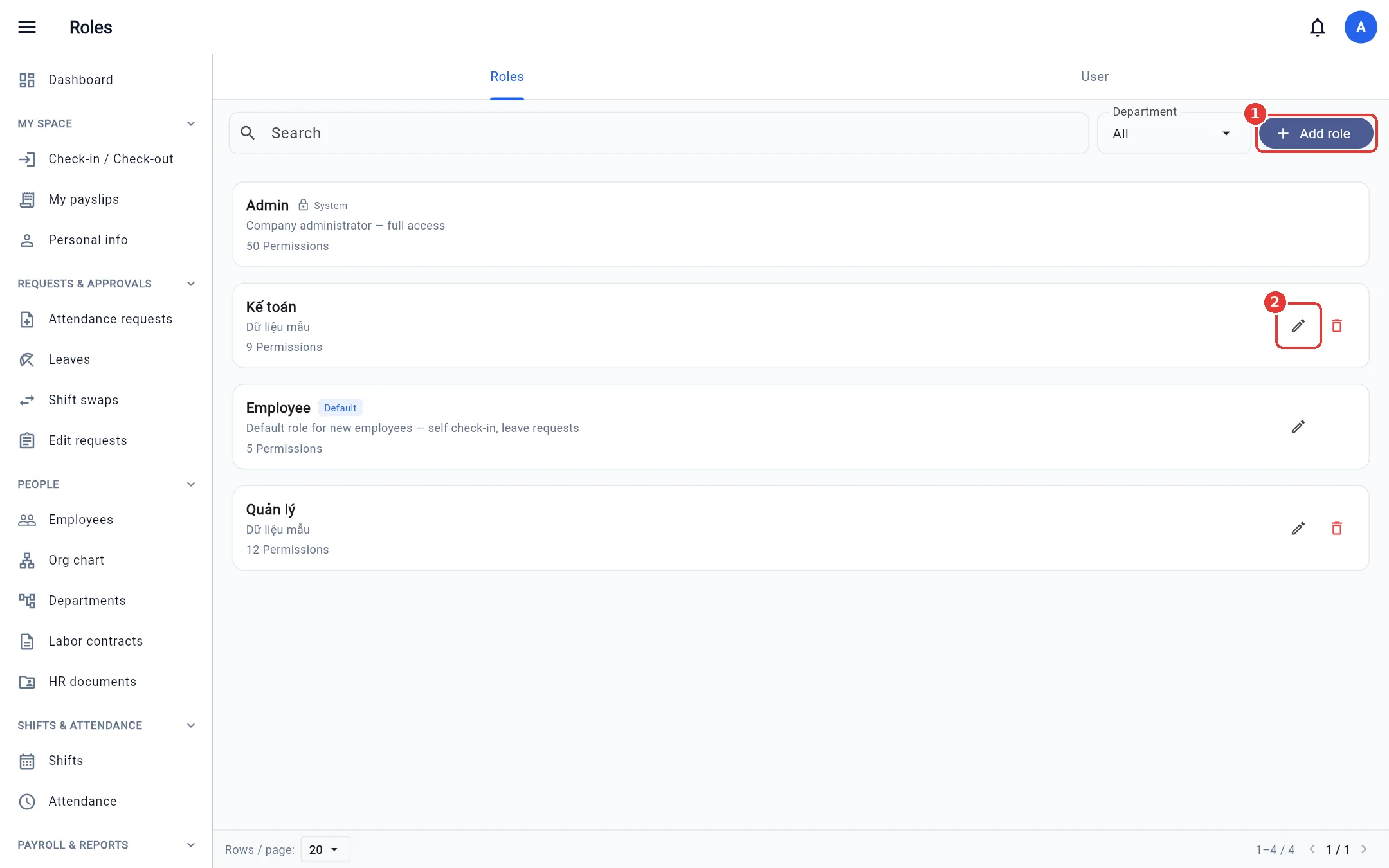
Create a role
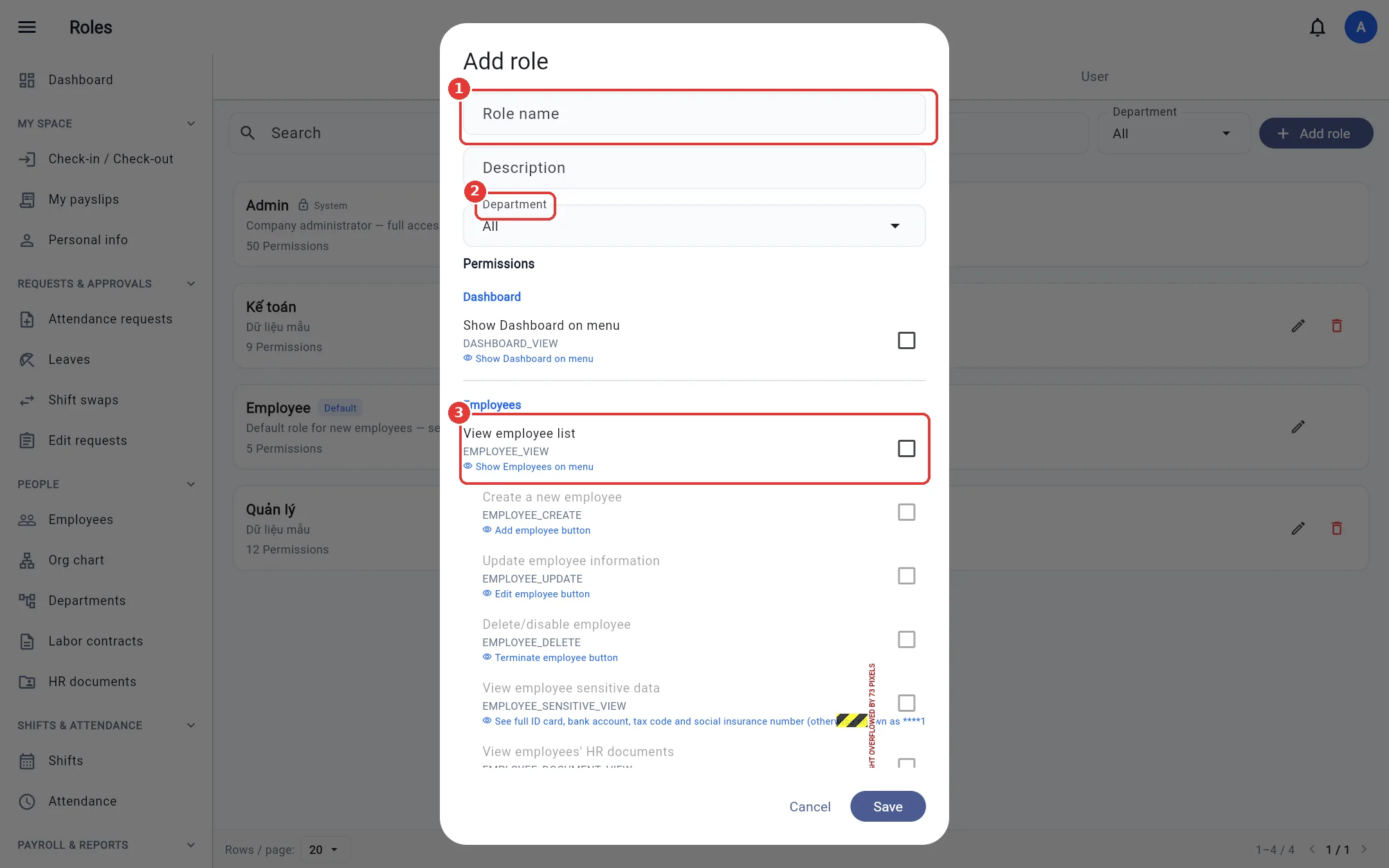
- Click Add role and enter the Name and Description.
- Department: All = the whole company, or pick a department to limit the data scope.
- Tick the permissions, grouped by module. Each permission has a description of the buttons / screens it opens. The View permission is a prerequisite for the other permissions in the module.
- You can set a separate scope for each permission (only me, my department, my department and below, or pick departments) → Save.
Users
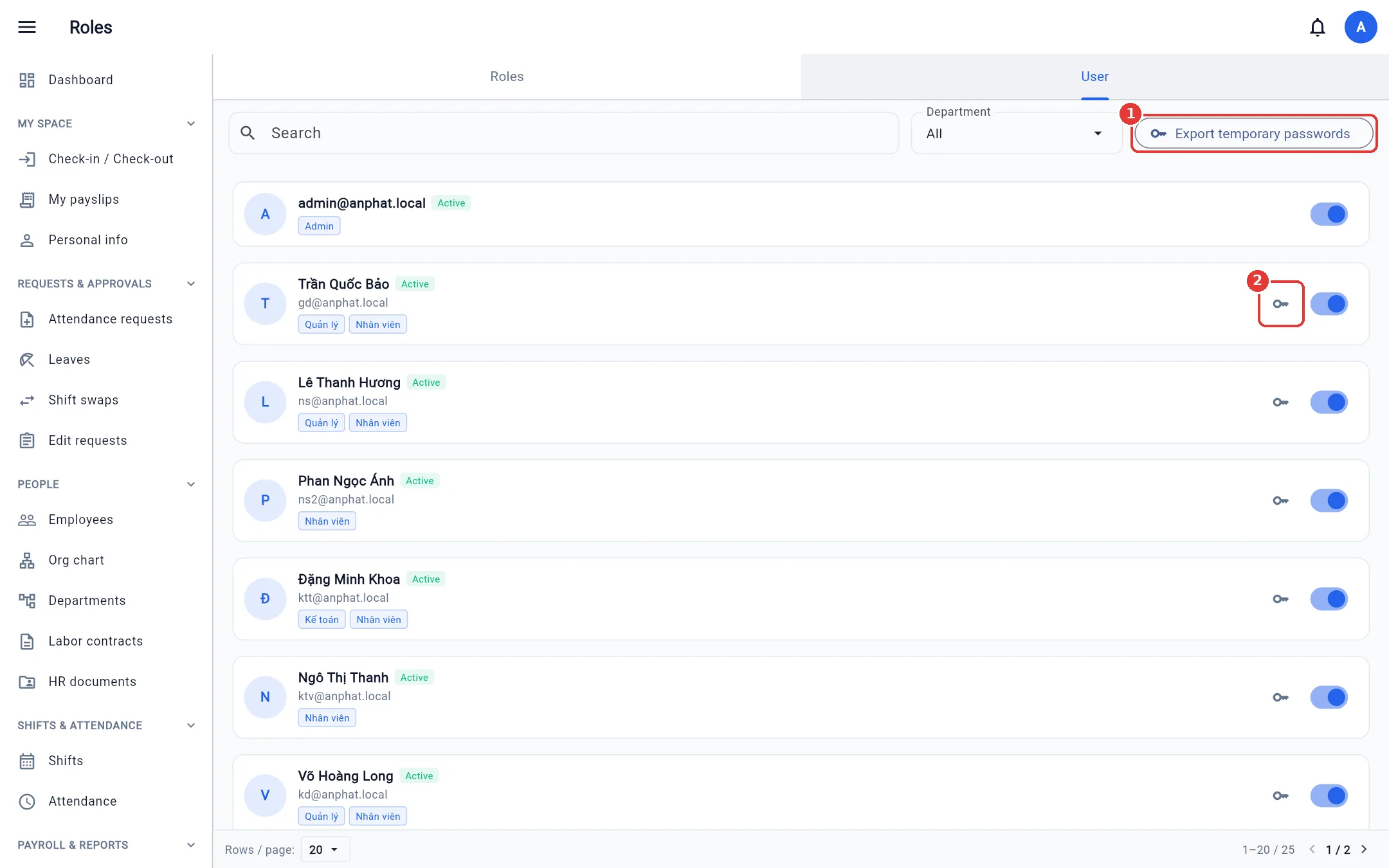
The User tab lists every login account. Each card shows the role and status.
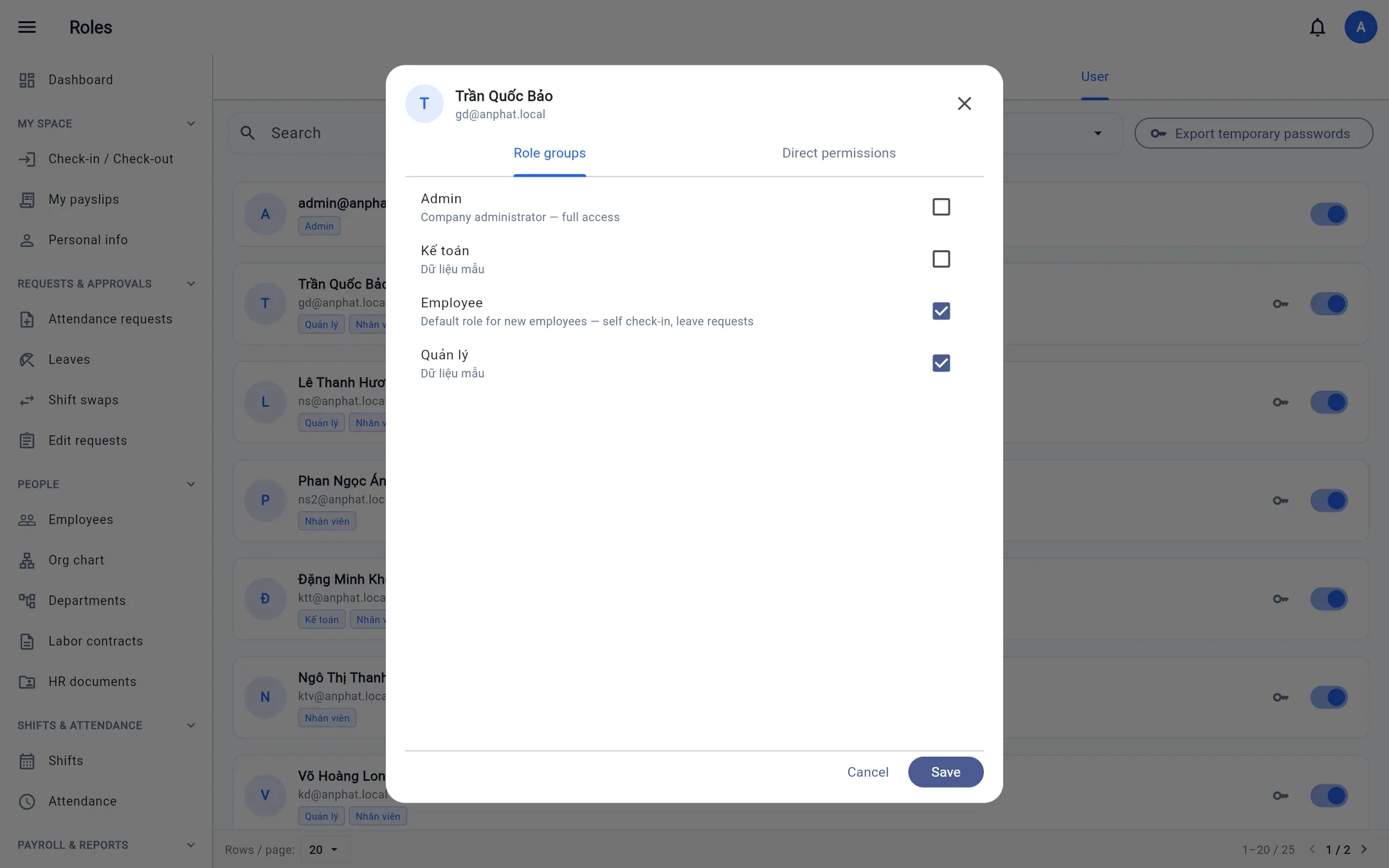
- Click a person to assign roles (Role groups tab) or grant individual permissions (Direct permissions tab). Multiple roles add up, taking the broadest access.
- Switch: lock / unlock the account (locking signs the person out of every device immediately).
- Key — Reset password: issues a new temporary password (shown once so you can copy it and send it to the person); the user must change it at sign-in.
- Phone-lock icon: removes two-factor authentication for someone who lost their phone.
Export temporary passwords (issue accounts in bulk)
After importing employees from Excel, the new accounts have random passwords. Click Export temporary passwords: the system issues a new temporary password to every account in your scope that has not yet changed its first password, and downloads an Excel file (employee code, full name, department, email, temporary password).
Important: The password file is sensitive data. Delete it once you have handed out the passwords. If you export again, the previous temporary passwords stop working.
Approve profile edit requests
Open Edit requests (in the Requests & approvals group). Each request compares the current value with the requested value. Click Approve to update the profile or Reject (enter a reason). The Processed tab keeps the history, including the values before the edit.
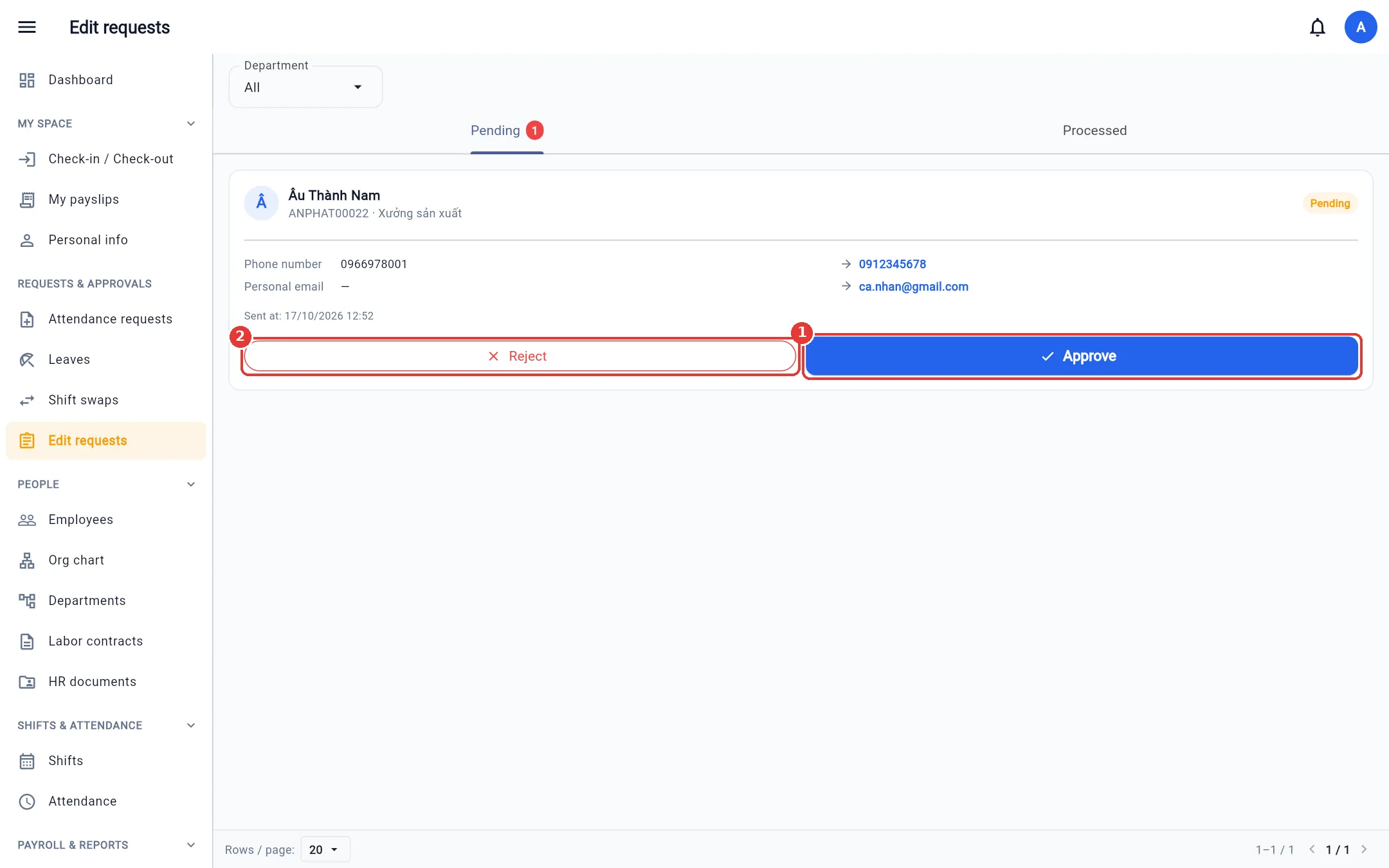
You only see and approve requests from employees within your Update employees permission scope, and you cannot approve your own requests.