BossKin
Shifts and shift assignment
Create shifts (fixed, flexible, overnight), assign shifts to employees, quick fill, rotation patterns, approve shift swaps.
For: Shift managers, HR
Shift list
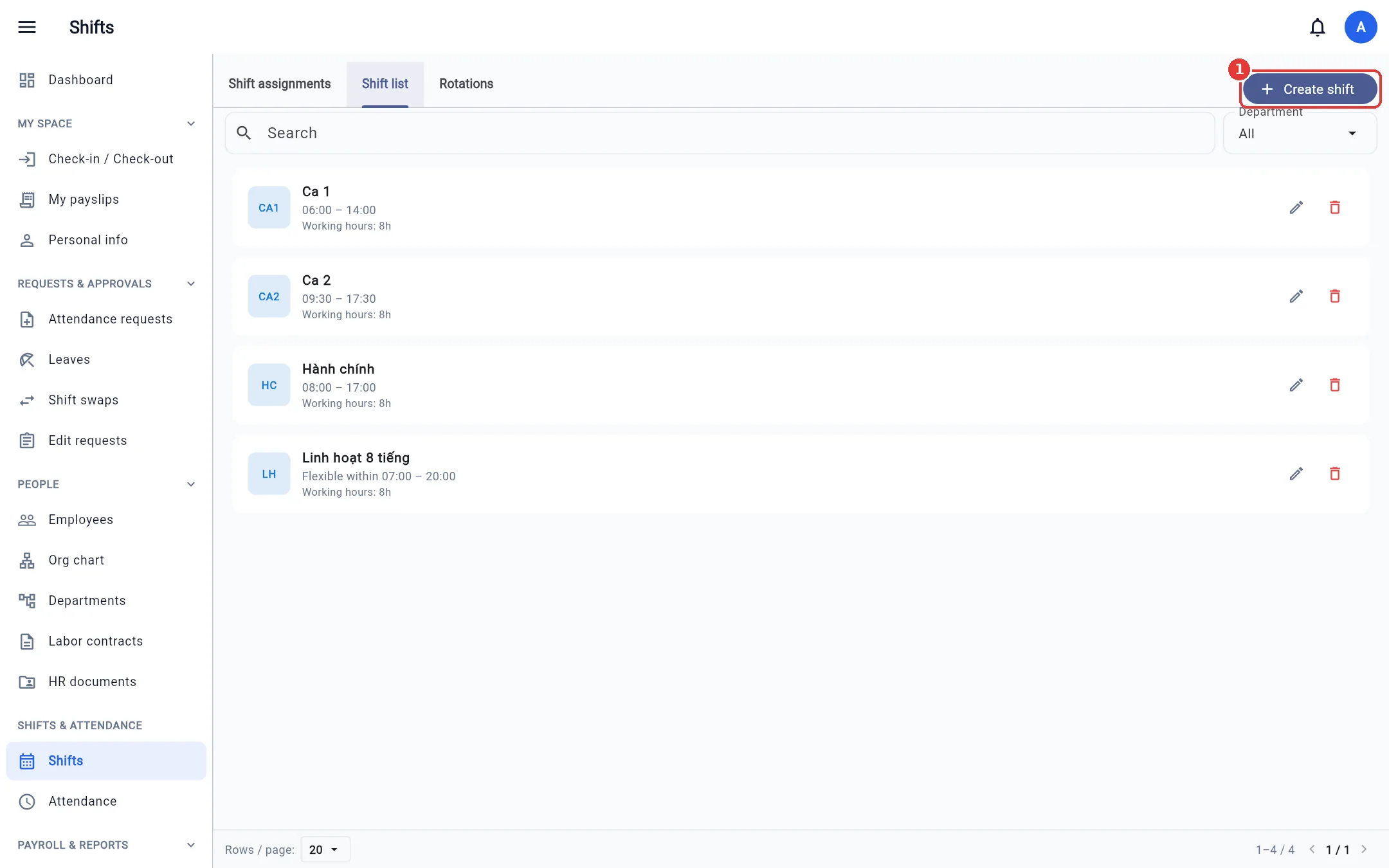
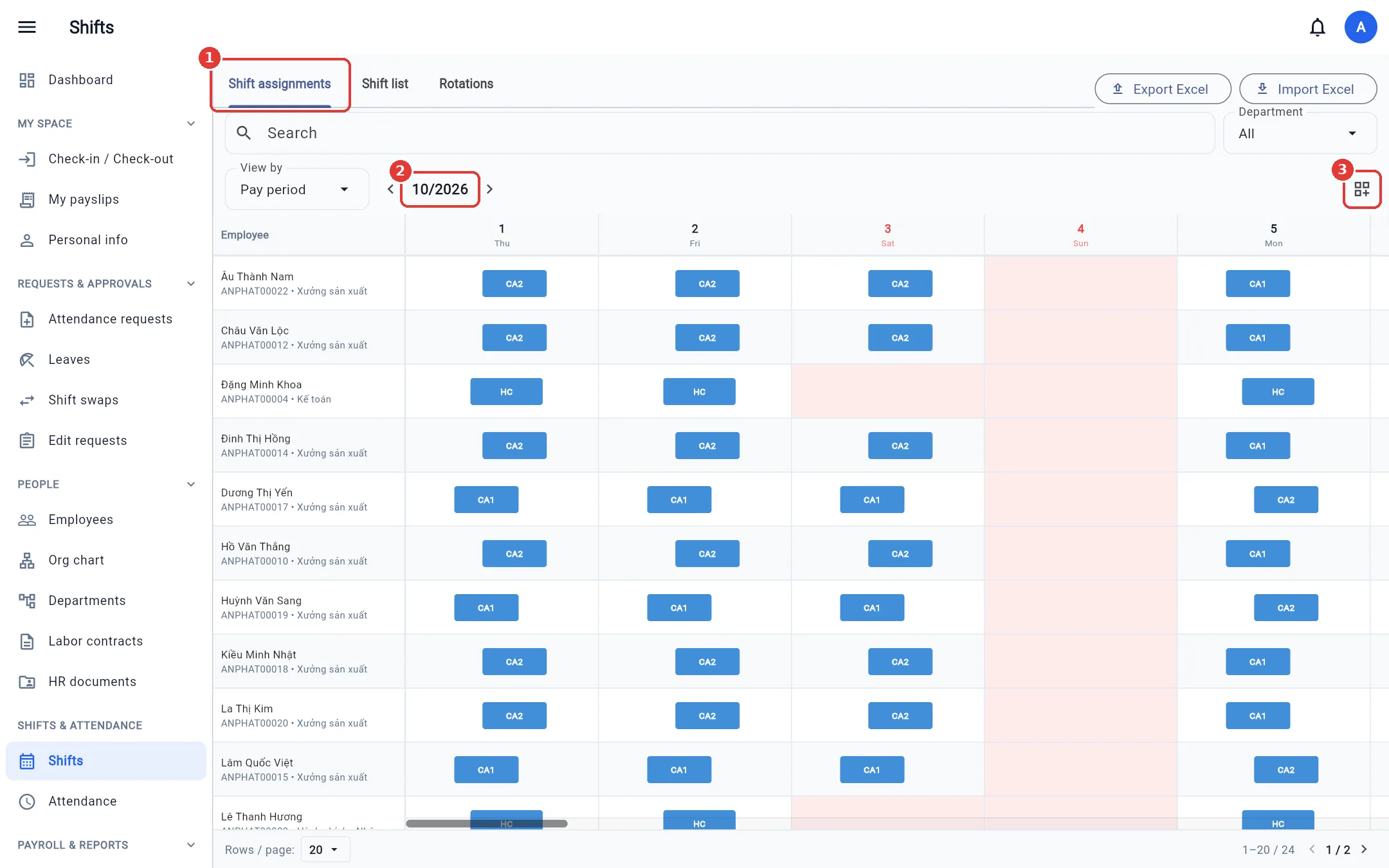
Open Shifts → the Shift list tab. Each shift has a code, start – end time, mid-shift break and working hours.
Create a new shift
- Click Create shift.
- Enter the Shift name and Shift code (short, shown on the assignment grid), and a shift group if you like.
- Choose the type: Fixed hours (fixed in – out) or Flexible (the required hours within a time window; missing hours count as late).
- Enter the start / end time and the break (if any). A shift that ends after midnight is treated as an overnight shift.
- Choose a color and the departments it applies to → Create shift.
Shift assignments
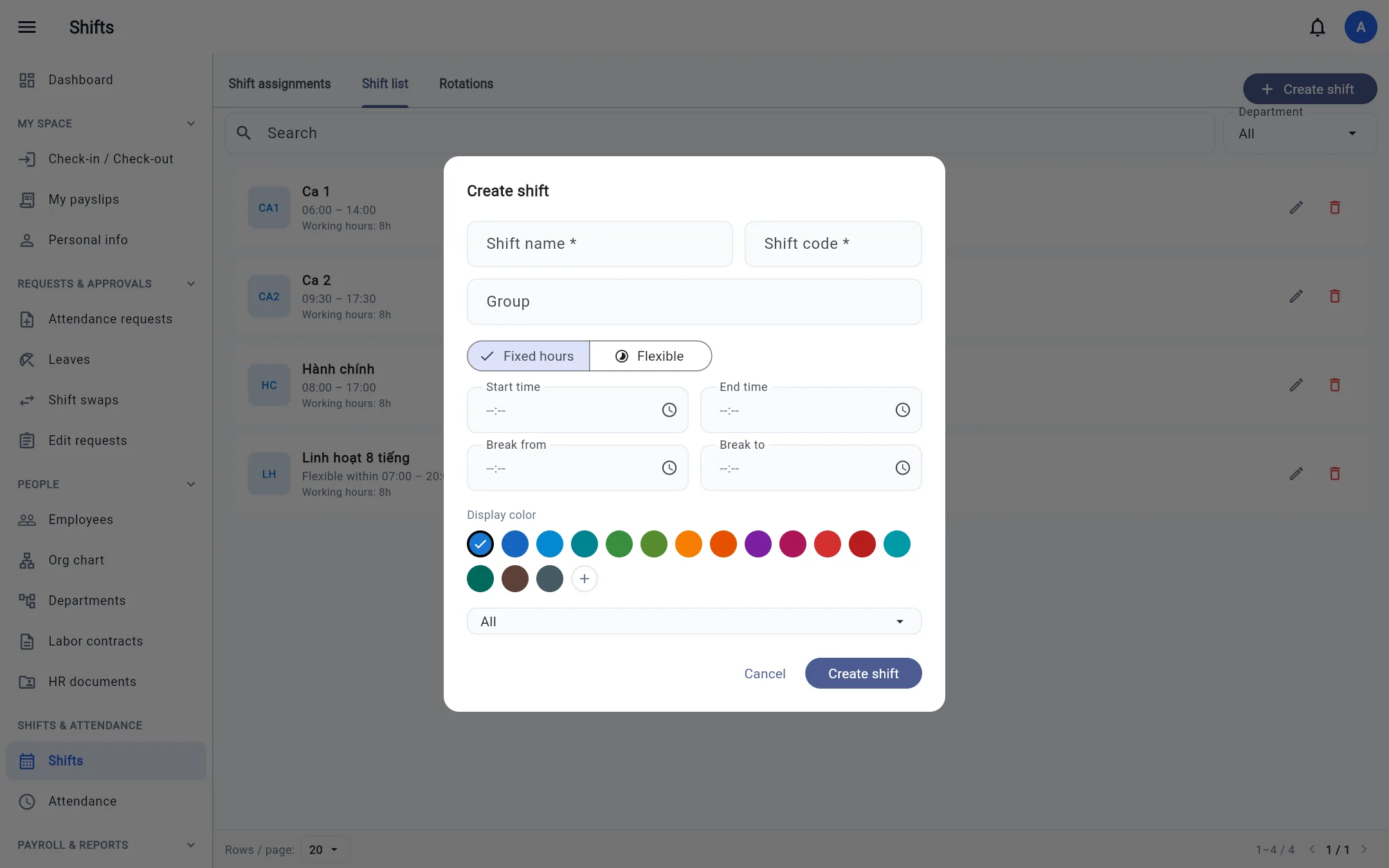
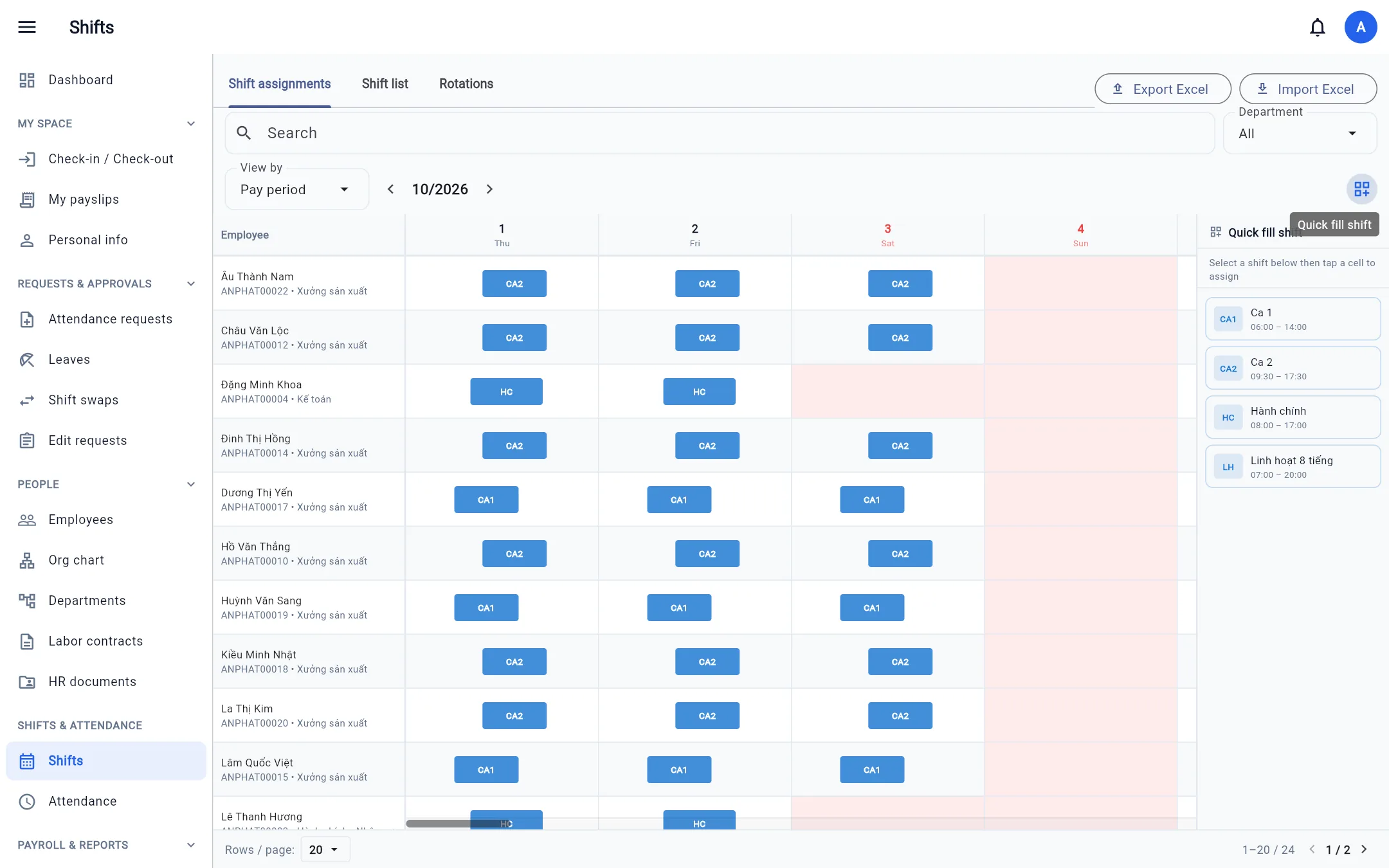
The Shift assignments tab is a grid: rows are employees, columns are the days of the period (based on the company's payroll cut-off day).
- Choose the period with the arrows next to the month; filter by department / search for an employee if needed.
- Click a cell (employee × day) to pick a shift; at most 4 shifts per day, and shifts must not overlap.
- Quick fill shift: open the shift panel on the right, pick a shift, then click several consecutive cells to fill them.
A shift cannot be removed from a day that already has attendance data (checked in/out, attendance approved, or an approved time-correction request in effect). If a time-correction request is pending, approve or reject it first; requests that were rejected, cancelled or deactivated (times struck through on the timesheet) do not block removing the shift. Export / Import Excel uses a horizontal sheet (employee × day, cells are shift codes), with a preview before importing.
Rotation patterns
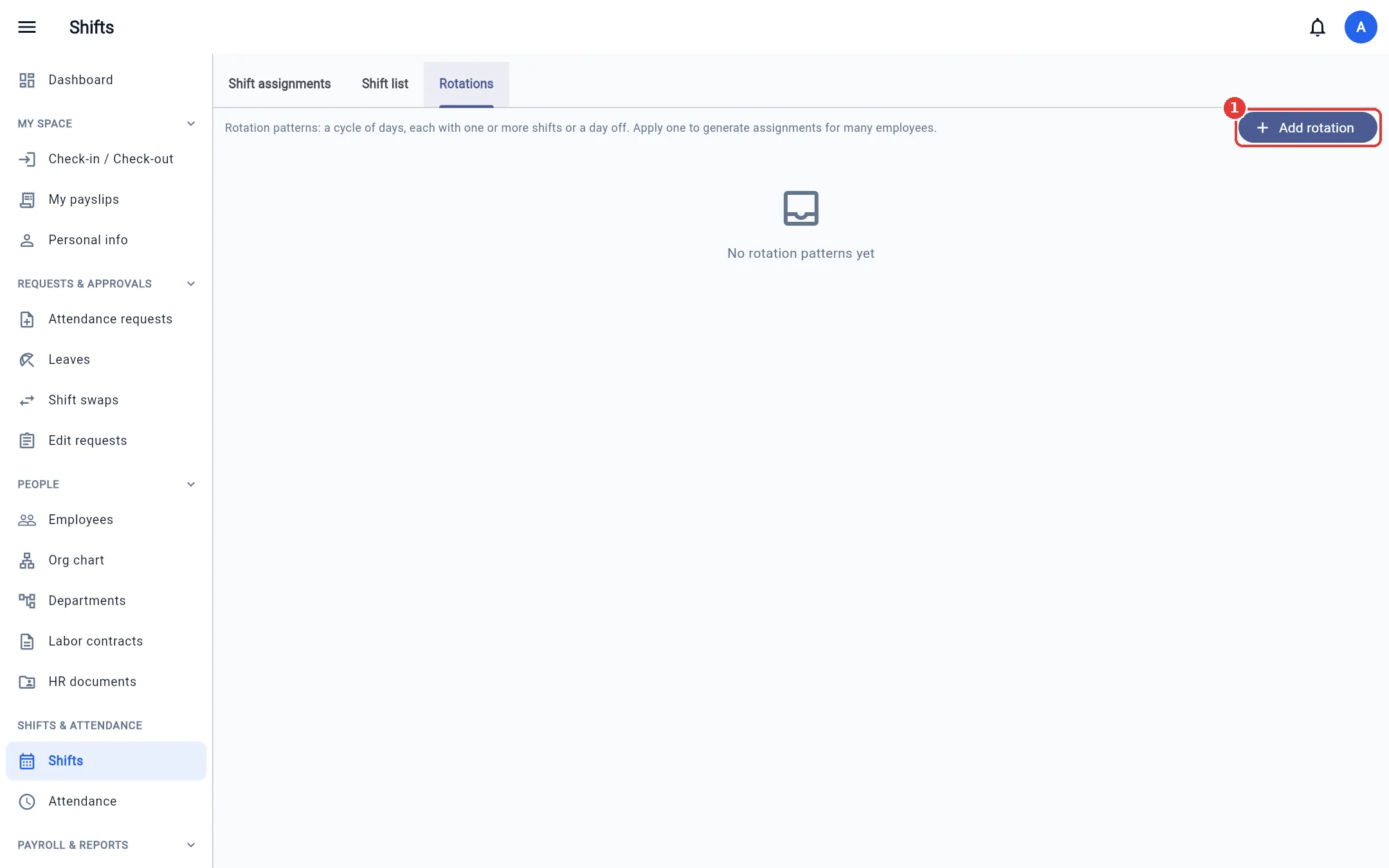
For teams working rotating shifts (e.g. 6 days of shift 1 – 6 days of shift 2 – 2 days off).
- Rotations tab → Add rotation: set a name, the cycle length, and pick a shift for each day (leave blank = day off).
- Click Apply to employees on the pattern: choose the employees, the start date, each person's day offset and the date range to generate.
- Optionally Skip holidays. Days that already have attendance are left untouched.
Work schedule registration
When the company turns on Work schedule registration (Company settings → General), Shifts gains a Registration tab for people with permission to manage schedule registration.
- Click New registration round: set a name, quickly pick Next week / Next 2 weeks / Next month or choose from date – to date (up to 62 days), pick departments, the deadline (the round closes automatically then) and limits if needed (allowed time windows, hours per window, minimum days, people needed per day).
- Save and open — employees in those departments get a notification. You can Close / Reopen any round at any time right from the list.
- Click a round to see the people × days grid. Each day column shows people / needed and an Approve (n) button: it approves all pending registrations for that day and creates the assignments straight away. People who registered as free all day need a shift chosen when approving. Registrations that duplicate an existing assignment are skipped and reported.
- Click a pending cell to approve it individually, change it to another shift / time, or reject it. Click a day heading to see the headcount by hour. An approved cell (green) shows the assigned shift and time; hover over a cell to see what the employee registered.
Registration is only a preference — managers still assign shifts as usual in Shift assignments.
Work locations
When the company turns on Work locations (Company settings → General), Shifts gains a Locations tab for people who may view locations — for staff who work in several places (home, warehouse, store, site A / B / C…).
- Locations tab → Add location: enter a code (unique, e.g.
WH1), name, type (office / store, warehouse, job site, work from home, other), address and color; a map position + radius is optional — with a position, employees can only check in / out within that radius when working a shift at this location (replacing the company / department position for that shift); leave empty = no limit. - Put employees at a location in three ways: - Quick fill: open the Quick fill panel, pick a Location and a shift, then click the cells of employees A, B, C. A cell that already has that shift at another location only gets its location changed. - Single cell: click a cell in the grid, pick the Work location, then choose a shift (or Change location only to keep the shift). - In bulk: the Set location in bulk button (pin icon) — choose the location, a date range and employees; only already assigned shifts are updated, days without a shift are skipped. - In all three, the location list ends with + Add location (for people who may create locations): fill in the code, name… and save — the new location is selected right away, no need to go back to the Locations tab.
- In the grid, shift bars also show the location code (hover for the full name); the timesheet and the day view show a pin icon next to the shift.
- A location used in shift assignments cannot be deleted — turn off In use to retire it (past shifts keep the location name).
- The Shifts by location report (Reports, Attendance group): employees, shifts, planned and actual hours per location plus shift-level details.
Permissions: View locations, Create / edit / delete locations, Assign locations when scheduling (also requires Shift management). Rotations and approved registrations create shifts without a location — set it afterwards as above. Excel: the Work Locations sheet and the Location Code / Name columns in shift assignments (blank = keep, enter - = clear).
Approve shift swaps
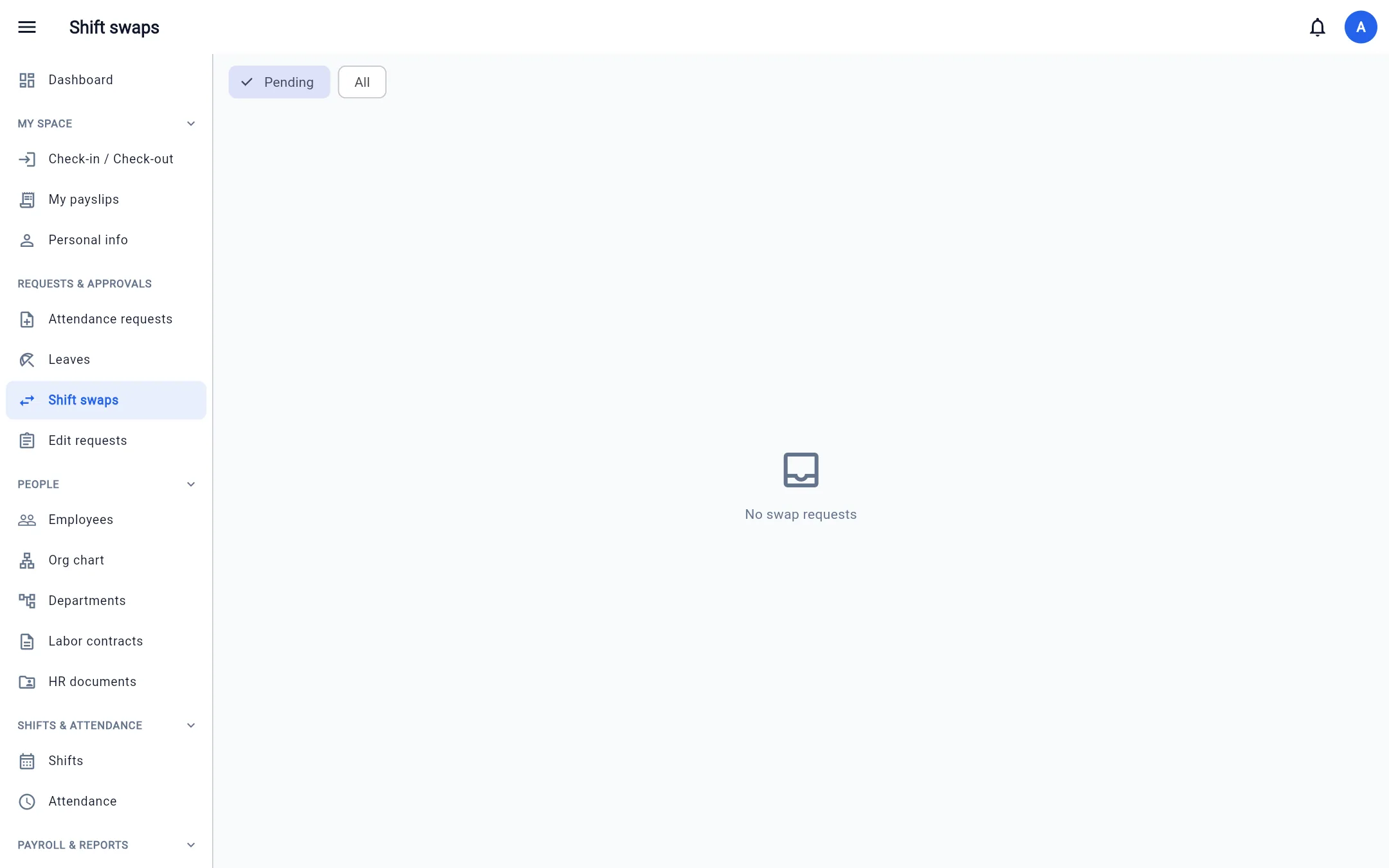
Open Shift swaps → filter Pending. Each request shows who swaps with whom, the shifts and the date. Click Approve or Reject.