 BossKin
My attendance
Check in / Check out by location, view history, send requests to correct hours or log overtime.
For: Employees with shifts
Check-in / Check-out
Open Check-in / Check-out (My space group). The screen shows a map of your current location, today's shift and the allowed time window. The date card at the top has a live clock in your company's time zone (shown with the zone, e.g. UTC+07:00 · Asia/Ho_Chi_Minh) — punches are timed by this clock, not by your phone's.
- Allow the browser / app location access when asked.
- Check Today's shifts and the allowed Check-in time / Check-out time window.
- (Optional) type a Note (up to 255 characters) — it is saved with that punch and shown again in Attendance history.
- Click Check-in when you start work; click Check-out at the end of the shift.
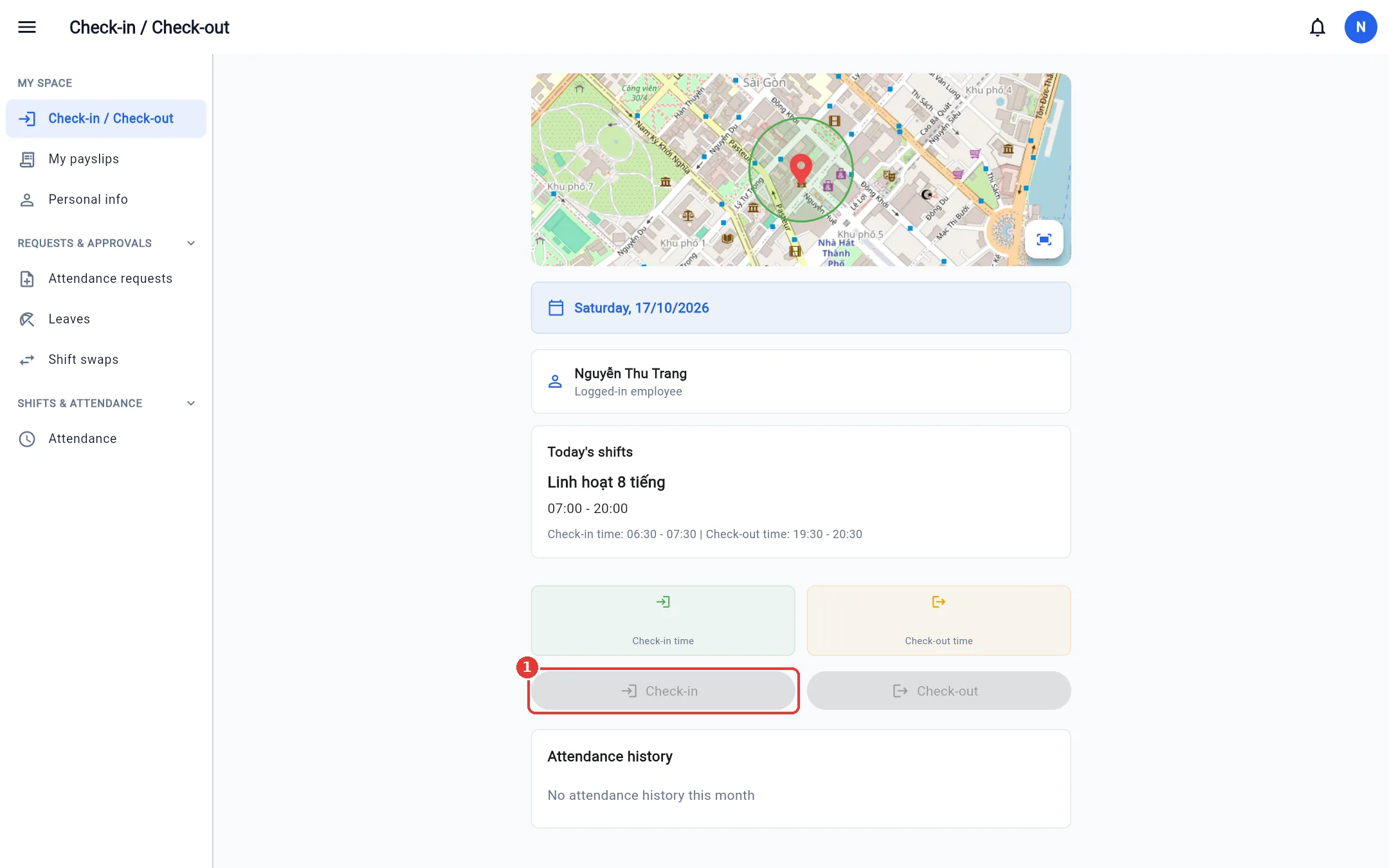
If your shift has a work location (home, warehouse, store, site A / B / C…), the shift card shows its name — click that line to open Google Maps at the exact spot (or a search by address if the location has no coordinates). When the location has a map position, the screen draws a green circle — the clock-in area of that shift: inside the circle Check-in / Check-out work, outside (red circle) they do not — go to the work location and try again. This circle replaces the general office position for that shift; on days you work somewhere else the circle follows the shift.
Cases where you cannot clock in:
| Error | Cause / what to do |
|---|---|
| Out of range | You are outside the allowed radius around the office / workshop — or around the shift's work location (the message names it). Move closer and try again. |
| Fake location | A fake-location app is on. Turn it off and try again. |
| Account bound to another device | The company enabled "clock in only on a registered device". Ask HR to remove the old device when you change phones. |
| Outside the time window | Too early / past the clock-in window of the shift. Send an Attendance request (section below). |
| You have no shift today | You have no shift on this day. If the company enabled "allow clock-in without an assigned shift", the screen says you can still clock in: clock in / out several times a day (finish one session before starting the next), each session is one attendance row, and hours are counted from actual times. |
Tip: On a phone, turn on Quick check-in / check-out notification in Notifications → Settings to clock in straight from the reminder notification.
The Attendance history section at the bottom lists the days of the month with check-in / out times. Entries not yet approved by a manager show a Pending label. Under the in / out times there are two small Check-in / Check-out labels with a pin icon: click one to see where you clocked on a small map (only you see this in your own history).
Send an attendance request (missed punch, time correction, overtime)
Use this when you forgot to clock in, clocked at the wrong time, or need to register overtime (OT).
- Open Attendance requests → click Create request.
- Choose the date; the dialog shows your shifts for that day.
- Choose the Request type (Check-in / Check-out to correct times, or Overtime).
- Enter the requested check-in / check-out time (click the clock icon to pick) and a note with the reason.
- Click Send request.
Overtime requests: enter the From and To time (for example 17:00 – 19:30; across midnight To is earlier than From, e.g. 22:00 – 01:00). The system works out the part inside / outside the shift, day / night hours and the pay time band by itself — only the time you were actually present counts. Times can be typed quickly: 7 → 07:00, 17 → 17:00, 705 → 07:05, 750 → 07:50, 1730 → 17:30.
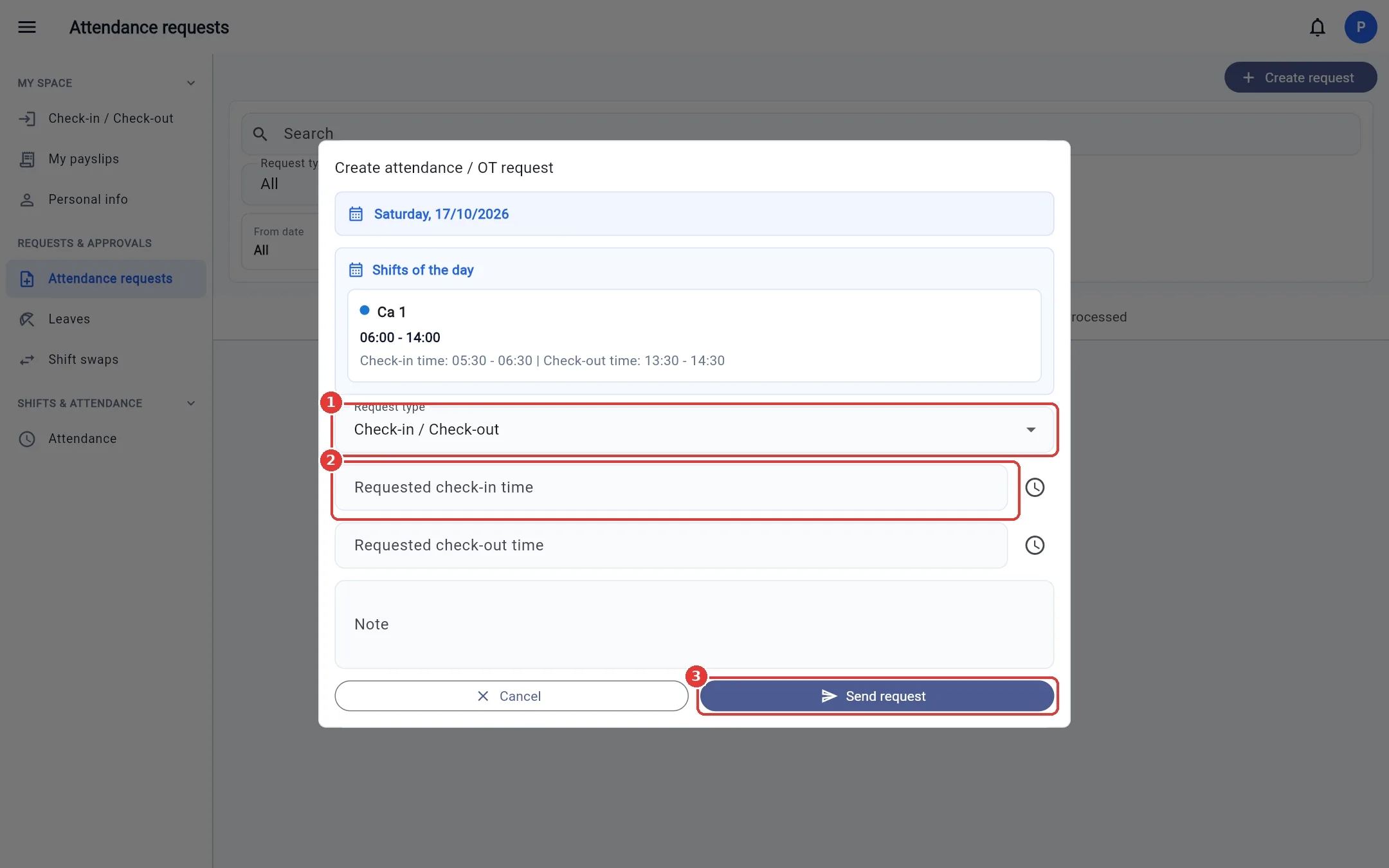
The request stays in the Pending tab until a manager approves it. Once approved, the times in the timesheet change to match your request.
Note: If the period is locked, you cannot send requests for days in it — contact HR.