 BossKin
Company settings
Attendance, leave, request approvers, contract alerts, payroll and insurance, check-in location, weekly work calendar, holidays.
For: Company administrator
Open Company settings (bottom of the menu). Two tabs: General and Work calendar.
Quick setup (new companies)
Quick setup in the System group helps you enter your starting data in 5 steps: Company info → Departments → Positions → Salary grades and shifts → Employees. Work in order so later steps can use the codes from earlier ones, but any step can be skipped.
Each step offers three ways to enter data:
- Table: type straight into the table, or click Paste from Excel to paste a whole table copied from Excel / Google Sheets (columns separated by tabs). Click Preview to check, then Confirm to save.
- One by one: open the matching management screen to add items with a form.
- Excel file: download the template, fill it in and pick the file; there is still a preview step.
The table always starts empty and is only for adding / updating; if the company already has data, a line above the table says N rows already in the system. Entering an existing code updates that row instead of creating a duplicate. To view or edit existing data, use the matching management screen.
Employees do not have to be given a department or position: leave the department empty and the employee goes to the Unassigned department (move them later in the edit form). Only people who can see the whole company can create employees this way.
The Overview screen shows a Finish setup card to people who can import Excel; it shows progress and disappears when all 5 steps are done. Click Hide to turn the card off on that device.
General tab
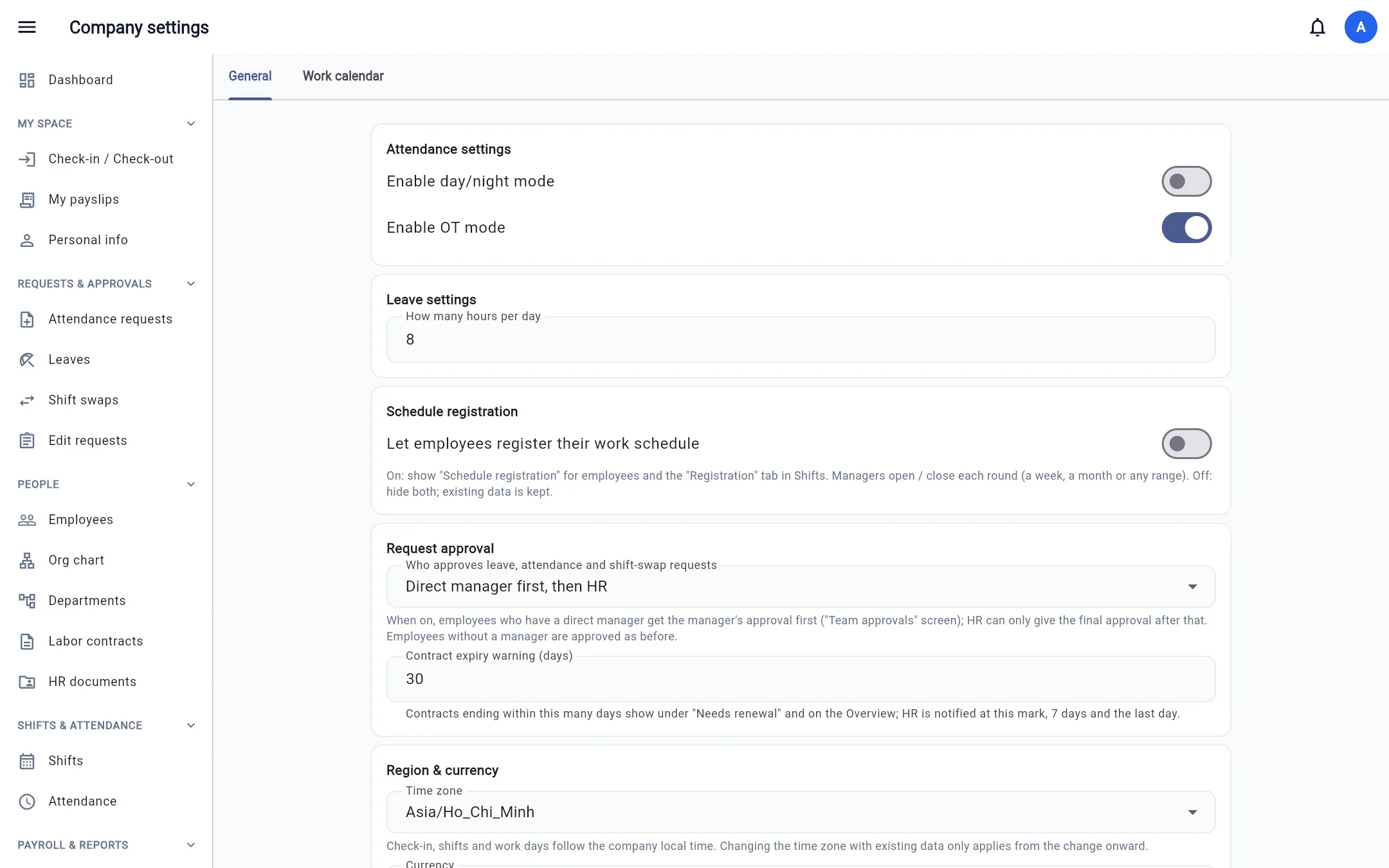
The settings are grouped into collapsible sections: Region & currency, Work hours & time bands, How employees check in, Location & device, Check-in/out time window, Shifts & scheduling, Leave settings, Request approval, Payroll. Click a section name to open or close it; several can be open at once. The Save button stays pinned to the bottom of the screen and saves the changes in all sections, including closed ones.
| Item | Meaning |
|---|---|
| Day / night mode, Enable OT mode | Separates night-shift hours; allows overtime registration |
| Leave settings | How many hours equal 1 leave day (for hourly leave requests) |
| Request approval | By permission and scope (default) or Direct manager approves first, then HR |
| Schedule registration | On: employees get the Schedule registration menu, and Shifts gets a Registration tab where managers open / close rounds and approve them into shift assignments |
| Pay time bands | Visible to Admins only. On: define the bands of the day (variable name, from – to, may cross midnight, no overlaps; created bands can only be deactivated, not deleted). When attendance is approved, worked hours are split by band; each band's rate is entered in Payroll → Salary grades; formulas use variables named after the bands. Attendance approved before enabling has no band hours |
| Pay time bands | Visible to Admins only. On: define the bands of the day (variable name, from – to, may cross midnight, no overlaps; created bands can only be deactivated, not deleted). When attendance is approved, worked hours are split by band; each band's rate is entered in Payroll → Salary grades; formulas use variables named after the bands. Attendance approved before enabling has no band hours |
| Work locations | On: Shifts gets a Locations tab (home, warehouse, store, site A / B / C…), a location picker when assigning shifts, and location info in timesheets and reports. Off: hides them; existing data is kept |
| Contract expiry warning | Number of days (default 30) — contracts / documents expiring within this many days show a warning |
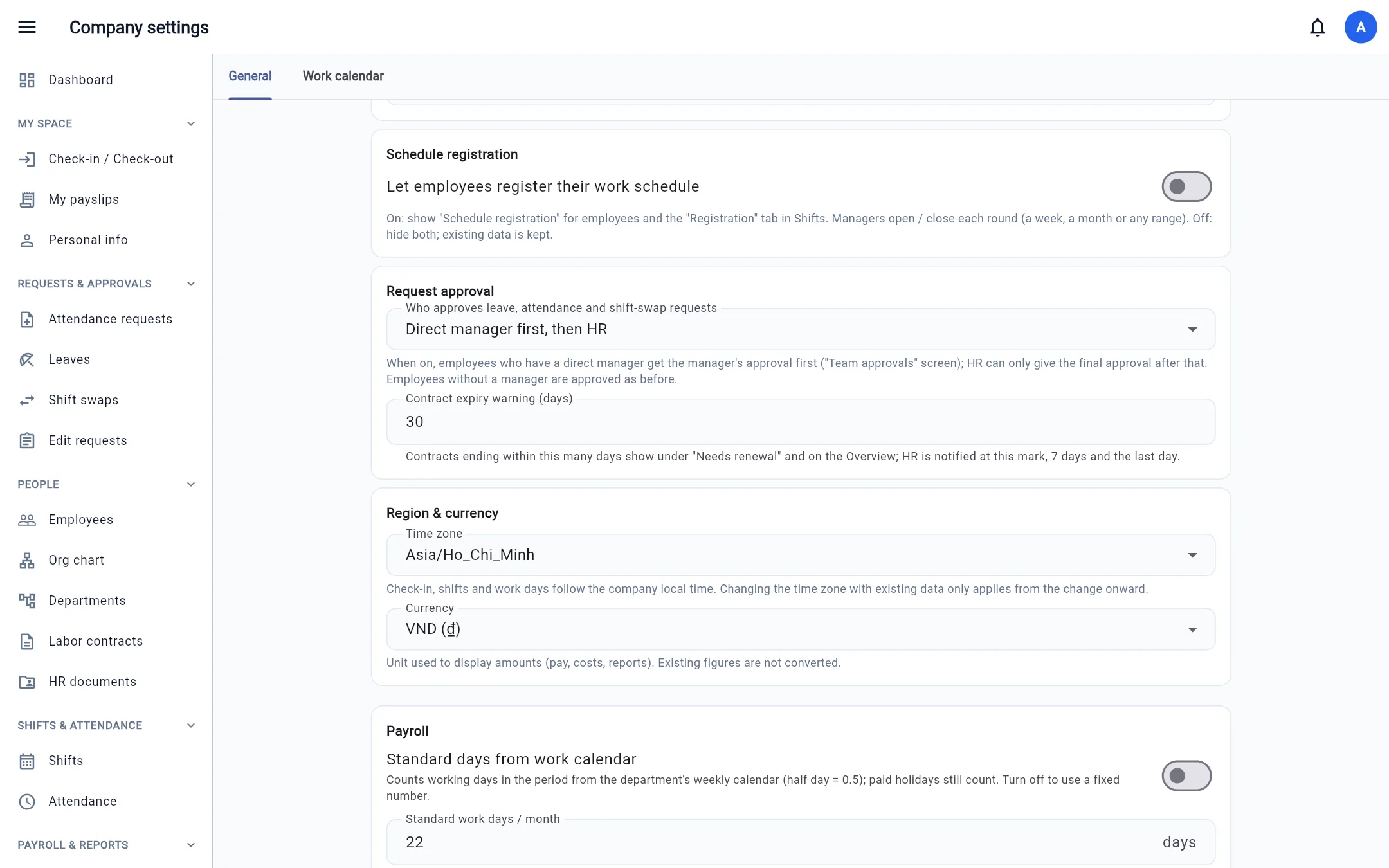
| Time zone | The company's local time (default Asia/Ho_Chi_Minh). Attendance, shifts, "today", work dates and shift reminders are all computed in this time zone — a company in Thailand, Japan, etc. should pick the right time zone to avoid shifted dates / false late marks. Changing it when data already exists only applies from the moment of the change. Daily background jobs (leave accrual, contract / document reminders) still run on Vietnam time |
| Currency | The unit used to display amounts (VND, USD, THB, JPY…): symbol and decimals in payroll, costs and the Dashboard. This only changes the display and does not convert entered amounts; tax and insurance default to Vietnamese regulations |
| Item | Meaning |
|---|---|
| Standard days from work calendar | On: the standard working days of each period are counted from the department's weekly calendar and holidays. Off: use the fixed number below |
| Standard working days / month | Default 22 |
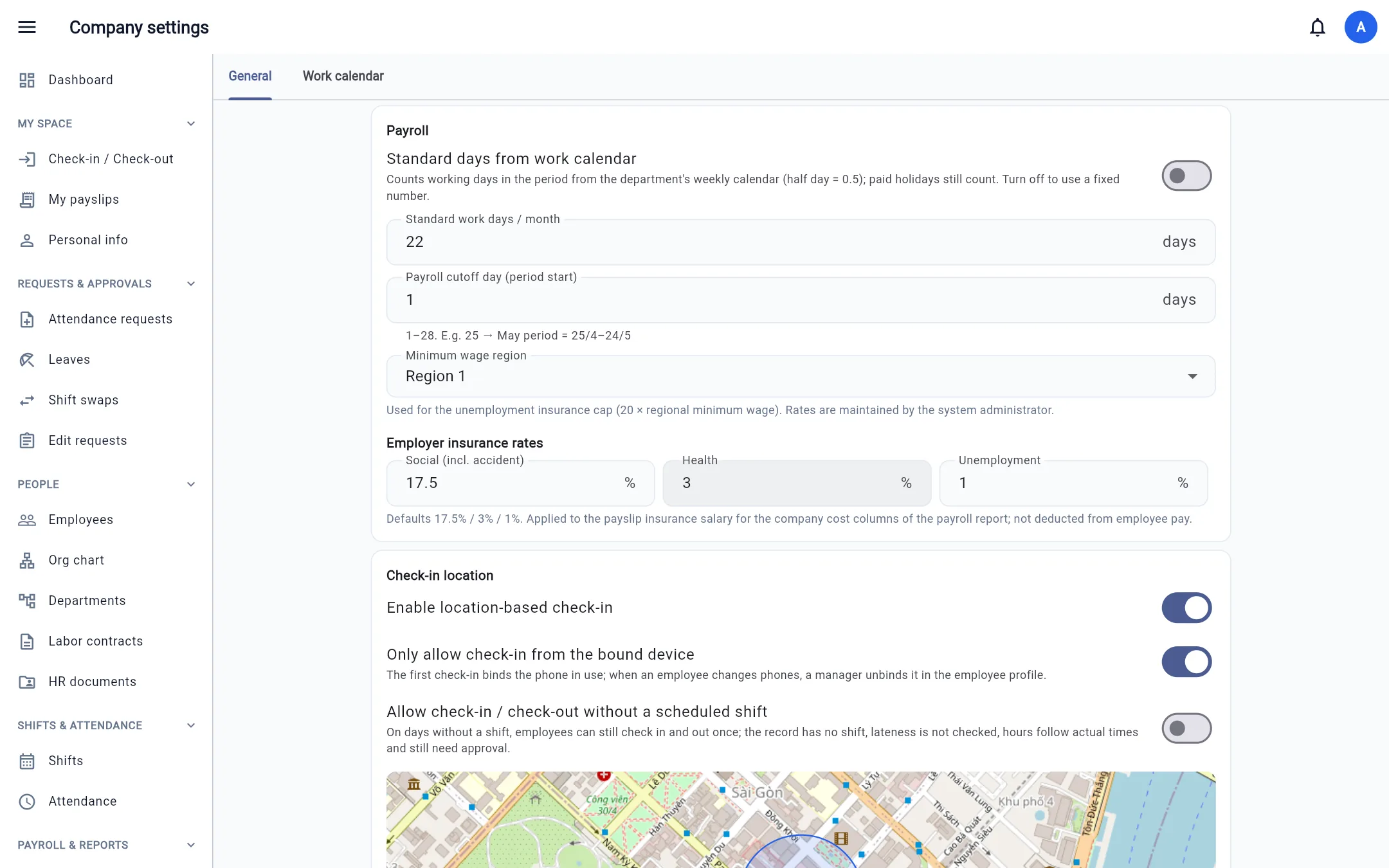
| Payroll cutoff day | The day a period starts (1–28). E.g. 25 → the May period is 25/4–24/5 |
| Minimum wage region | Region I–IV, used to compute the unemployment insurance (BHTN) cap and the insured-salary floor |
| Employer insurance rates | Social insurance (BHXH) 17.5% · health insurance (BHYT) 3% · BHTN 1% (shown in cost reports, not deducted from pay) |
| Item | Meaning |
|---|---|
| Enable location-based check-in | Requires employees to be within a radius of the company location (or the department's own location). Set the location on the map, with the Use current location button, the Paste Google Maps link button (paste a place link, including shortened links, and the system extracts the coordinates) or enter latitude / longitude |
| Only allow check-in from the bound device | The first check-in binds the device; other devices are blocked. To switch devices, HR removes the device in the employee's profile |
| Allow check-in / check-out without a scheduled shift | On days with no shift, employees can still check in / out multiple times (each pair is one attendance row; a new pass cannot start until the previous one is checked out): attendance is not tied to a shift, lateness is not evaluated, hours follow actual time, and approval is still required. On days with a shift, check-in still follows the shift window |
| Let employees add a note when checking in / out | On (default): the Check-in screen has a note field and Attendance has a Notes tab. Off: the note field and the tab are hidden; notes saved earlier are kept, notes sent after turning it off are ignored |
| Show check-in location to managers | On (default): the check-in / check-out cells of the timesheet and daily view show a 📍 pin; tap it to see the map and open Google Maps. Off: the server returns no coordinates to managers; employees still see their own location |
| Max hours per punch (no shift) | Shown when the option above is on. Past this many hours after check-in, the employee can no longer check out — the punch counts as having no check-out (they submit a timesheet correction; a new punch can still start). Empty = 24 hours (max 48) |
| Max counted hours per punch | Later check-outs still count at most this many hours, e.g. set 8: in at 8:00, out at 19:00 still counts 8 hours. Empty = no limit (max 24) |
| Check-in / out time range | How many minutes early / late employees may check in around the shift time |
Remember to click Save at the bottom of the page.
Work calendar tab
Weekly calendar
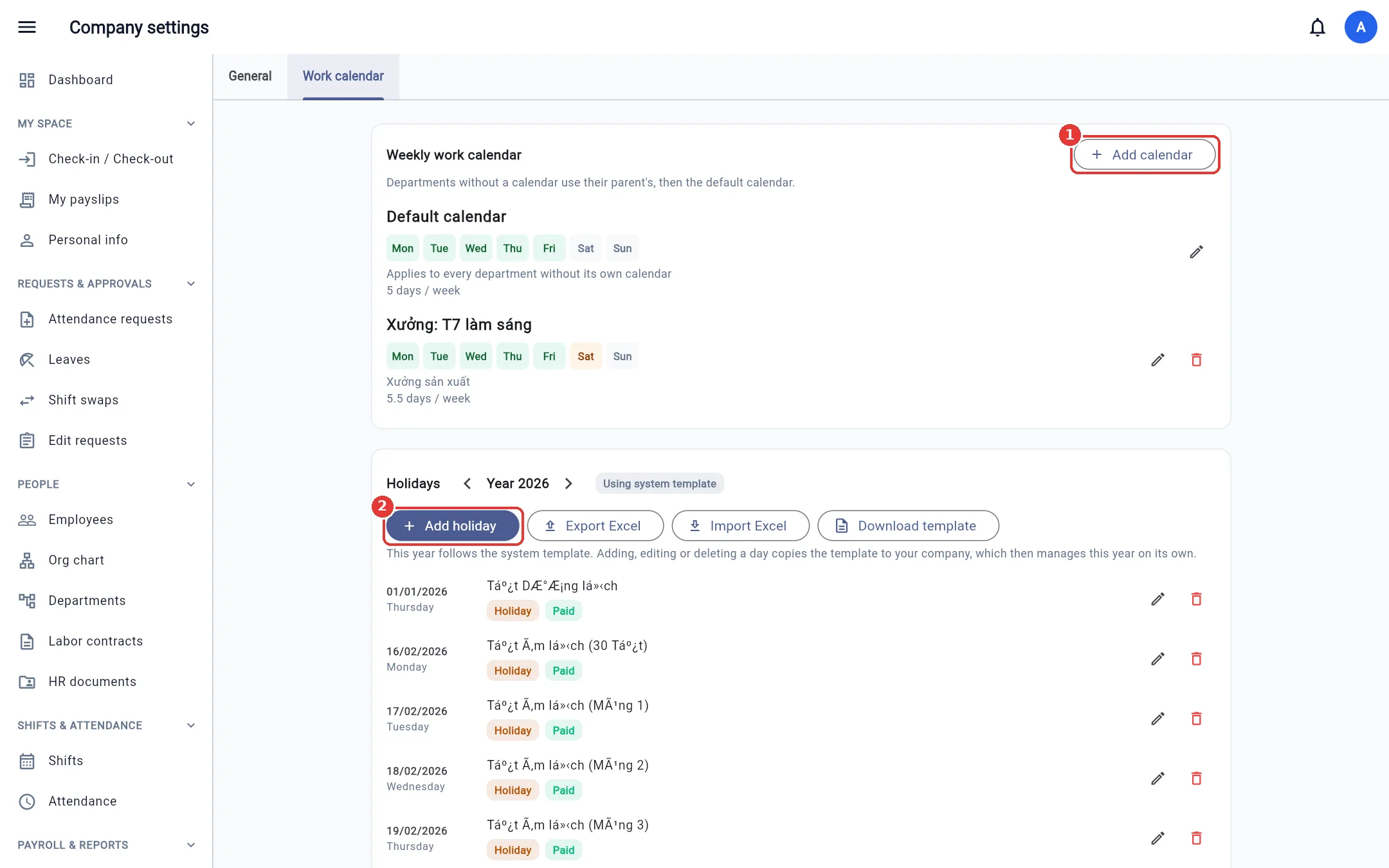
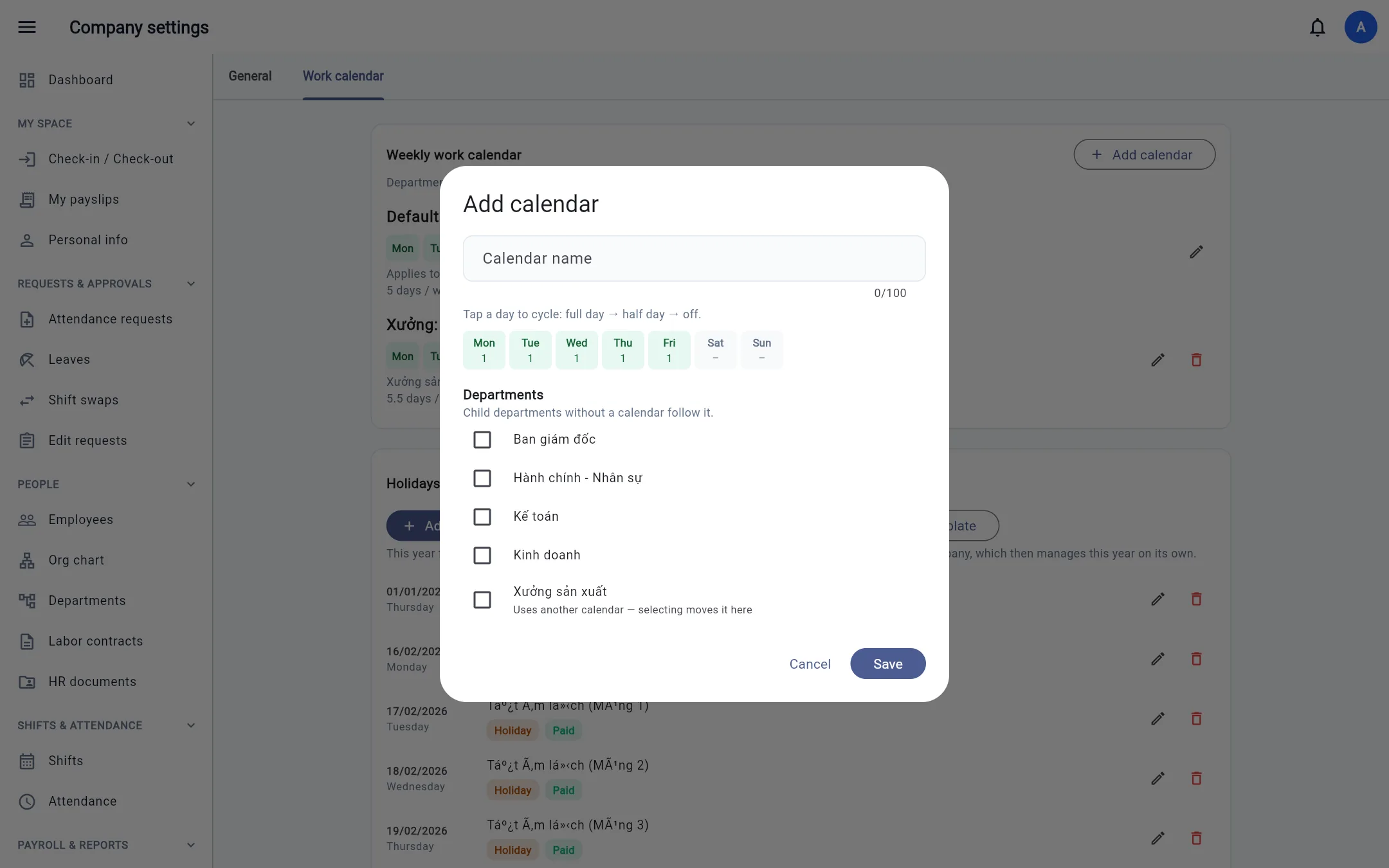
Each calendar defines, for every weekday, a full day, a half day or a day off. The default calendar applies to every department without its own calendar.
- Click Add calendar and name it (e.g. "Workshop: Sat morning").
- Click each weekday to cycle full day → half day → day off.
- Tick the departments that use this calendar → Save. Child departments without a calendar use their parent's calendar.
Holidays
A list by year (arrows change the year). By default the company uses the system template (New Year, Lunar New Year, Hung Kings' Day, 30/4, 1/5, 2/9…). The first time you add / edit / delete a day in a given year, that year's template is copied into the company's own list.
- Add holiday: date, name, type (Holiday, Compensatory day off, Swapped workday), and whether it is paid.
- Export / Import Excel to import the Tet holiday schedule from the yearly announcement (with preview); Download template gives a blank file with instructions.
Effects: leave requests do not count holidays, the shift grid and attendance sheet colour holidays, and payroll gets HOLIDAY_DAYS (paid holidays) and
HOLIDAY_OT_HOURS (hours worked on holidays).