 BossKin
Getting started
Sign in, change your password on first login, get to know the home screen, menu, language and notifications.
For: Everyone
Sign in
BossKin runs in a web browser (computer) and as an Android phone app. Your company gives you the sign-in address.
- Enter the work Email that HR registered for you.
- Enter your Password. Click the eye icon to see what you typed.
- Click Sign in. Leave Remember me unchecked on a shared computer — you will have to sign in again after closing the browser.
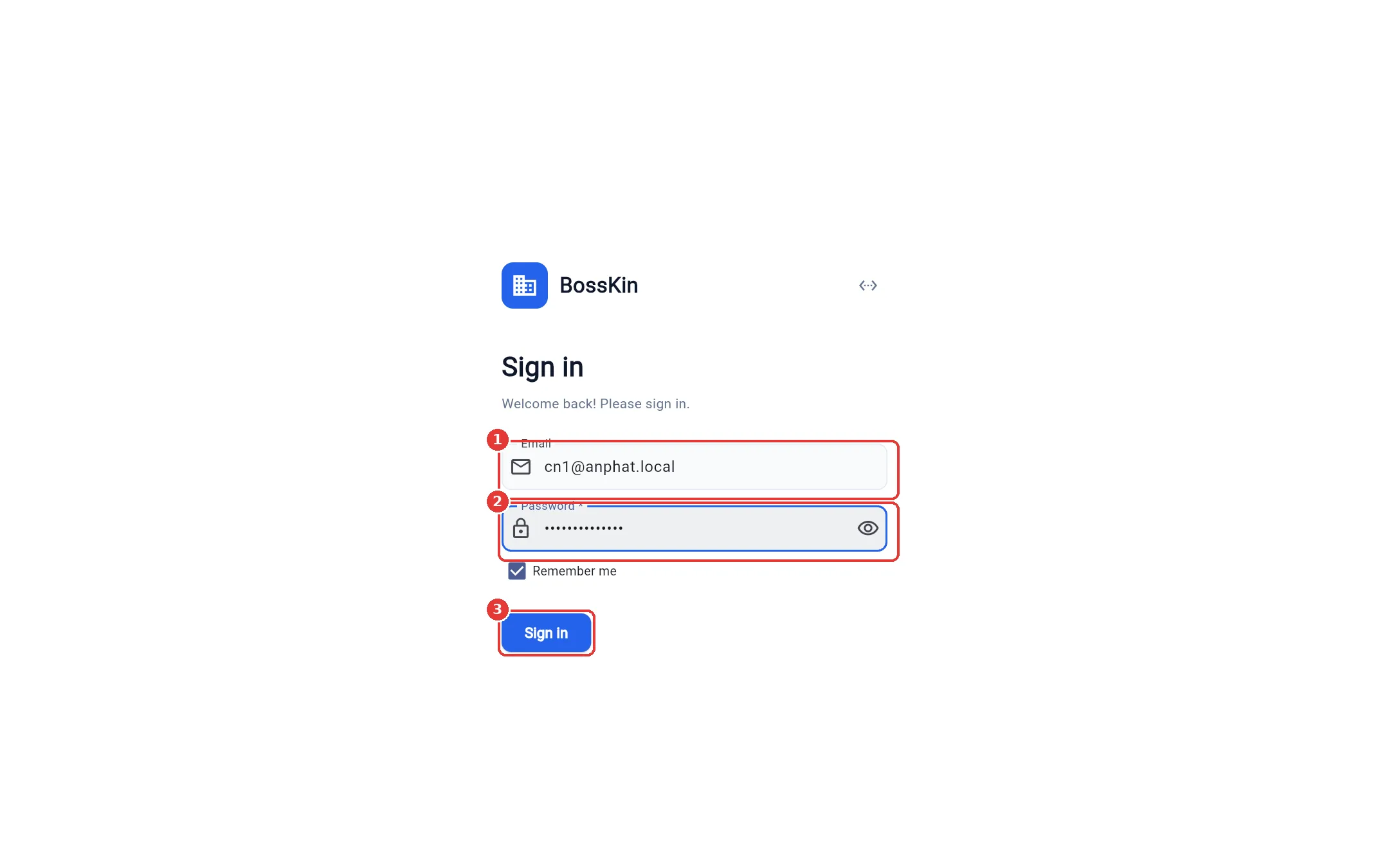
Note: After several wrong passwords in a row, the account is locked for a few minutes to prevent password guessing.
Change your password on first sign-in
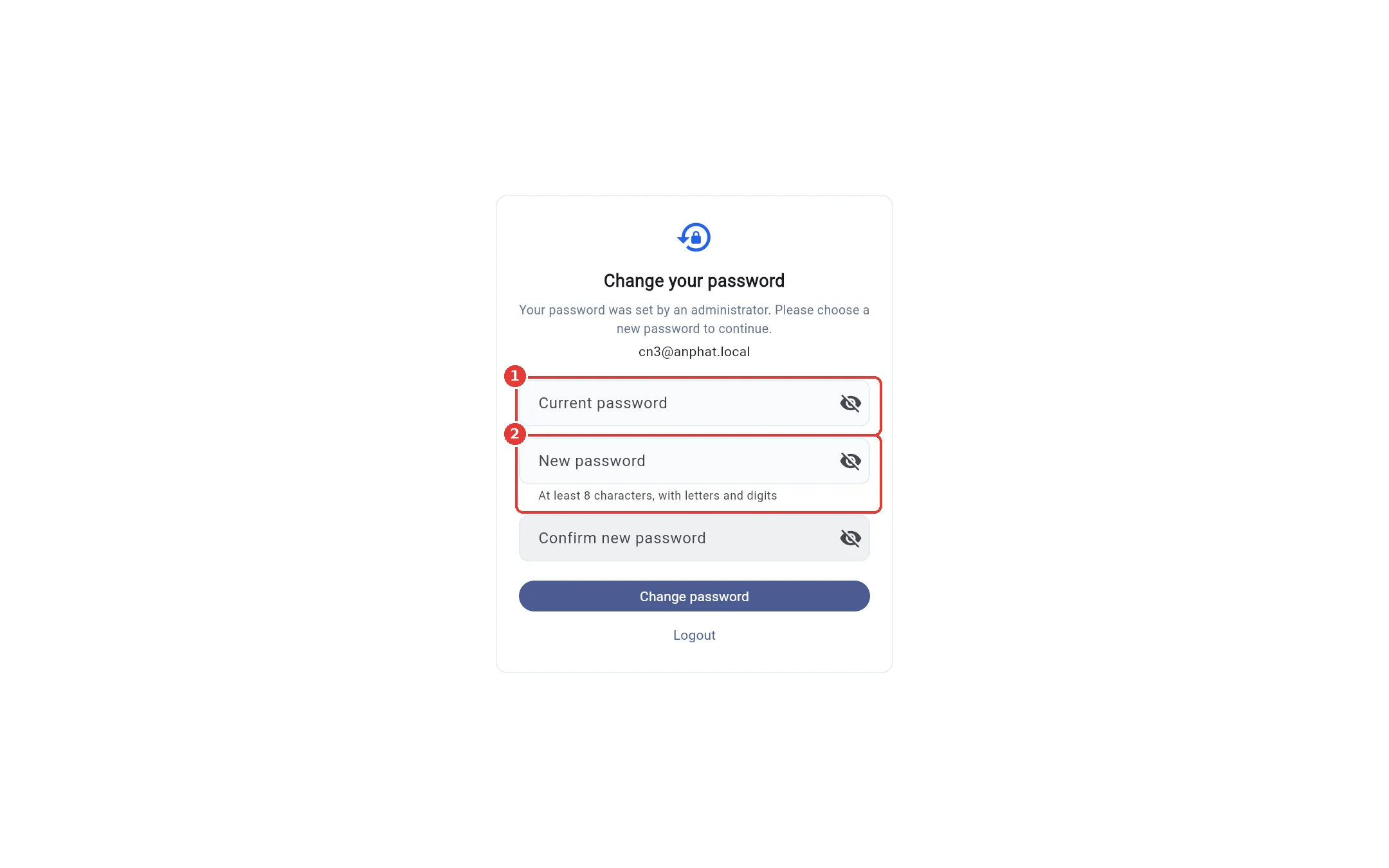
Accounts created by HR (added manually, imported from Excel or via "Export temporary passwords") have a temporary password. On your first sign-in, BossKin takes you straight to the change-password screen; you cannot use anything else until you change it.
- Enter your Current password (the temporary one you were given).
- Enter the New password twice: at least 8 characters, with both letters and digits.
- Click Change password. The system signs out your old sessions and you sign in again with the new password.
Home screen and menu
The menu on the left is split into groups. You only see the items you have permission for — regular employees see fewer items than managers or HR.
| Group | Contains |
|---|---|
| Overview | Today's figures (for managers) |
| My space | Check-in / Check-out, My payslips, Personal info |
| Requests & approvals | Attendance requests, Leave, Shift swaps, Team approvals, Edit requests |
| People | Employees, Org chart, Departments, Labor contracts, HR documents |
| Shifts & attendance | Shifts, Attendance |
| Payroll & reports | Payroll, Reports, Import / Export |
| Settings & system | Company settings, Roles, Audit log |
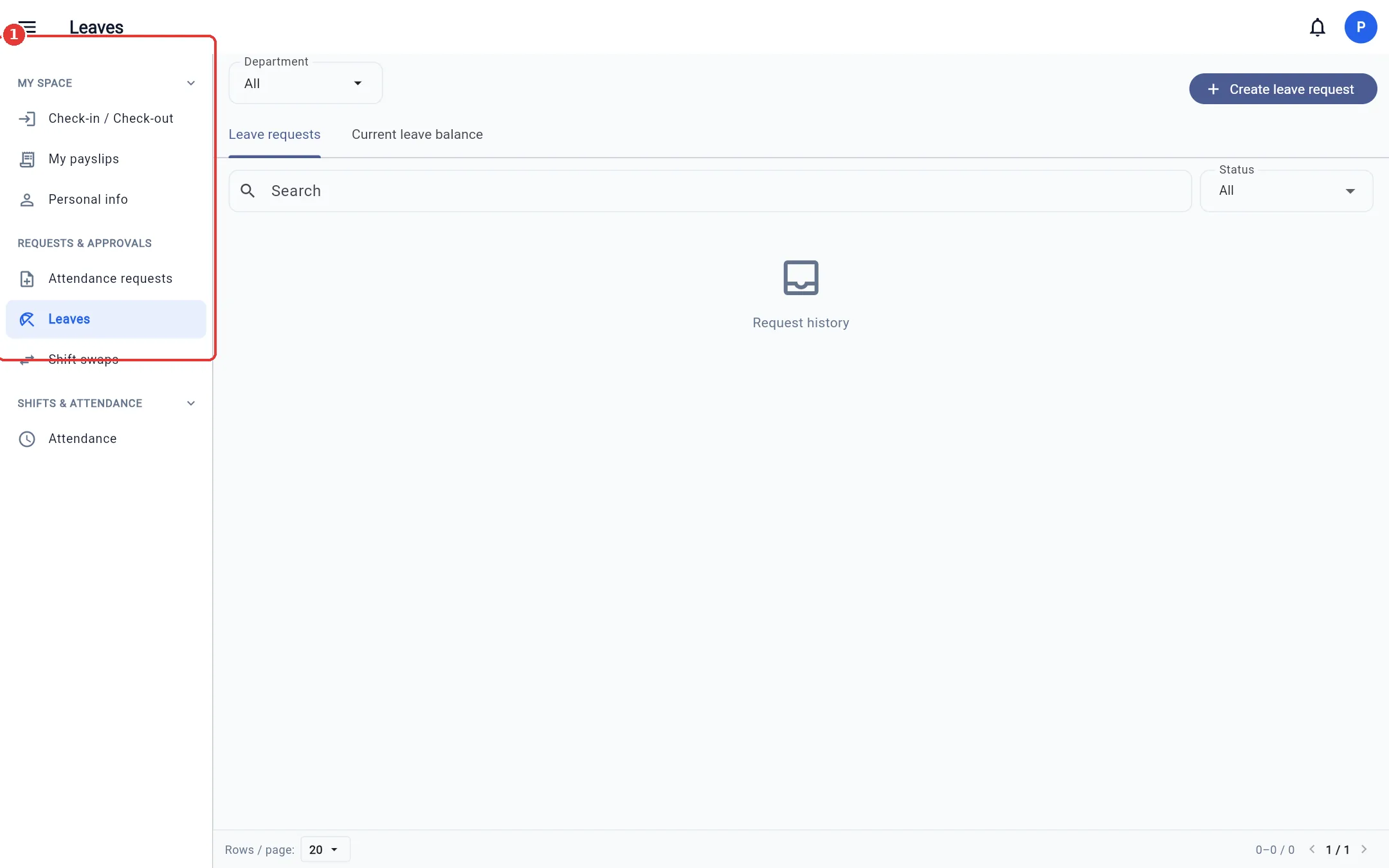
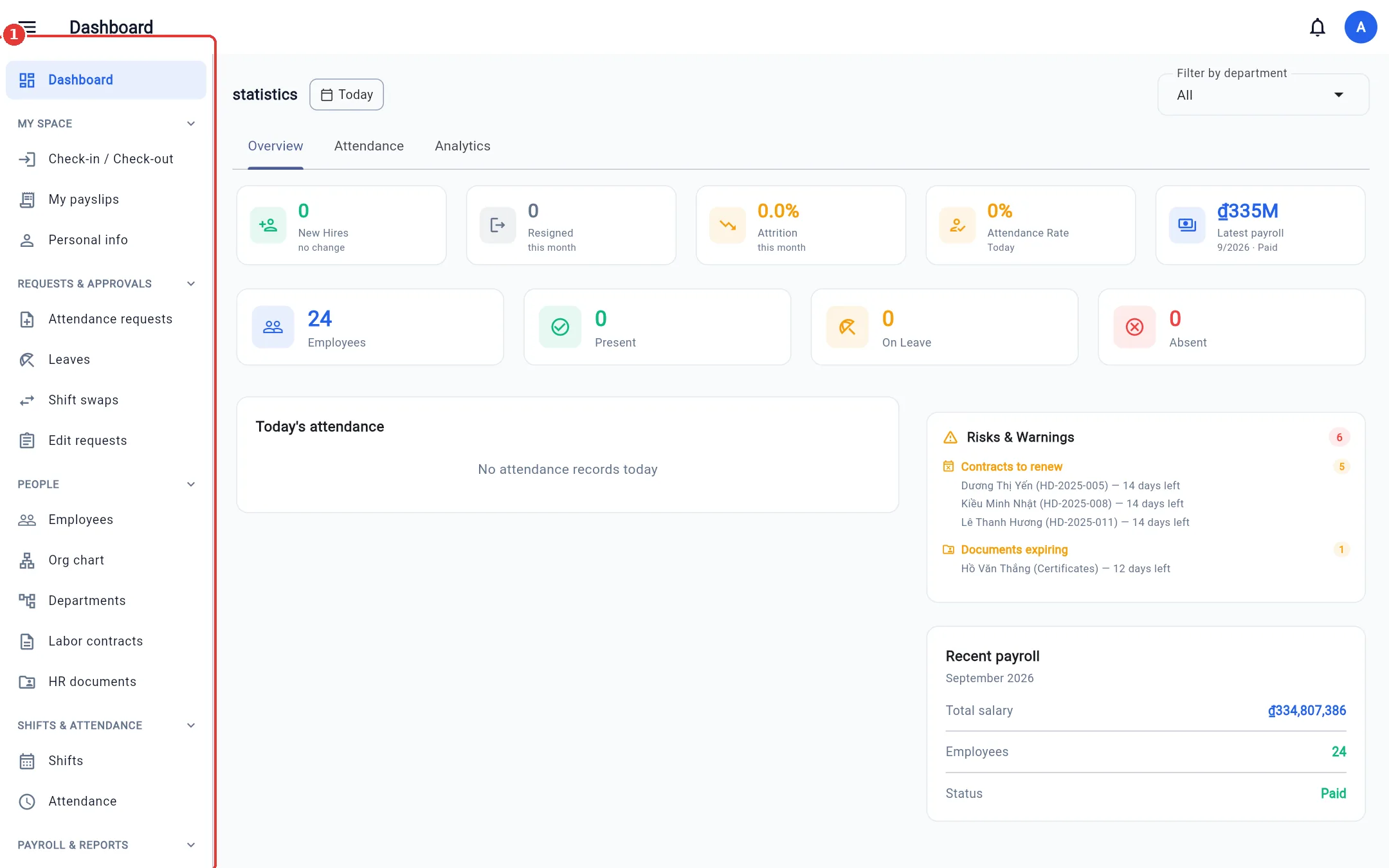
Click a group title to collapse / expand it; BossKin remembers your choice. The group containing the screen you are on is always open. The ☰ button at the top left hides / shows the whole menu to give tables more room.
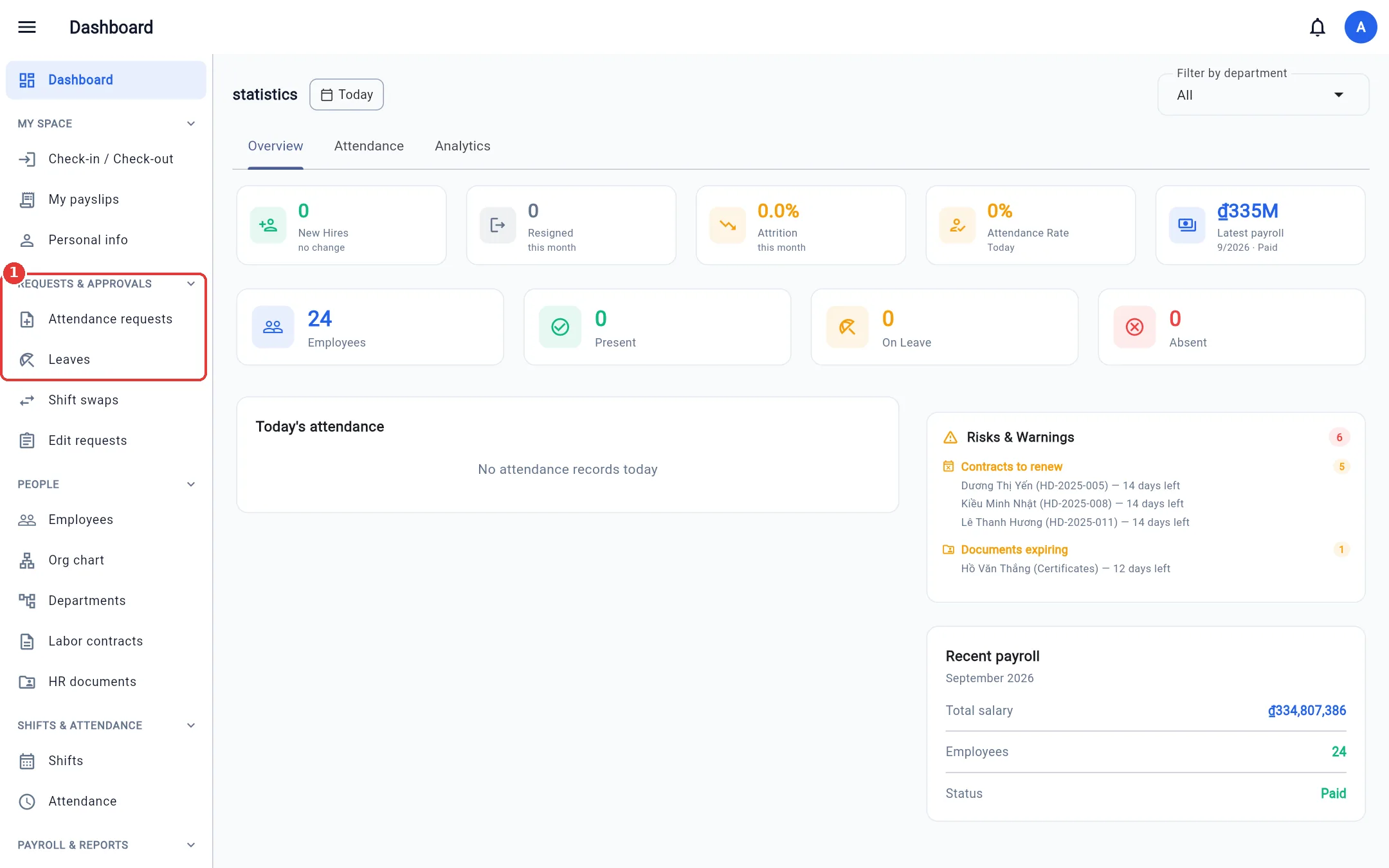
On a phone, the menu is behind the ☰ button, and a bottom navigation bar holds the most-used items.
Account, language and sign-out
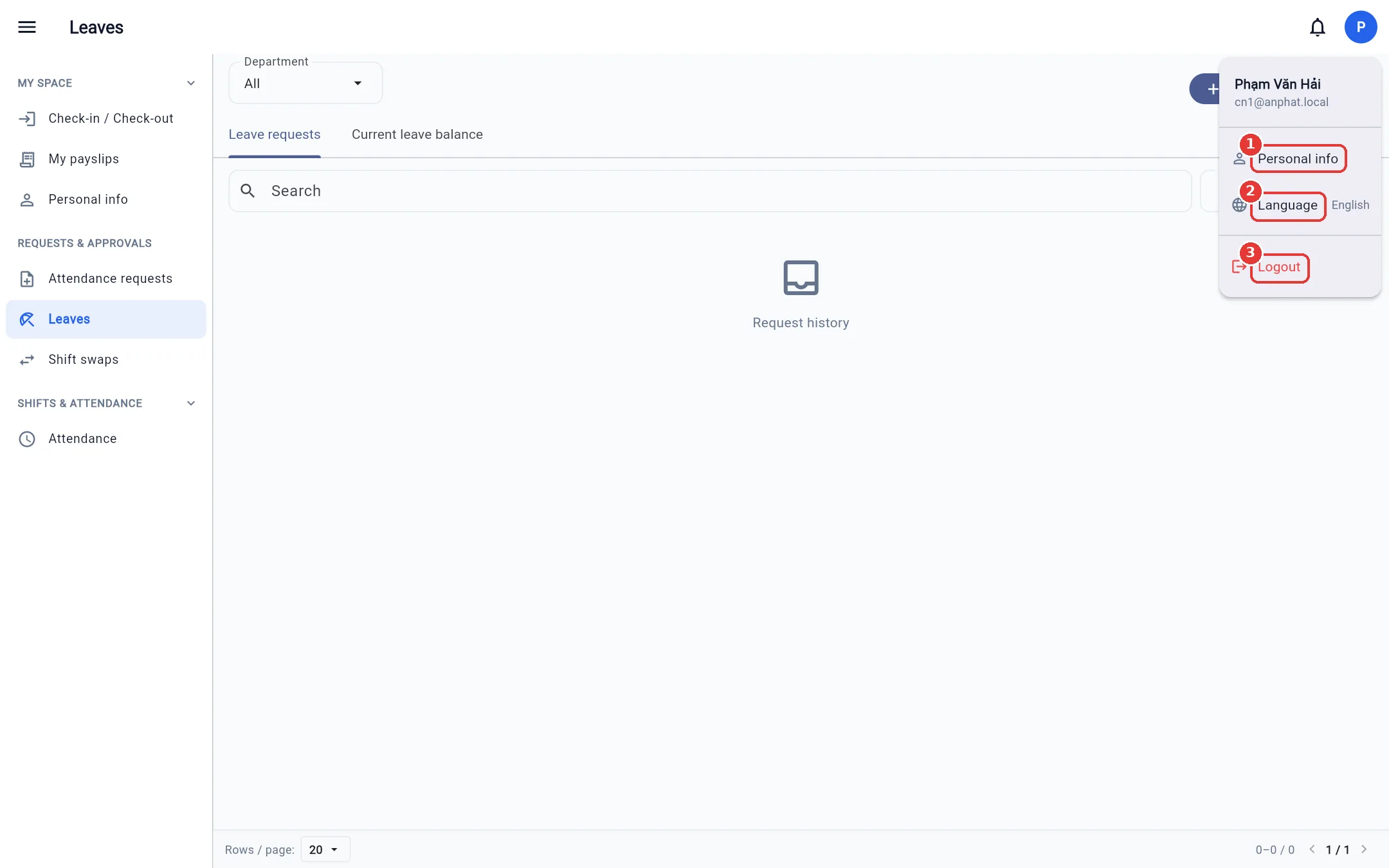
Click your avatar (the first letter of your name) at the top right:
- Personal info — profile, change password, two-factor authentication, light / dark theme.
- Language — switch between Tiếng Việt / English. All text and error messages change accordingly.
- Logout.
Notifications
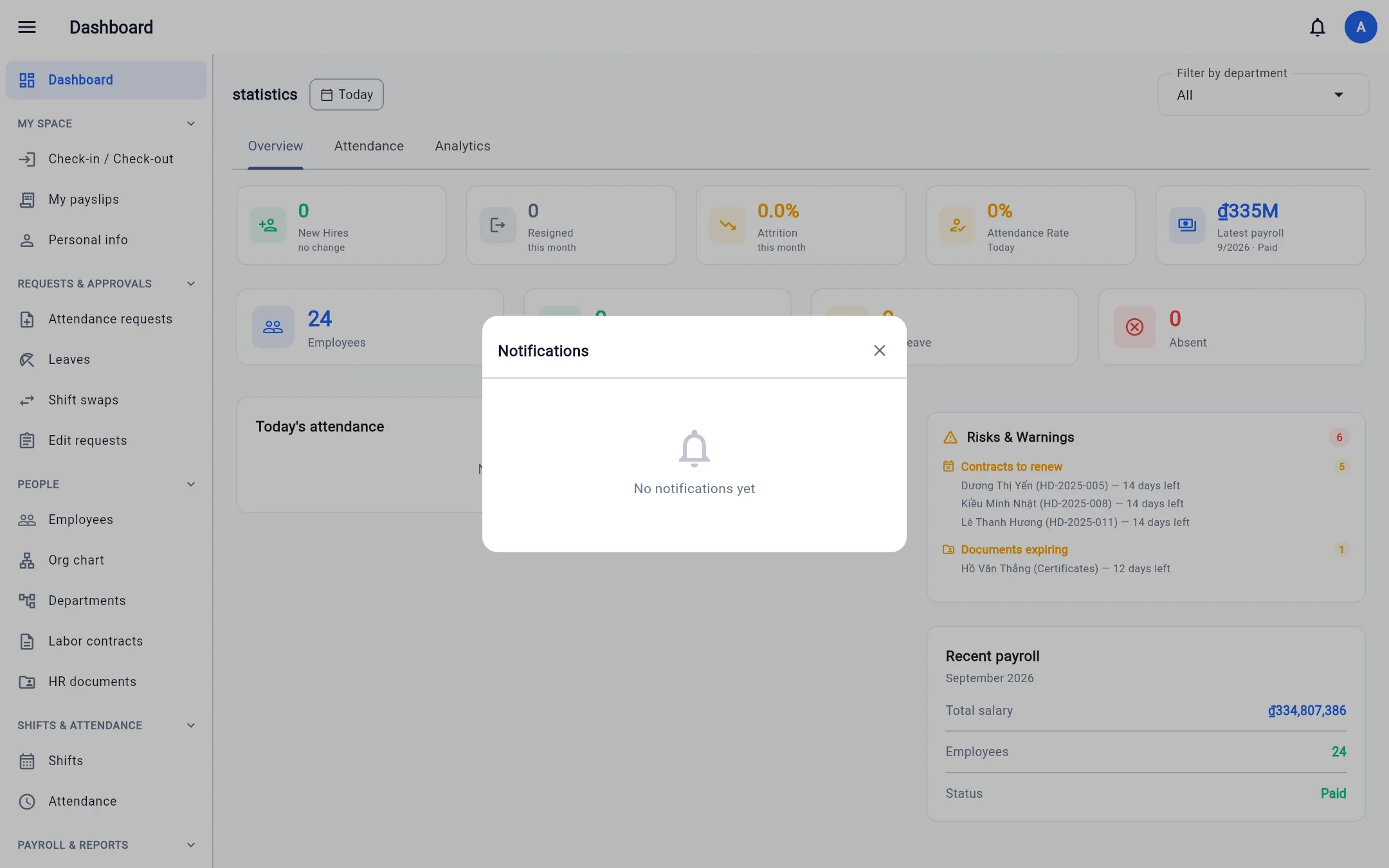
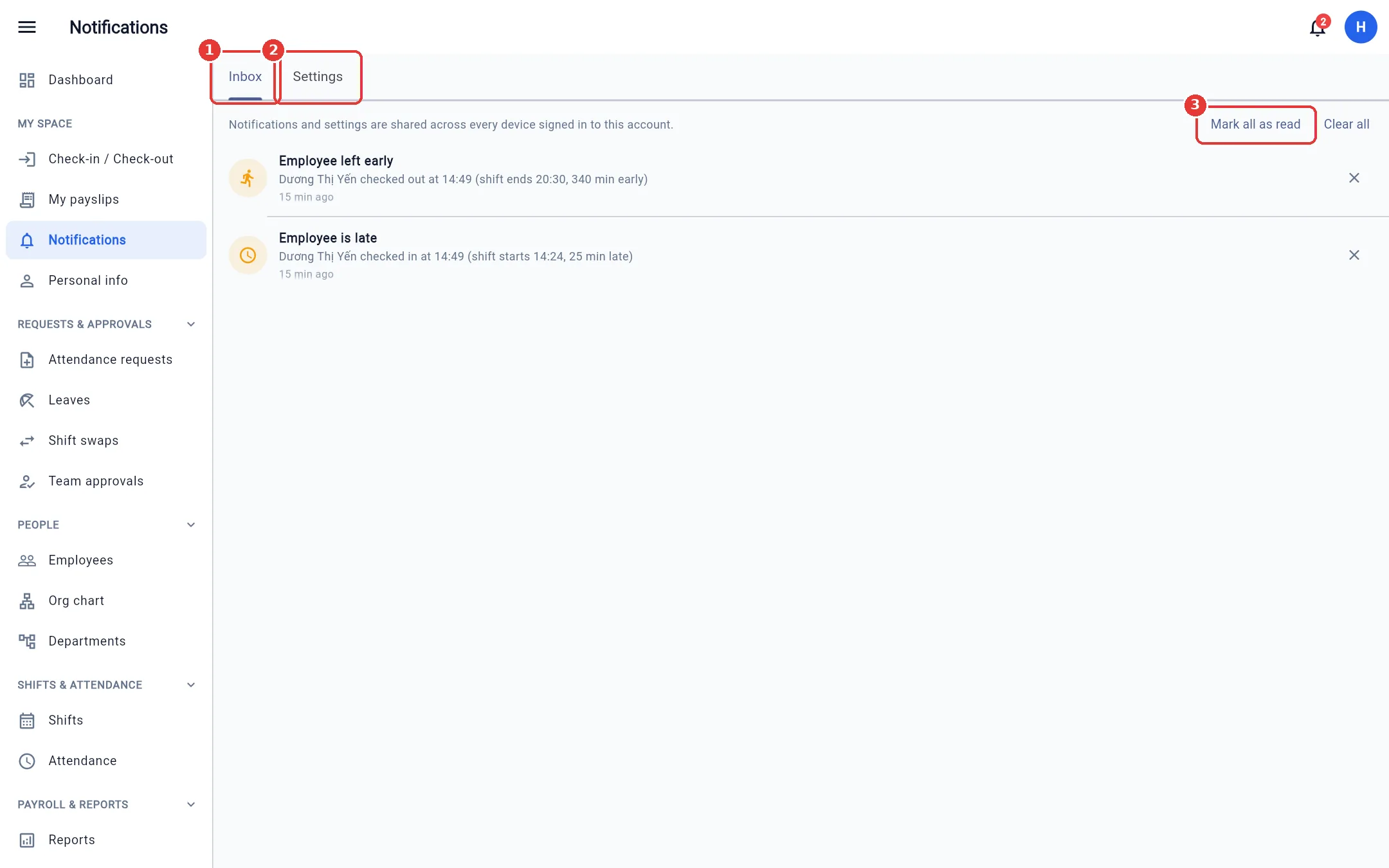
The bell icon shows how many notifications are unread: requests approved / rejected, attendance reminders, contracts about to expire… Click it for a quick look; open the Notifications menu (My space group) to see everything, mark as read or delete.
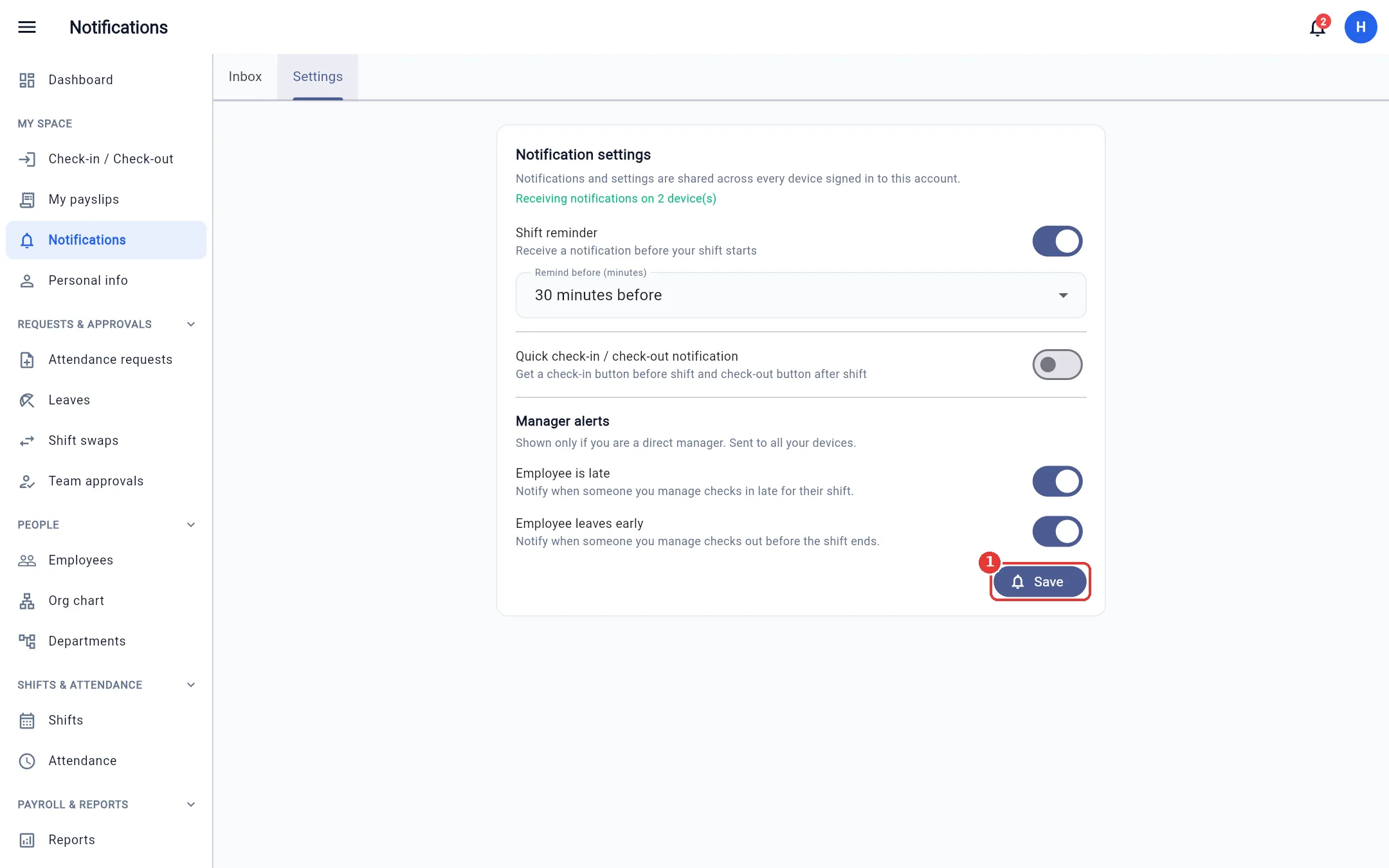
- The inbox follows your account: a notification sent to phone A is still there when you sign in on device B (another phone or a computer). Settings are saved per account too. Push alerts (shown outside the app) go to one device only — the one where you turned them on last.
- The Settings tab is split into collapsible groups (several can be open at once; the sub-line shows how many items are on): Mine, Manager, HR & admin. Only the groups / items you have permission for, and whose feature your company has turned on, are shown. Mine also has Request results (leave, attendance correction, shift swap, profile change, document approved / rejected), Payslip (approved, paid), Shift changed and Schedule registration open; Manager has Requests waiting for me; HR & admin has Contracts expiring, Documents expiring and New profile change request. In detail: Shift reminder (get a notification before your shift starts), Quick check-in / check-out notification (a clock-in/out button right in the notification, phone), and — if you are a direct manager of employees — Manager alerts: Employee is late / Employee leaves early (notified when someone you manage checks in late or checks out before the shift ends, using the company's tolerance) and Employee is absent (notified when someone has a shift but still has not checked in after it started; set the delay in Alert after shift start (minutes), from 5 to 120, default 15). Each shift is reported only once; flexible shifts, public holidays and days with an approved leave are skipped. There is also Employee forgot to check out: notified when someone checked in but still has not checked out after the shift ended (set the delay in Alert after shift end (minutes), 5–120, default 15; each shift is reported once; flexible shifts are skipped). Turn them on or off, then click Save.
- Send test notification: turn on at least one type and click it; a few seconds later the device that receives your alerts shows a notification (and it is also kept in the inbox). If you see nothing, check the app's notification permission in your phone settings; if the app says "Push notifications are not enabled on the server", tell your system administrator.
- The web version gets notifications too: the first time you click Save or Send test notification the browser asks for permission — choose Allow. On iPhone, add BossKin to the home screen and open it from there to receive them.
Forgot your password
BossKin does not send password-reset emails. Tell your company's administrator / HR: they click Reset password next to your name (key icon) on the Employees screen or Roles → Users and give you a temporary password. Sign in with it, then set a new password as described above.