 BossKin
Timesheets, approval and period locking
View attendance by day / week / month, edit and approve it, approve a whole period, approve attendance requests, lock periods.
For: Attendance managers, HR
View the timesheet
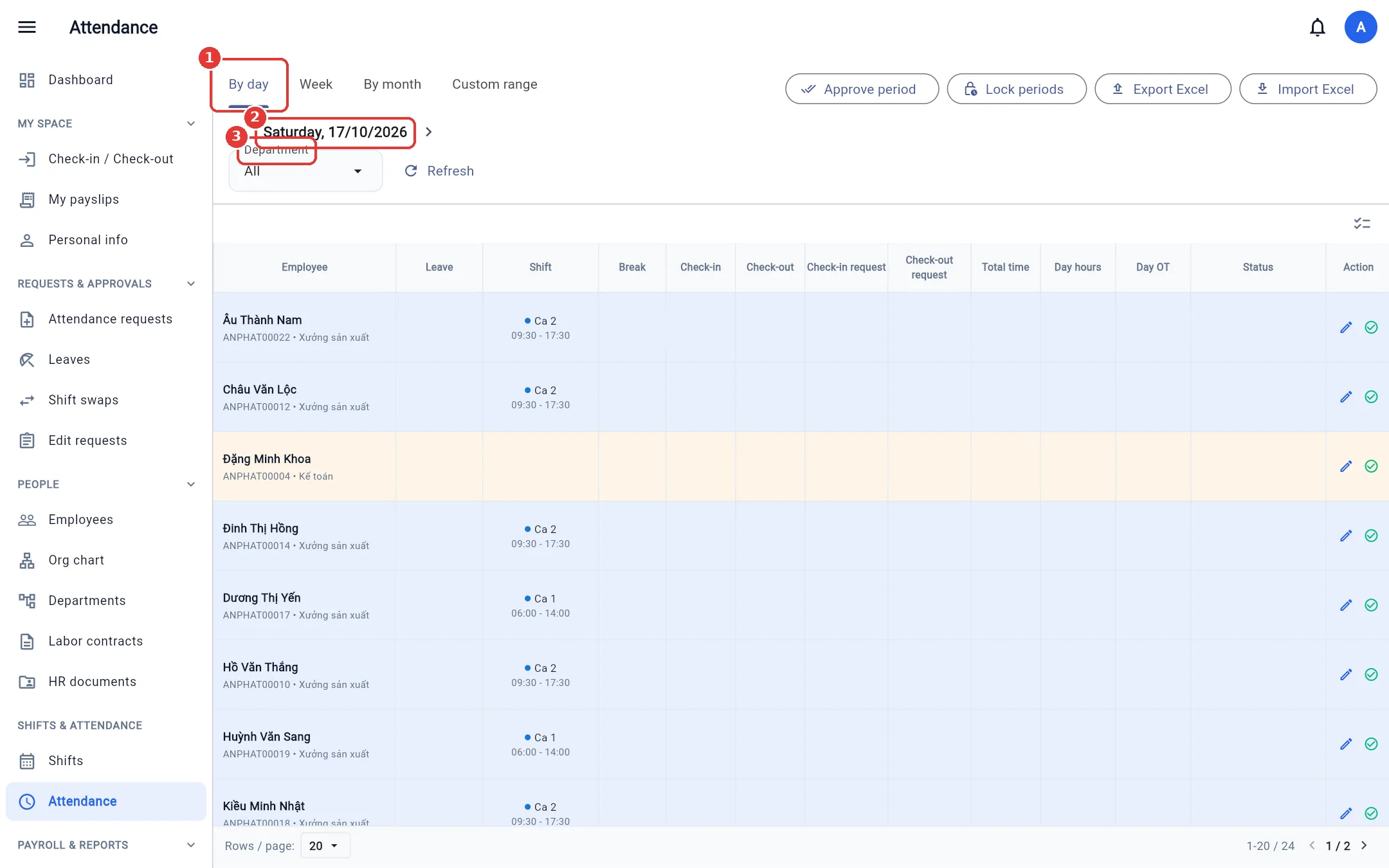
Open Attendance and pick a view in the View by field (on a phone it sits on the same row as the date; the department / employee filters are tucked below). There are four views, all the same table:
- By day — every employee for one day: shift, check-in / out, break, total hours, overtime, status.
- Week — a 7-day grid.
- By month — each day of one employee (pick them in the Employee field).
- Custom range — a summary over several days.
If your company allows check-in notes, the screen also has a Notes tab (next to Timesheet): a list of the notes employees typed at check-in / check-out, filtered by date range (last 7 days by default) and employee name or code.
Filter by department; you only see employees within your assigned scope. Holidays and calendar days off are shaded.
Work location: the pin icon next to the shift name (when the company enabled work locations) is clickable — it opens Google Maps at the location (or searches by address if it has no coordinates); hover to see the location name.
Punch notes: if an employee typed a note when checking in / out, the in / out cell shows a small note icon in its corner — hover (or tap on a phone) to read it. Check-in note / Check-out note columns are also in the exported Excel file (reference only; re-importing changes nothing).
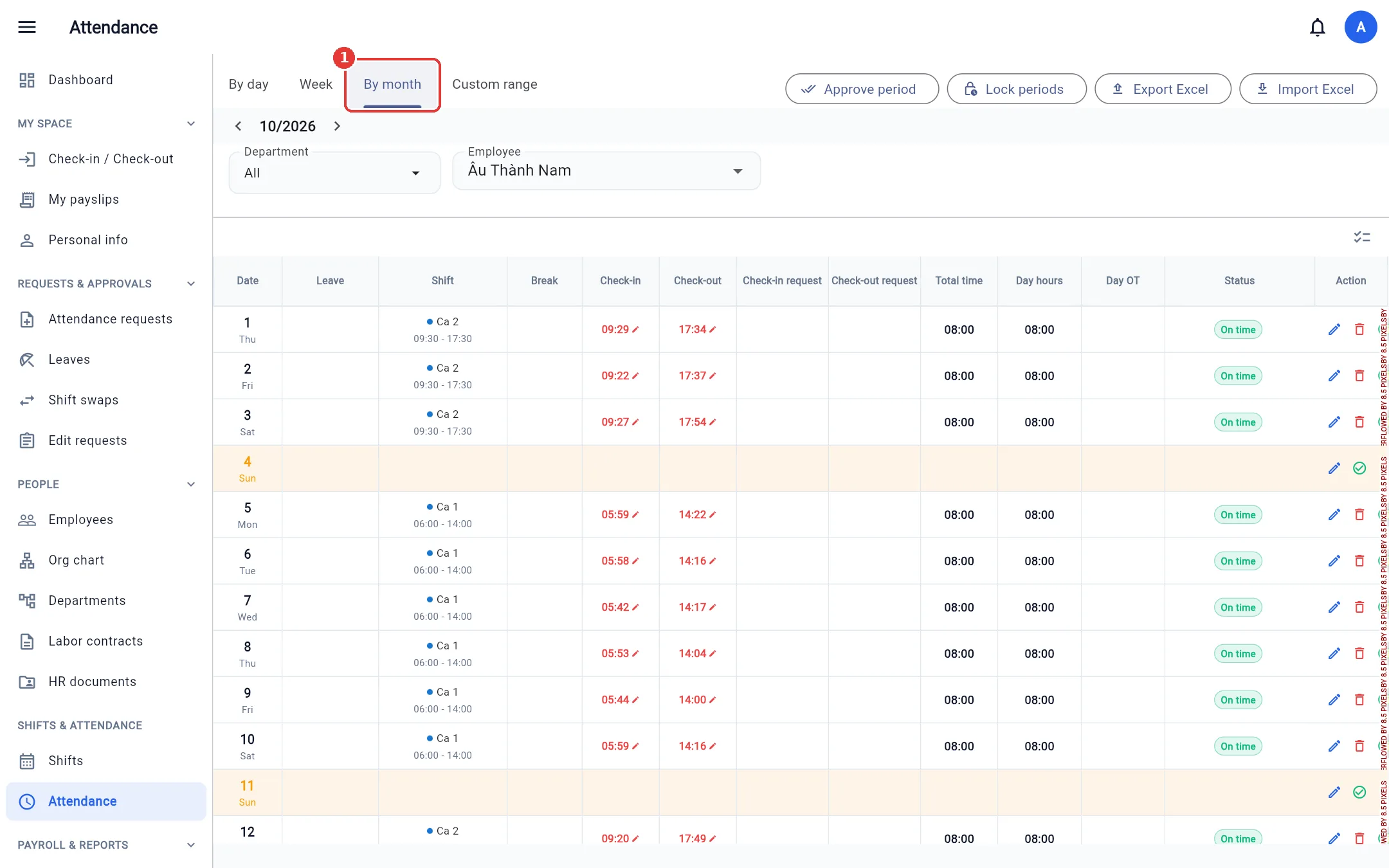
Common statuses: On time, Late, Left early (based on the company / department tolerance in minutes), Absent, On leave.
Edit and approve single rows
Each row has an edit button (pencil) to enter / adjust check-in, check-out and a note; a delete button; and an approve button (check mark). Attendance must be approved before it enters payroll. Every edit / approval / deletion is written to the Audit log.
Overnight hours: Times that fall on a different day from the work day show a small +1 above them (e.g. in at 22:00, out at 06:00 the next day). When editing by hand just enter the time; if check-out is earlier than check-in, the system treats it as the next day. The check-in to check-out span must be under 24 hours.
Note: You cannot approve a day that has no shift and no punch data (this avoids creating a false absence record).
Approve a whole period
Approve every unapproved shift of a whole department (or the whole company) for a period in one go.
- Click Approve period.
- Choose the Period and Department.
- Click Approve. The result reports how many rows were approved, were already approved, and were skipped.
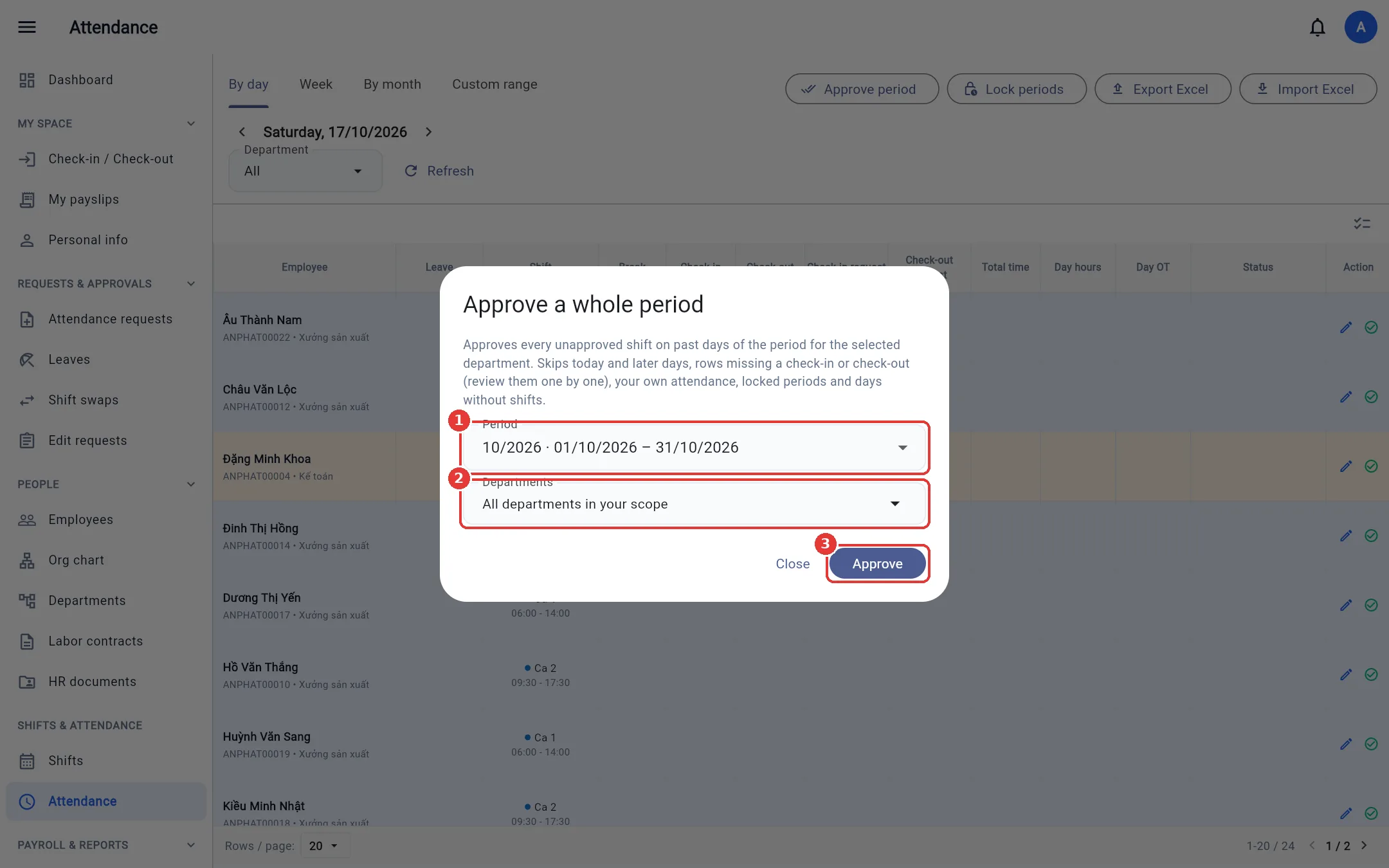
Only days that have passed are approved; rows with only a check-in or only a check-out are left for you to check and approve one by one.
Approve attendance requests
Open Attendance requests → the Pending tab. Each request shows the current time and the requested corrected time. Click Approve or Reject.
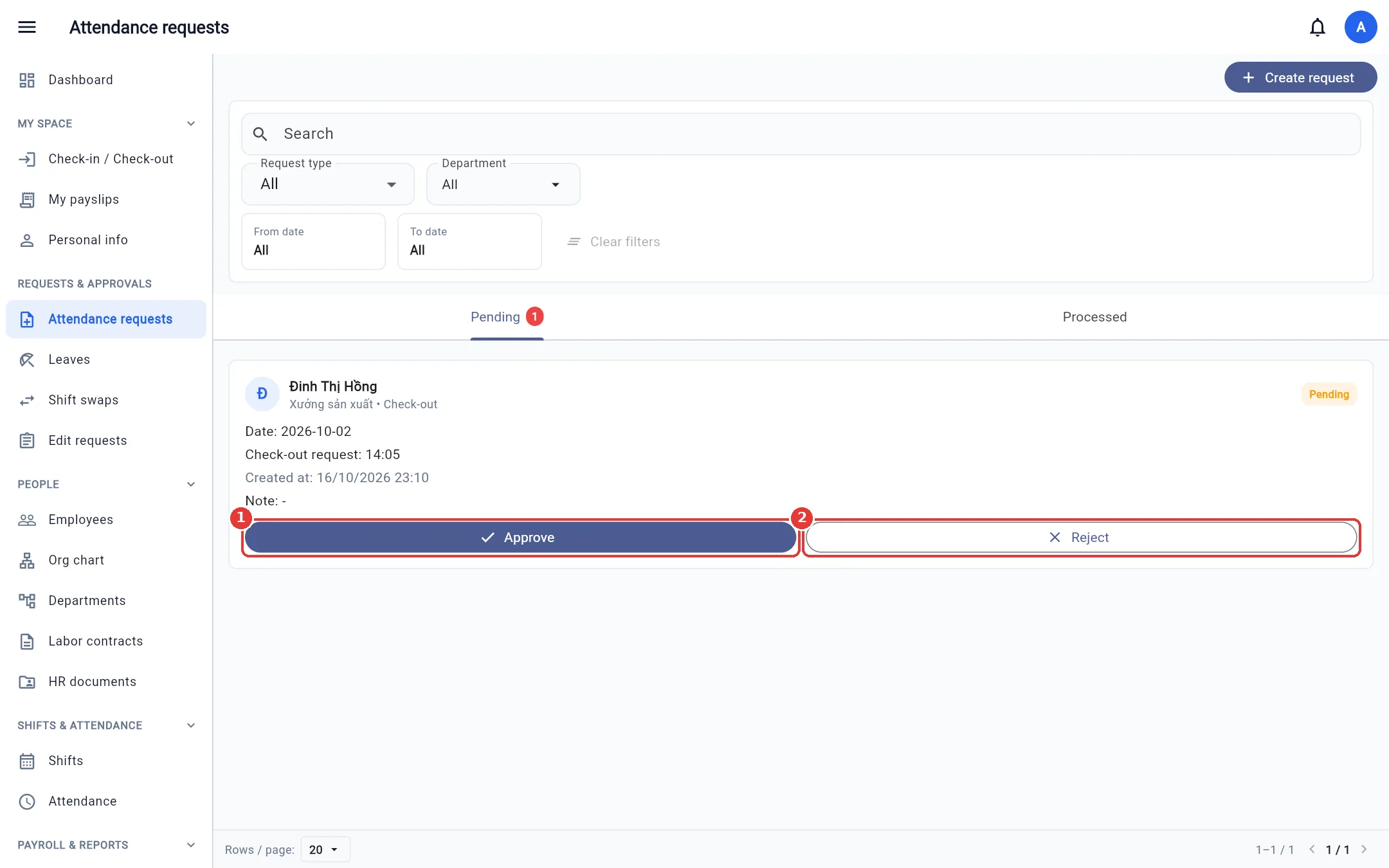
You cannot approve your own requests.
Lock a period
Once the month's attendance is final, lock the period so nobody can edit it any more (payroll is calculated on the finalized figures).
- Click Lock periods — the dialog lists the periods of the year.
- Click Lock on the period to finalize. A locked period has a Reopen button (for when a mistake must be corrected).
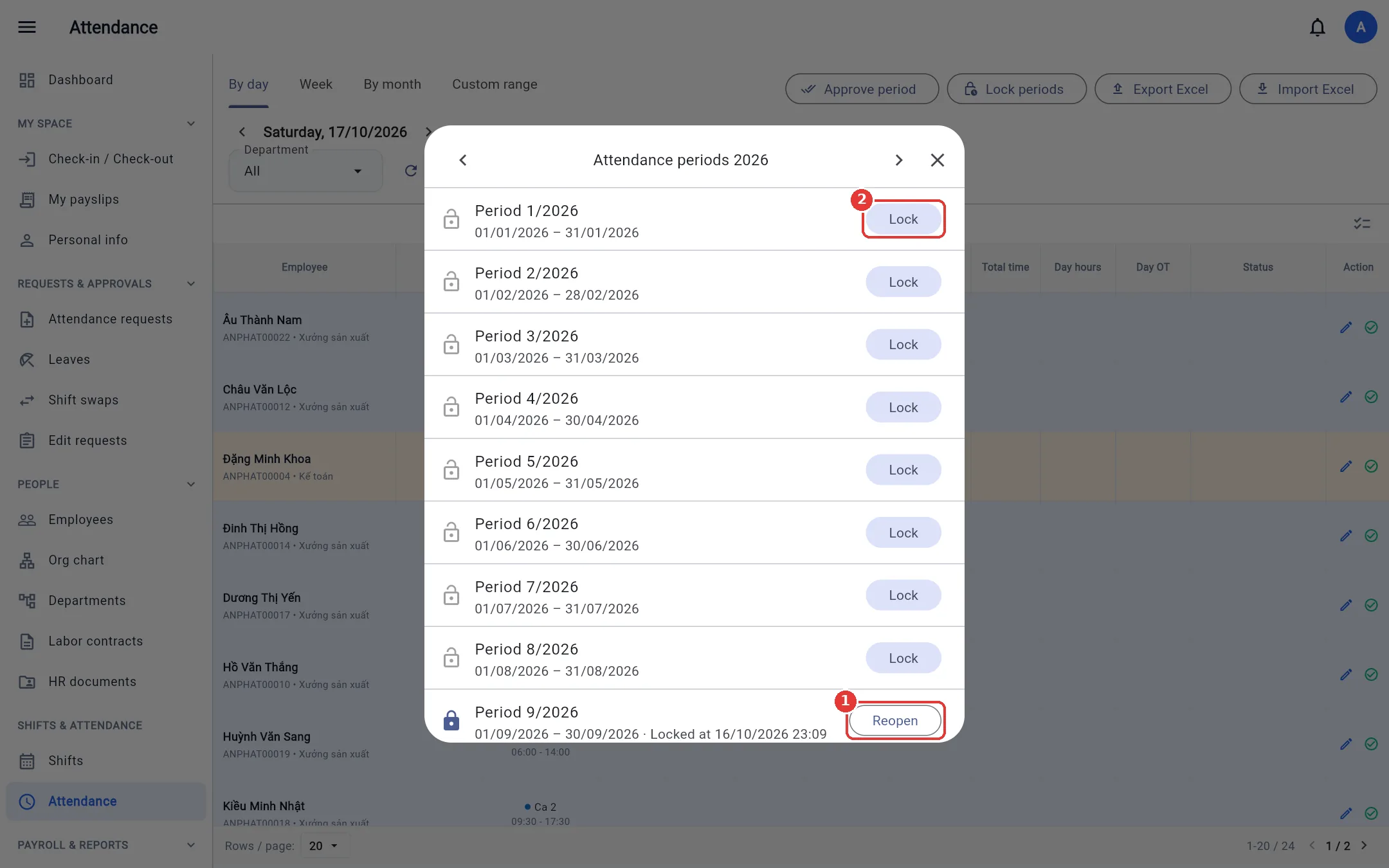
While a period is locked: attendance cannot be edited, deleted or approved, shifts cannot be assigned, and attendance requests cannot be submitted for days in the period.
Export / import Excel
Export Excel downloads the timesheet you are viewing (a whole department by month, one employee by month, or by day). Import Excel lets you bulk-edit times or import punches from an old time clock: there is always a row-by-row preview (create / update / error) before you confirm.
The fastest way to edit is export → edit → re-import the same file:
- Export the timesheet you are viewing.
- Edit the cells marked
*: Check-in, Check-out, Break time, Day / night overtime (asHH:mm), Approval status (true/false); putxin the Delete column to delete that day's attendance. The other columns are for reference only. - Import the file again. The preview lists only the cells you changed (old value → new); unedited rows are skipped, and re-importing an untouched file changes nothing.
Tip: A file exported in the English interface can still be imported while using Vietnamese, and vice versa. An edited day that is already approved is recalculated on approval; you cannot import into a locked period.