 BossKin
Custom workflows (request templates and approval chains)
The company builds its own request templates (fields, file / photo attachments) and approval chains; employees submit, approvers process them in the app.
For: Whoever builds workflows (permission "Build request templates and workflows"); every employee submits requests
What custom workflows are
Besides the built-in requests (leave, attendance corrections, shift swaps…), a company creates its own kinds of request: expense claims, purchase proposals, equipment requests, business trips, feedback… Each kind is a workflow made of a form (the fields to fill in) and an approval chain (who approves, in order). The system administrator turns the feature on for the company (Custom workflows); the Workflows menu sits in the Requests & approvals group.
Building a workflow (people with the build permission)
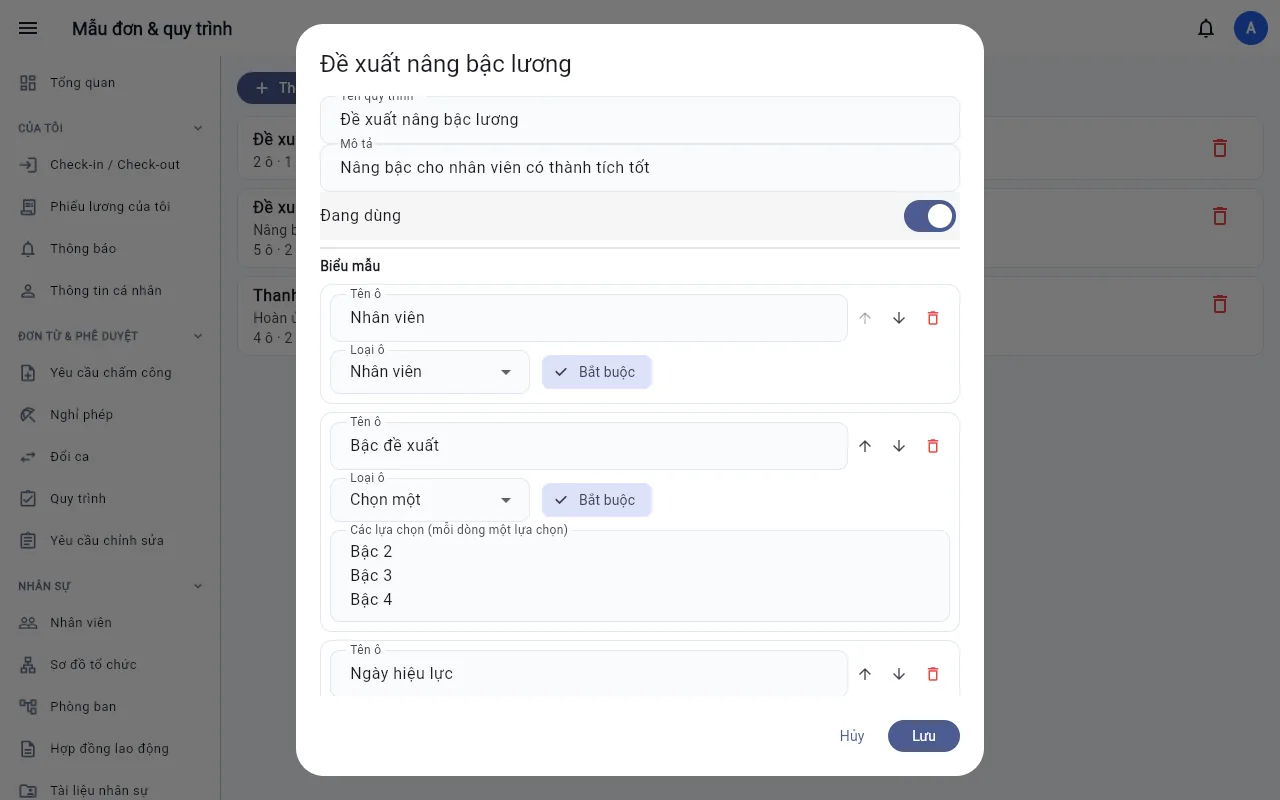
Menu Request templates & workflows (System group) → Add workflow:
- Name, description, In use — turning In use off hides the template when employees create requests (submitted requests keep running).
- Form — add fields and reorder them with the arrows: Short text, Long text, Number, Money, Date, Choose one (Options source: Type my own list — one option per line — or take them from the company's existing lists: Departments, Positions, Salary grades, Leave types, Shifts, Work locations), Yes / no, File / photo (up to 10 files per field, PDF / image / Word, each ≤ 10 MB) and Employee. Turn on Required for fields that must be filled.
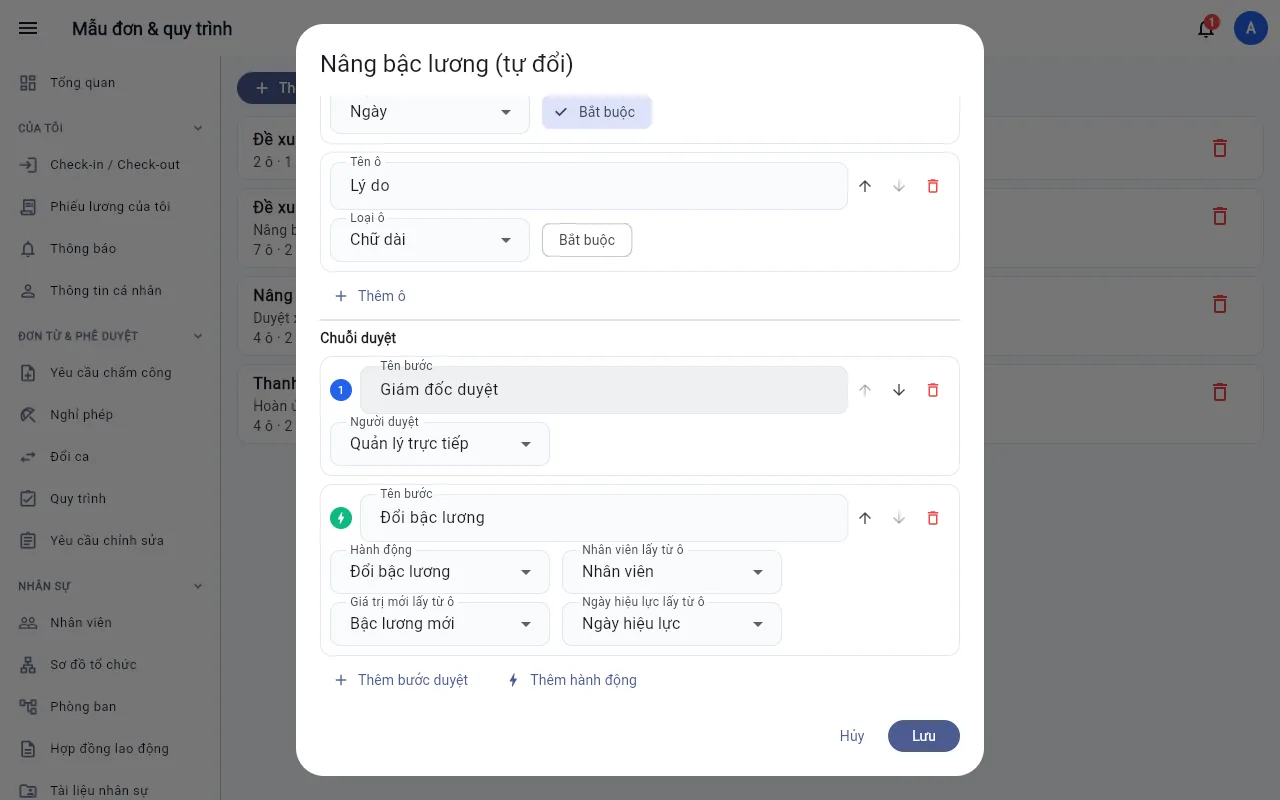
- Approval chain — add approval steps in order; each step names its approver: - the requester's direct manager, - the manager's manager (level 2 to 5), - a role (anyone with that role can approve; one approval completes the step), - a specific person. Requesters never approve their own requests. If a step has no suitable approver (for example the requester has no direct manager) the system tells the requester when submitting.
- Add action (optional) — a step that changes HR data automatically once the approval steps before it have agreed. Three actions exist for now: Change salary grade, Change position, Transfer department. Pick three form fields to feed the action: the Employee field, a Choose one field taking its options from the matching source (Salary grades / Positions / Departments) as the new value, and a Date field as the effective date. These three fields must be Required; an action must come after at least one approval step. The action writes an entry to the employee's Career history (a future effective date applies by itself when it arrives) and to the audit log. Whoever builds the workflow needs the Edit employees permission.
- Click Save. Editing a workflow later does not affect requests already submitted (each request keeps the template as it was). Deleting a workflow only hides it; old requests stay viewable.
Submitting a request
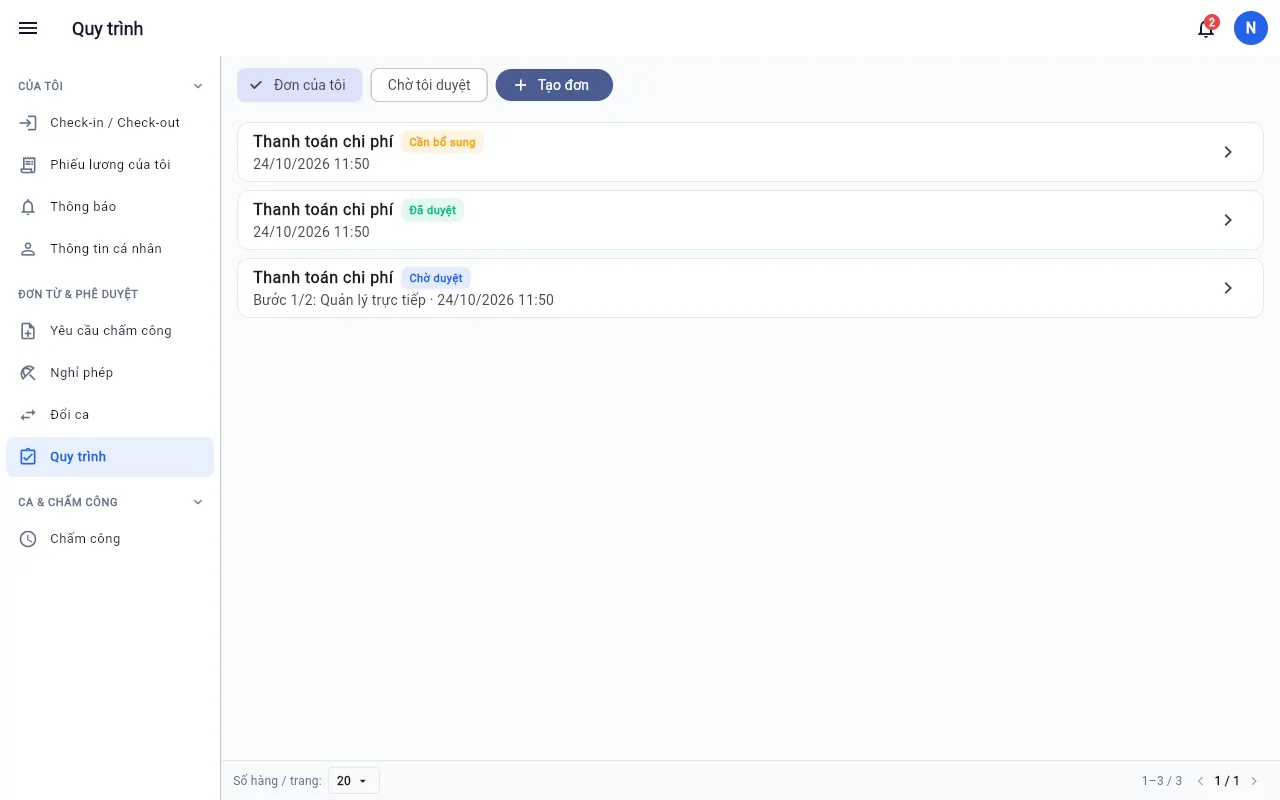
Menu Workflows → New request → choose a template → fill in the fields (choice fields open a box with a search field, accent-insensitive; the Employee field lists people within your viewing scope, always including yourself and your direct reports), Add file / photo if needed (on a phone pick from the gallery) → Submit. The list has a search field (request name, requester) and filters Show (my requests / waiting for me / all requests), Status and Template; New request sits on the same row. Choose My requests to see which step each request is at. Open a request to see its path (who approved, who it is waiting for) and history.
- If an approver asks for more information, the request becomes Needs info; open it and Resubmit after editing.
- A request whose action step fails (for example an effective date before the employee's join date) stays in Action failed: someone with the Build request templates and workflows permission opens it, reads the reason in History and clicks Retry action after fixing the cause.
- Until it is fully approved you can Cancel the request. Approved or rejected requests no longer change.
Approving
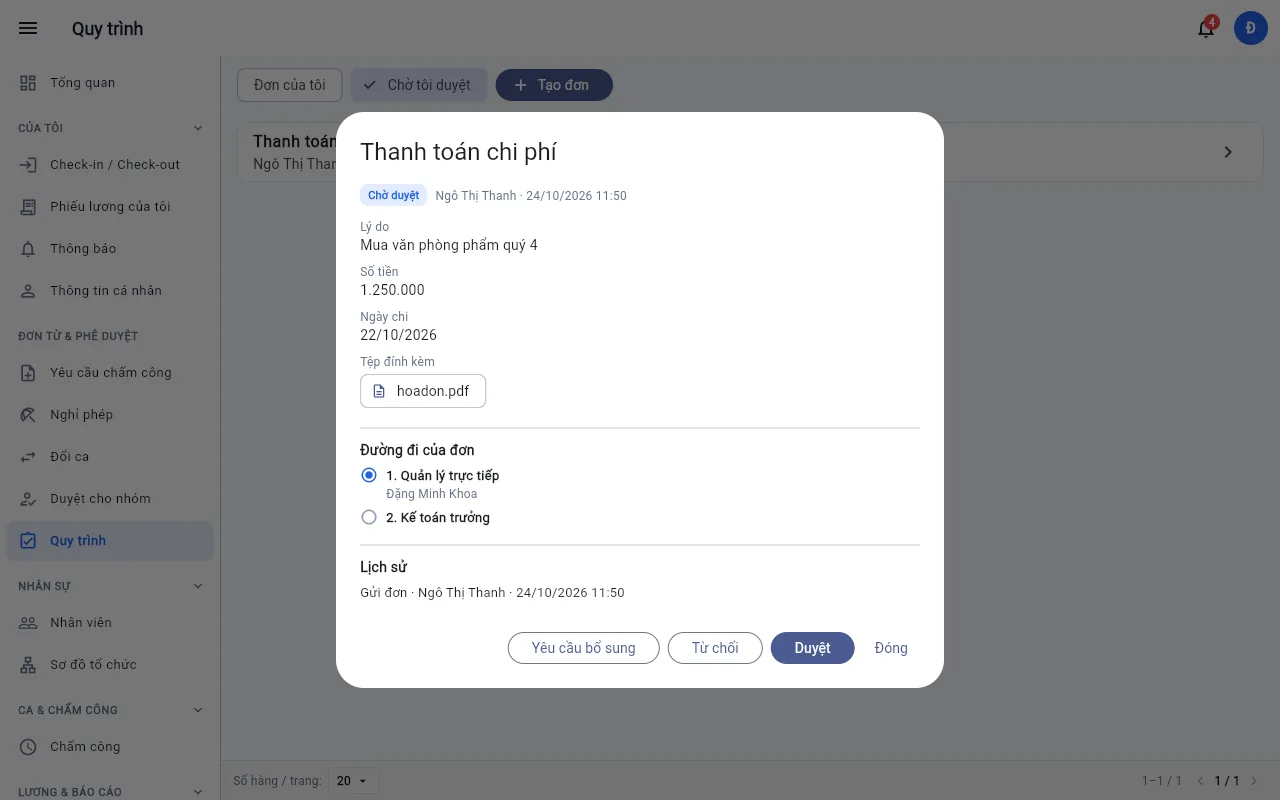
The approver of the current step gets a notification and the request appears in Waiting for me. Open it and choose Approve (next step or done), Reject or Request more info (you must say what is needed). Every action is added to the request history and to the audit log.
People with the View all workflow requests permission can also choose All requests in the Show filter — only requests of employees in the departments assigned to the permission (empty = whole company).
Permissions and notifications
- Workflows menu (submit requests): granted to the default Employee role. Approvers need it to see the menu; remember to tick it for custom roles.
- View all workflow requests: granted to Admin; has a department scope like other view permissions (set on the Roles screen).
- Build request templates and workflows: granted to Admin, requires View all workflow requests.
- Approvers must be allowed to submit requests (Workflows menu): people or roles without it do not appear in the picker.
- On / off: Company settings → Workflows card. Turning it off hides the Workflows and Templates menus.
- The Workflow requests notification (a request waits for you, results of requests you submitted) is switched on or off at Notifications → Settings → Mine.
Actions that change data automatically currently come in three kinds (salary grade, position, transfer). Other actions (resignation, leave grants, bonuses, advances, contracts…) will come in later releases.