 BossKin
Import / Export Excel
Export data from several modules into one file, edit it and import it back with a preview step; import initial data when you start using the app.
For: Administrators, HR
Open Import / Export.
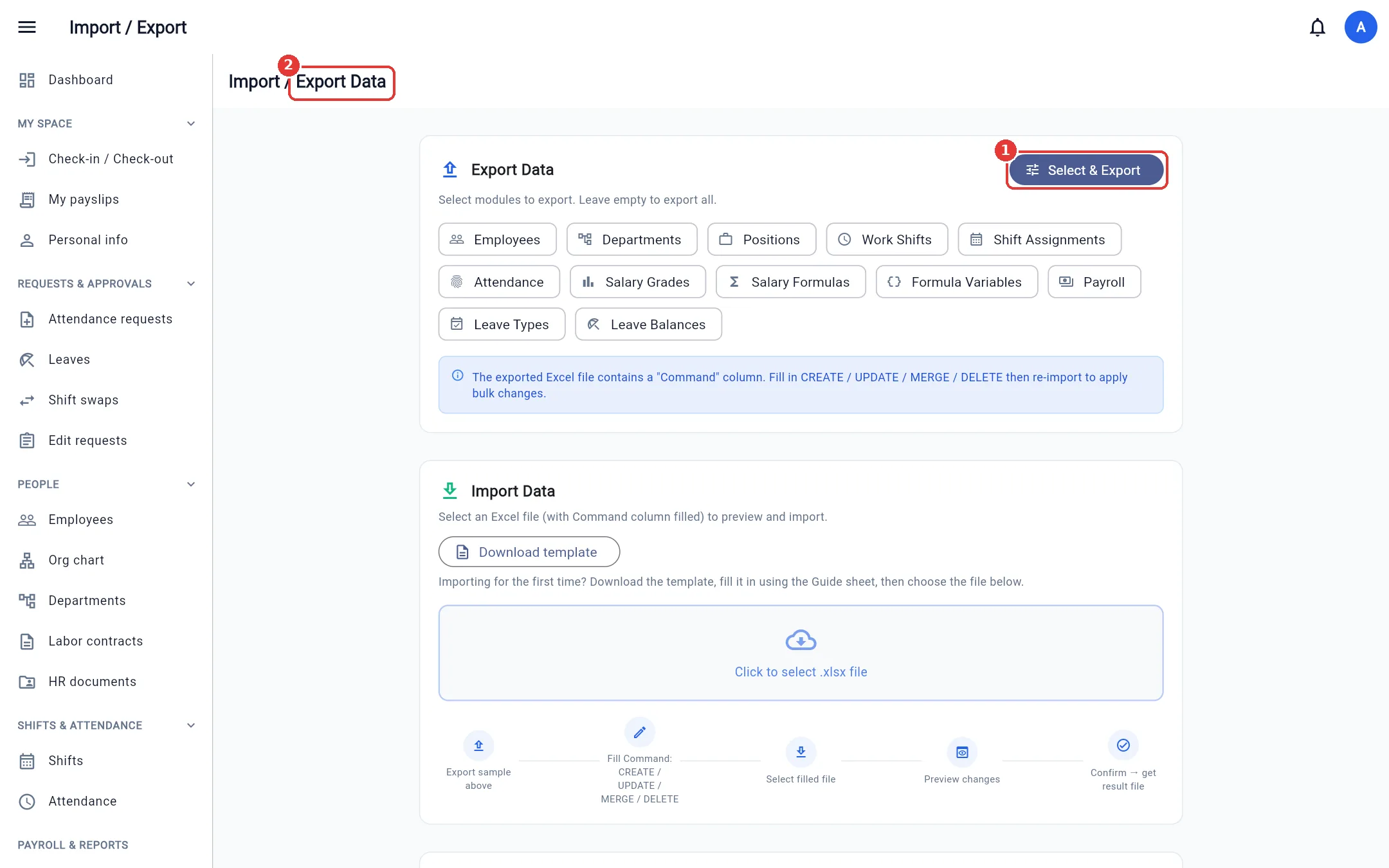
Export data
- Tick the modules to export (employees, departments, positions, shifts, shift assignments, attendance, salary grades, formulas, variables, payroll, leave types, leave balances). Leave all unticked = export everything.
- Click Select & Export. The Excel file has one sheet per module; the first column is Command.
Text columns (phone, ID card number (CCCD), bank account, etc.) are formatted as Text, so leading zeros are kept.
Download the template (first-time import)
A new company has no data to export as a sample: click Download template in the Import Data panel.
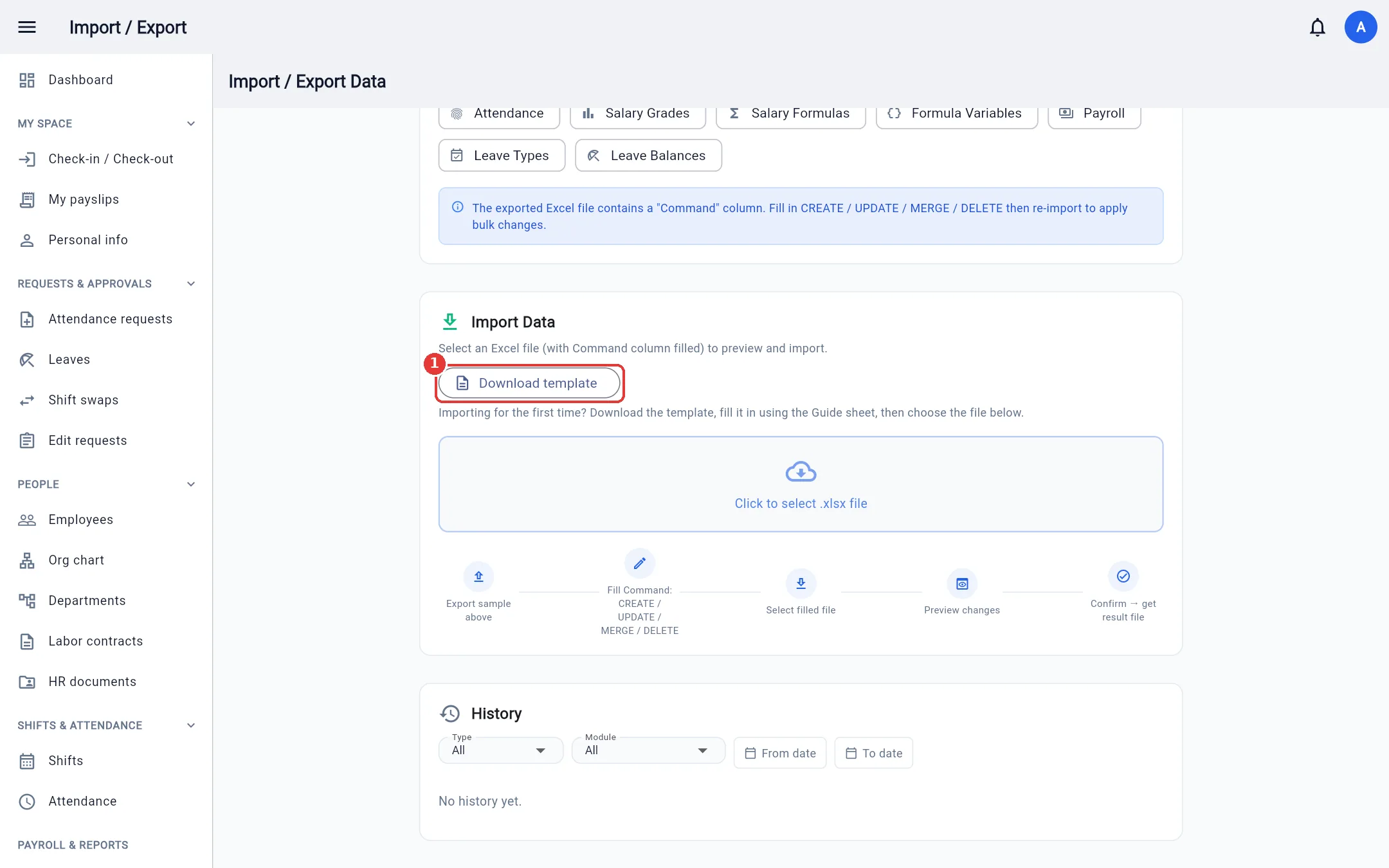
- One sheet per data type, with only a header row containing exactly the importable columns.
- The last sheet, Instructions, lists each column: required or not, an example and notes (date format
dd/MM/yyyy, timeHH:mm, where to find reference codes, etc.). The file opens on this sheet. - Fill in from row 2 and write
MERGEin the Command column for each row to import. For new employees leave Employee code empty and the system assigns one from the company code; if you enter one yourself it must start with the company code (companyTH→TH0123), and the email must use the company email domain — otherwise the preview reports an error on that row. - You can fill in departments and the employees in them in the same file: the preview understands that the department will be created first.
The Contracts screen and Company settings → Work calendar (holidays) also have their own Download template button next to Import Excel.
Import data
- Open the exported (or template) file and edit / add rows. In the Command column write
CREATE(add),UPDATE(edit),MERGE(add or update by code) orDELETE(remove). Rows with an empty Command cell are skipped. - In the Import Data panel, choose the
.xlsxfile. - BossKin shows a row-by-row preview: new, updated (old value → new value), deleted, warnings, errors.
- Review, then confirm. Download the result file to see error rows, fix them and import again — importing the same file again does not create duplicates.
The preview shows only rows that changed: importing the file you just exported reports that nothing changed. A file exported in the English UI or the Vietnamese UI can be imported back either way.
The import order is automatic, based on dependencies: departments → positions → salary grades → shifts → leave types → variables → formulas → employees → leave balances → shift assignments → attendance → payroll.
Note: Employee accounts created from Excel get random passwords. After importing, go to Roles → User → Export temporary passwords to get the password file to hand out to employees.
The History section at the bottom of the page records exports / imports, filterable by type, module and date.
Other screens (Employees, Contracts, Shifts, Attendance, Holidays, etc.) also have their own Export Excel / Import Excel buttons that work the same way: you always get a preview before importing.