BossKin
Employees and org chart
Employee list, adding / editing profiles, direct managers, job history, dependents, documents, org chart.
For: HR, administrators
Employee list
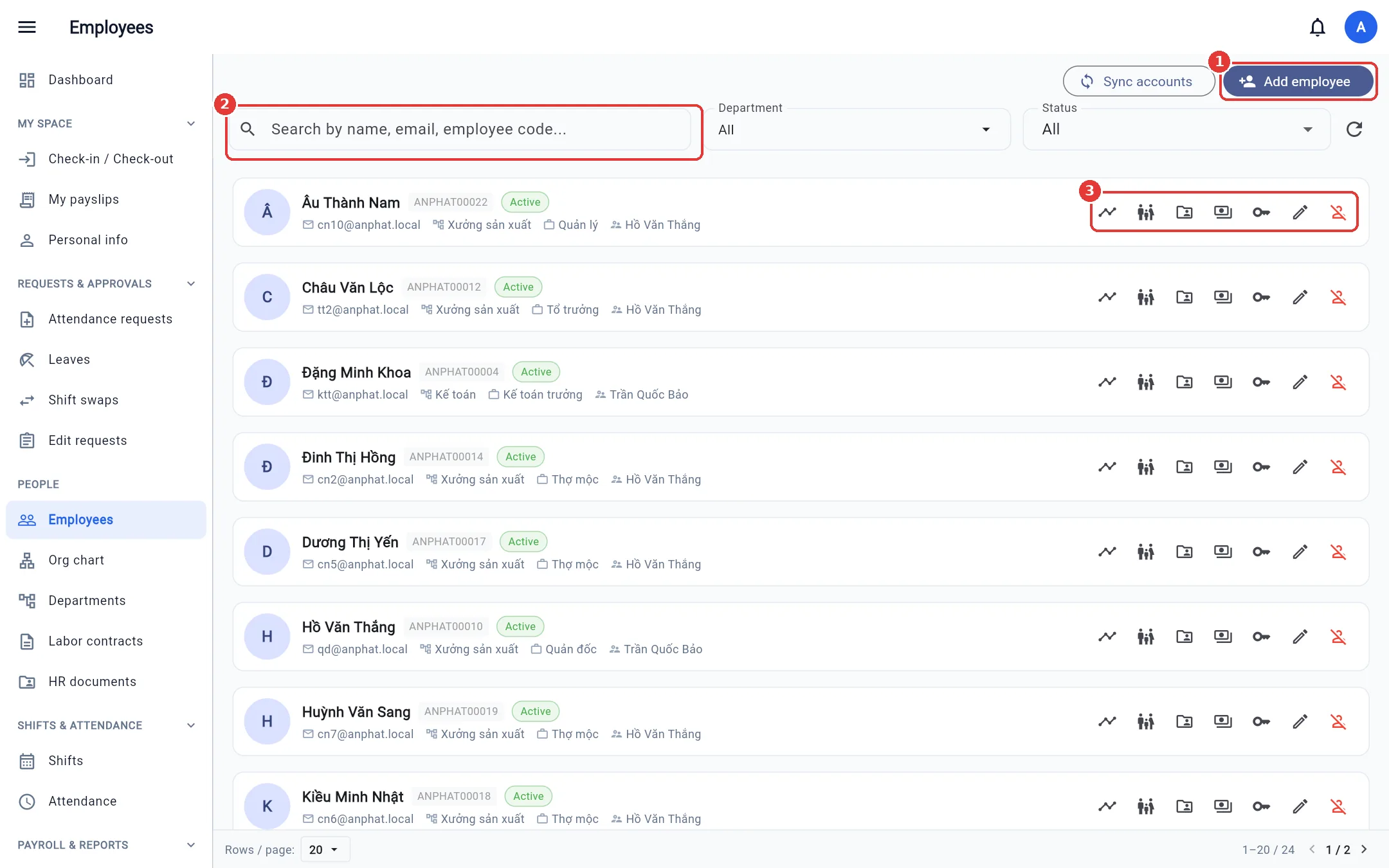
Open Employees. Search by name, email or employee code; filter by department and status (active, inactive, etc.). Each row has these buttons:
| Button | Function |
|---|---|
| 📈 | Job history (department transfers, promotions, salary changes, manager changes) |
| 👪 | Dependents (family deductions) |
| 📁 | That person's HR documents |
| 💵 | Salary history |
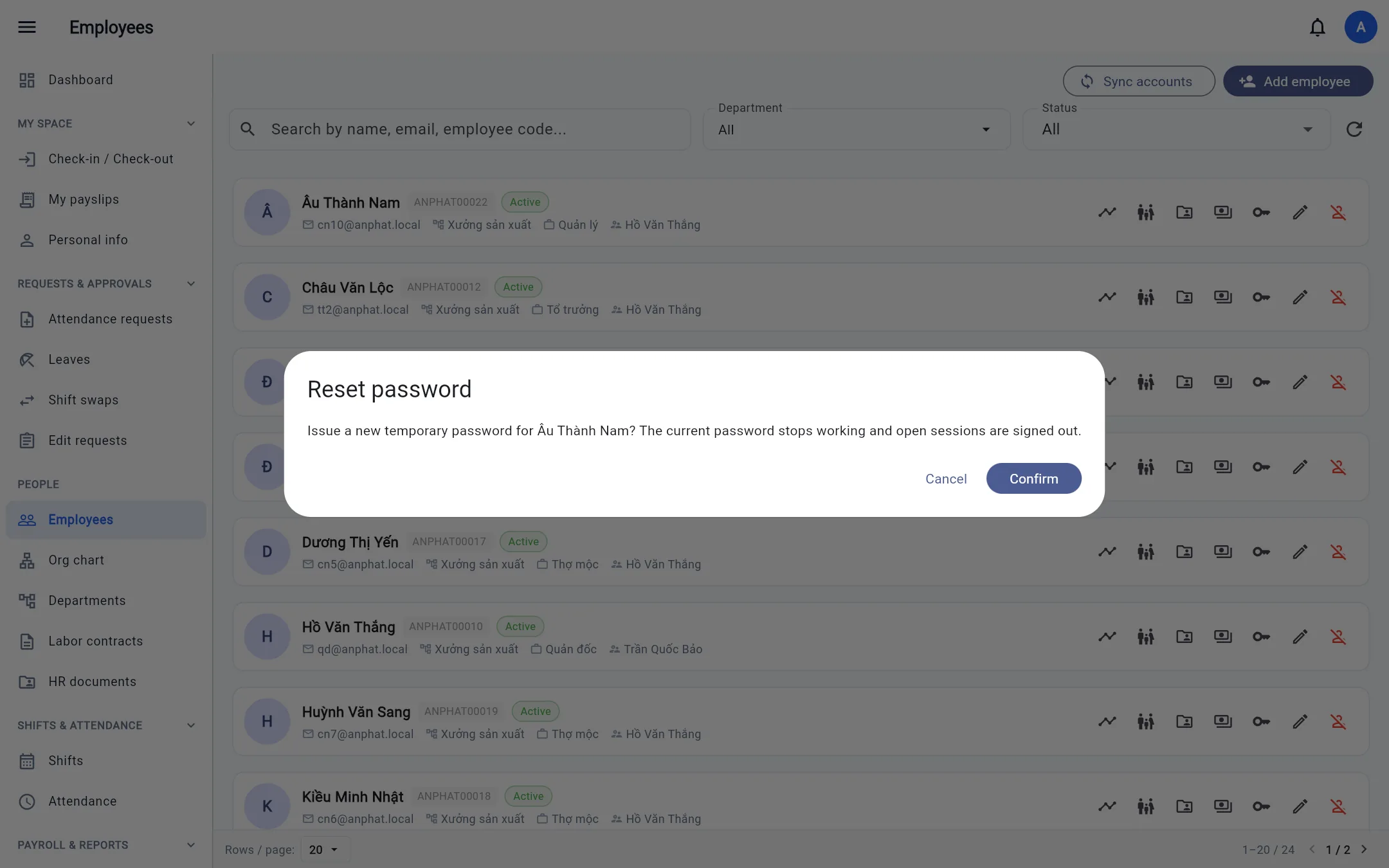
| 🔑 | Reset password (requires the user management permission): the system generates a temporary password, shown once so you can give it to the employee; the employee must set a new password at next sign-in. Use when an employee forgets their password |
| ✏️ | Edit profile |
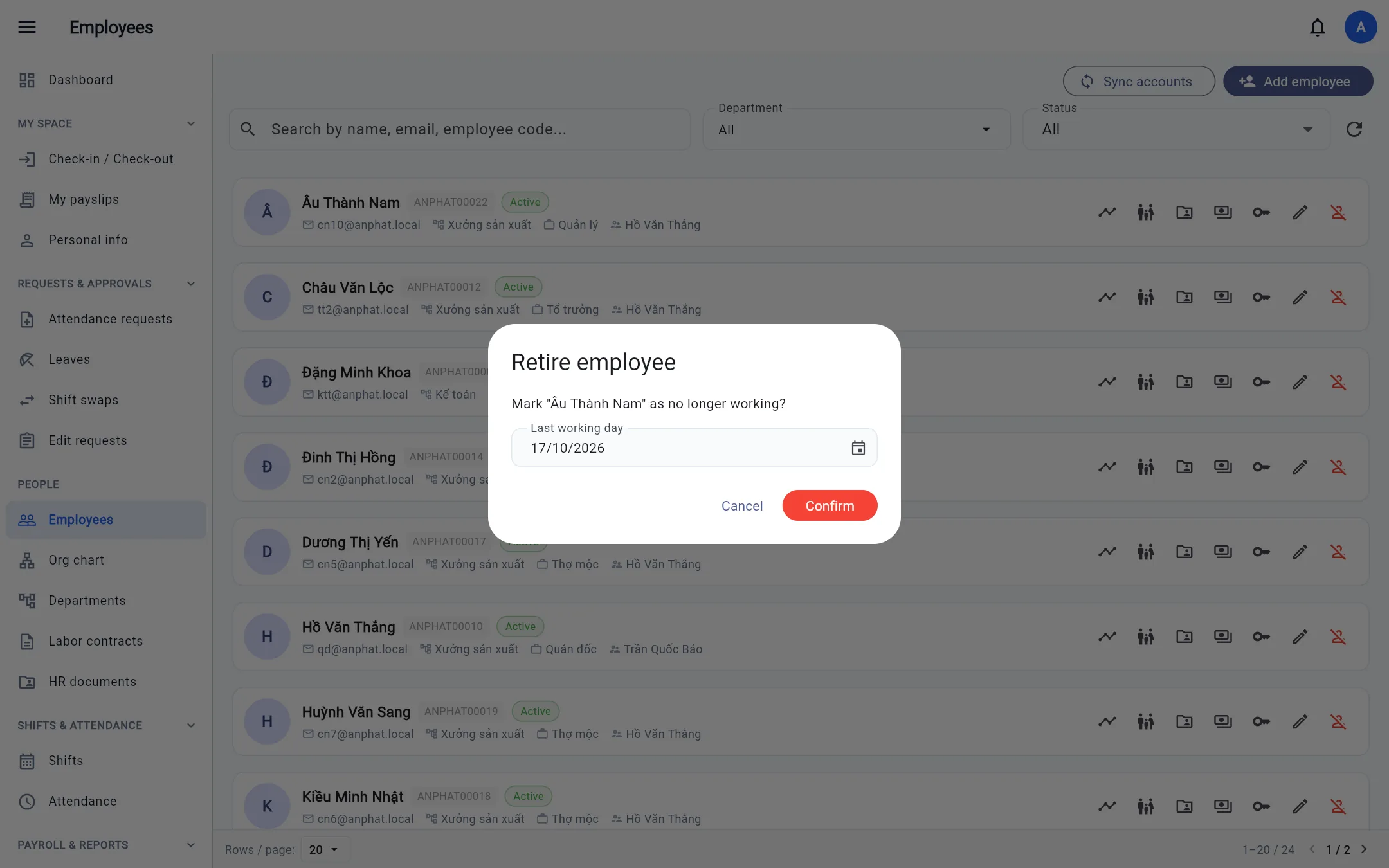
| 🚫 (red) | Resign: choose the last working day (not after today). Status becomes Inactive, the account is locked and signed out of all devices, subordinates no longer have this direct manager, and shifts scheduled after the leave date (with no attendance yet) are removed. The profile is not deleted: filter by status Inactive to view it again |
| 👤+ (resigned employee) | Reinstate: status returns to Active, the leave date is cleared, and the account is reopened (choose the direct manager again in the profile if needed) |
Note: National ID (CCCD) number, bank account number, tax code (MST) and social insurance (BHXH) book number appear as
****1234if you do not have the View sensitive data permission.
Add an employee
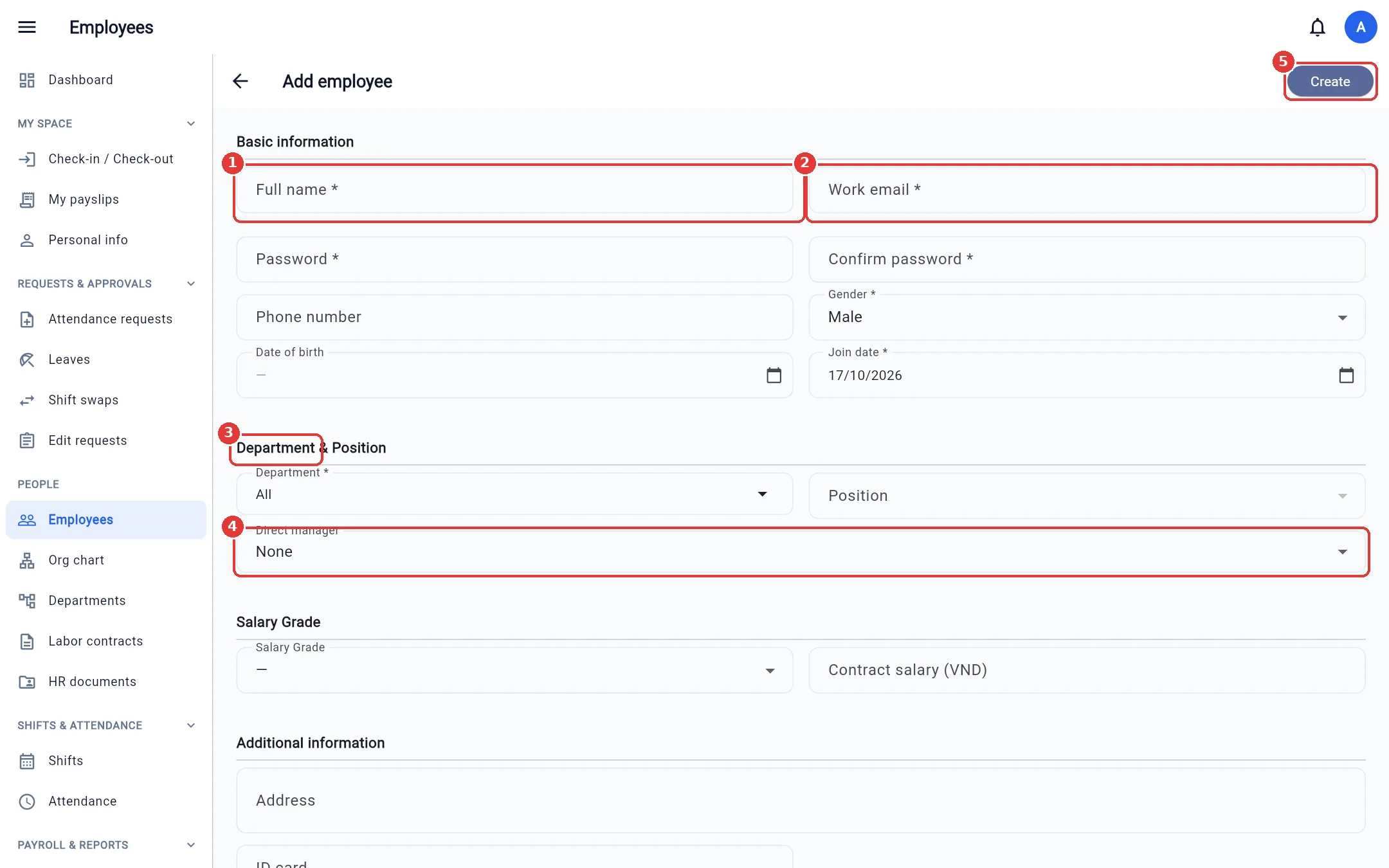
- Click Add employee.
- Enter Full name, Work email (used to sign in), a temporary password, gender and start date.
- Choose the Department, Position and Direct manager (the step 1 approver if two-step approval is on). Department and position are optional: leave the department empty and the employee goes to the Unassigned department (move them later in the edit form); with no department chosen, only common positions can be picked.
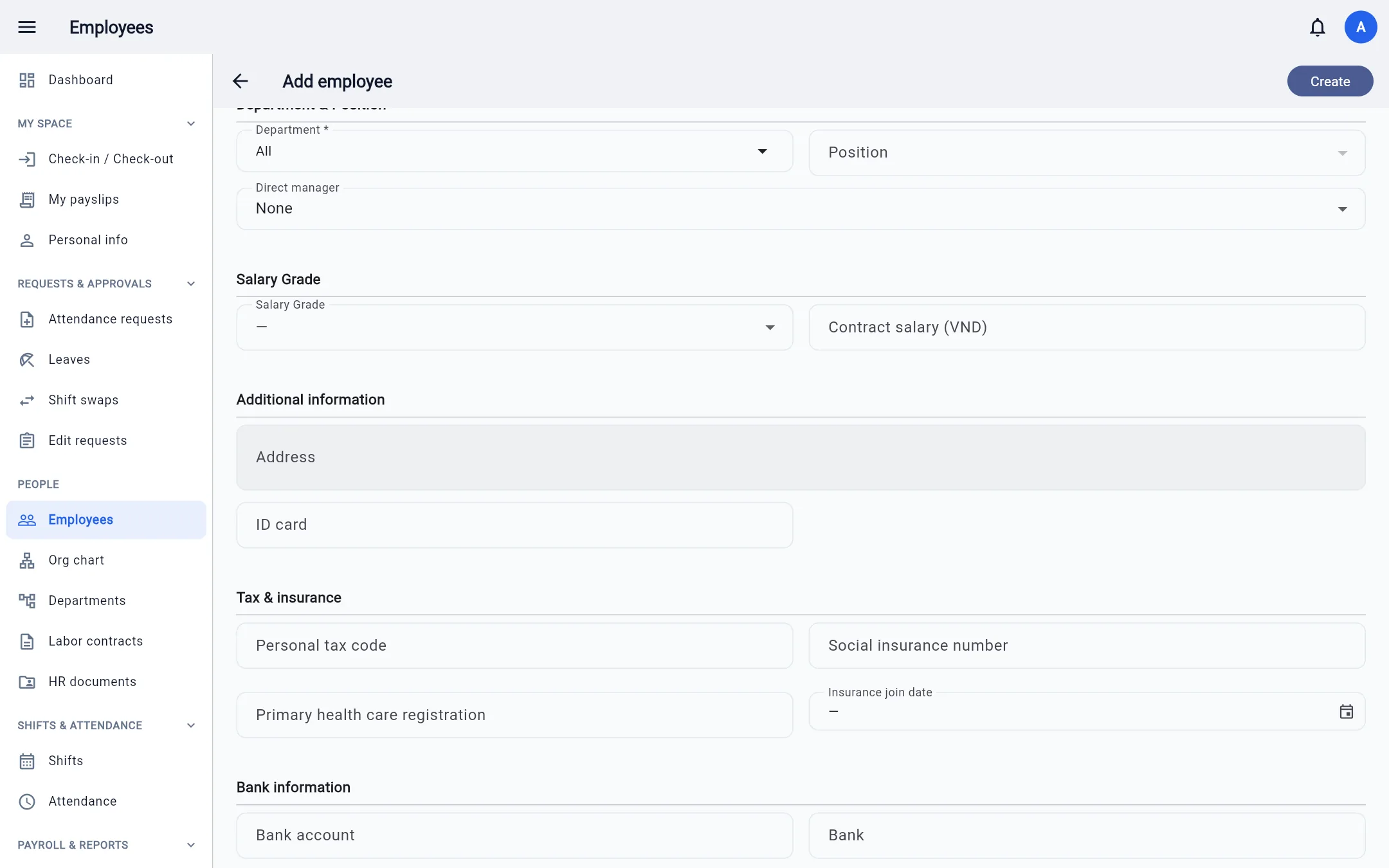
- Choose the Salary Grade; enter the contract salary if there is no labor contract yet.
- Fill in the additional information (address, CCCD, bank, MST, BHXH) if available, then click Create.
Employee codes are issued automatically from the company code (company code TH gives TH00001, TH00002, ...), are never duplicated, even after
an employee is deleted, and never clash with another company. The work email must use the company's email domain (for example @th.com; the email field is pre-filled
with the required domain); an email with the wrong domain cannot be saved. New people sign in with their email and the temporary
password and must change it immediately. To add many people at once, use Import / Export, then
Roles → Users → Export temporary passwords to get a file of passwords to hand out to each person.
Sync accounts: creates sign-in accounts for employees who do not have one yet (enter one shared initial password; it must be changed at first sign-in).
Edit a profile
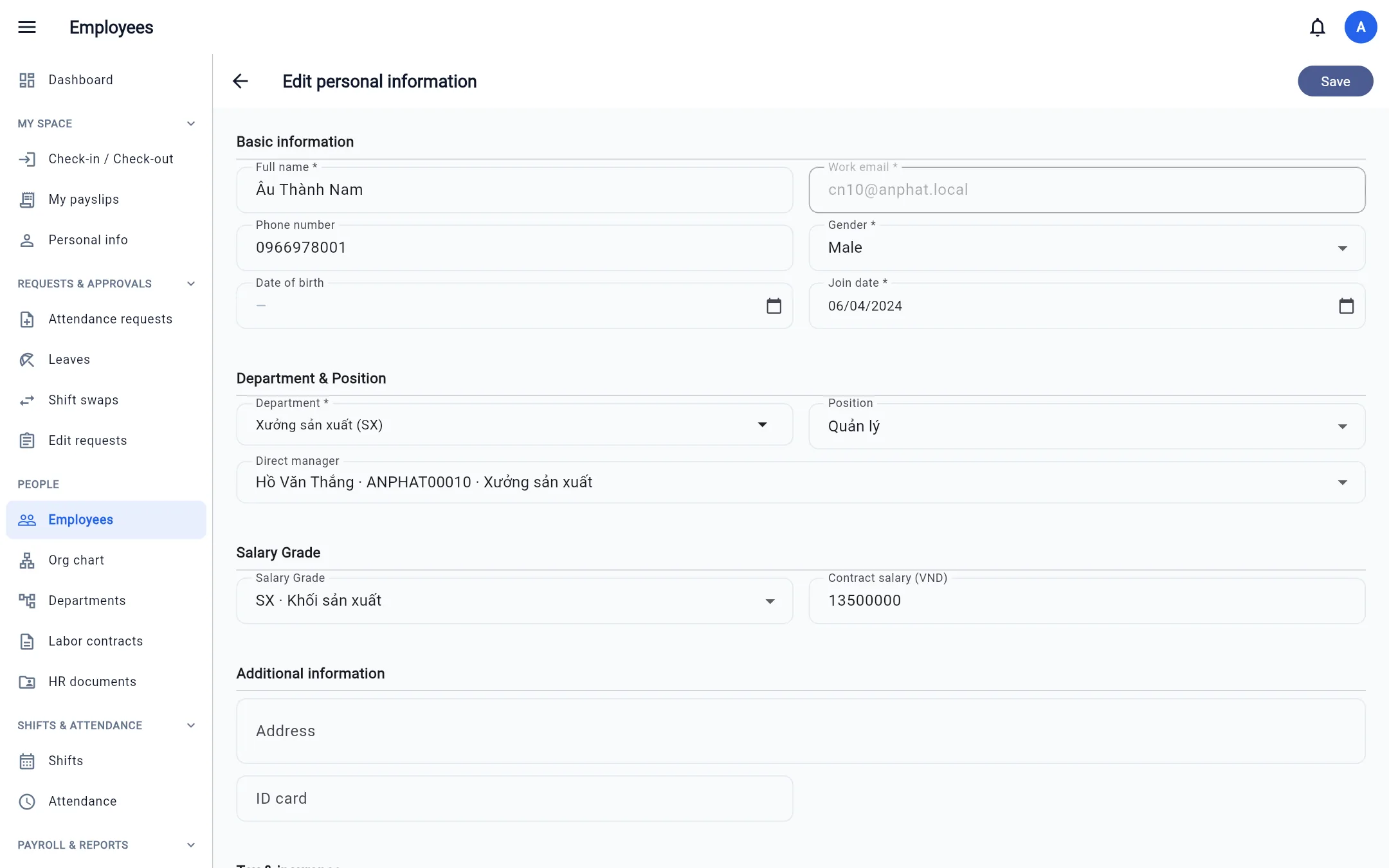
Click ✏️, edit, then Save. Changing the department / position / salary grade / manager in the edit form automatically records a Job history entry dated today. If an employee already has a labor contract, the contract manages their salary (it cannot be edited here).
Job history
Click 📈. Each entry is a snapshot of the department, position, salary grade and manager from an effective date. Use Add change to record a transfer / promotion that takes effect in the future: the system applies it automatically on that date. Only entries that have not yet taken effect can be deleted.
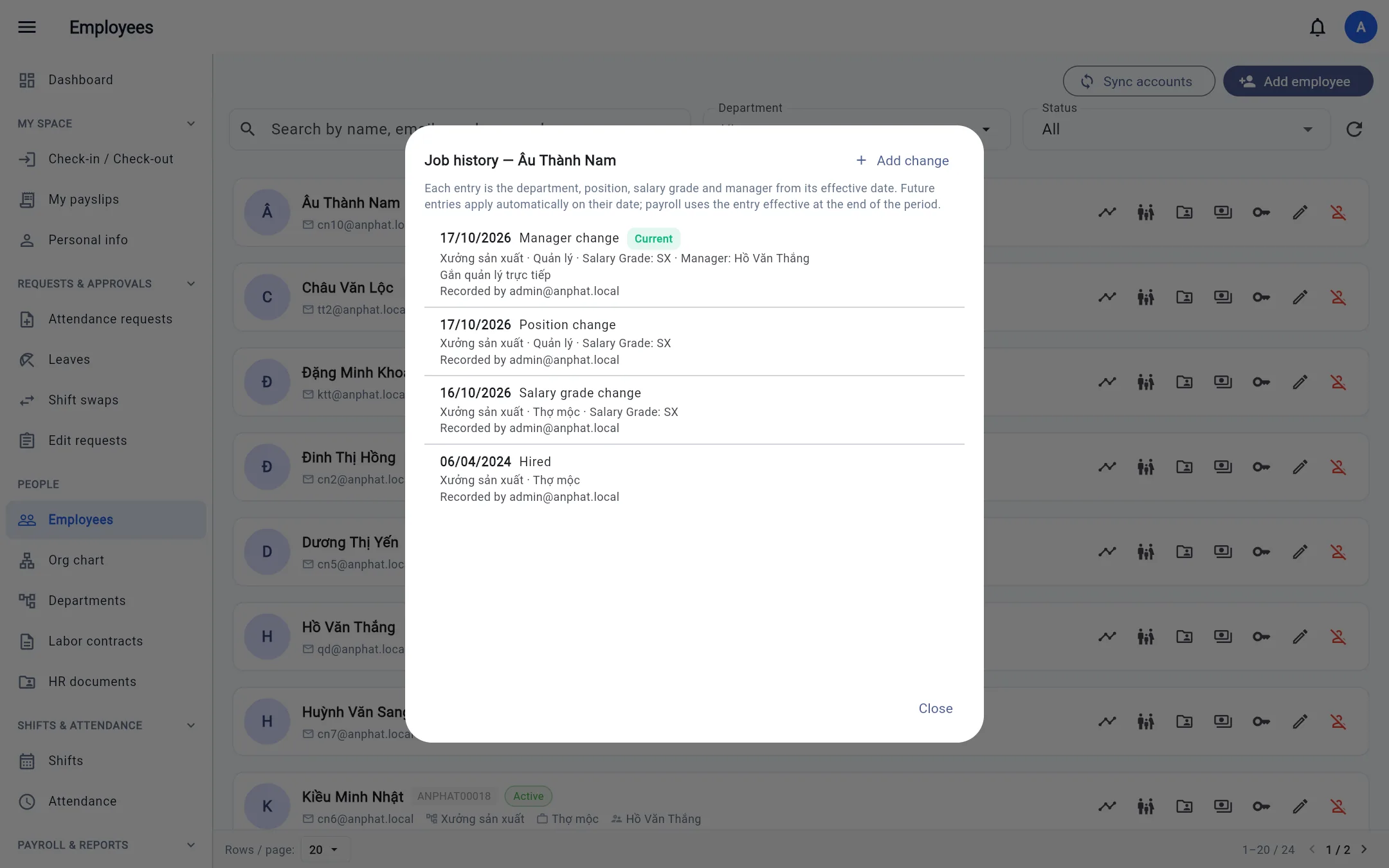
Payroll takes the department and salary grade from the entry in effect at the end of the period, so an employee who transfers mid-month is still calculated correctly.
Dependents
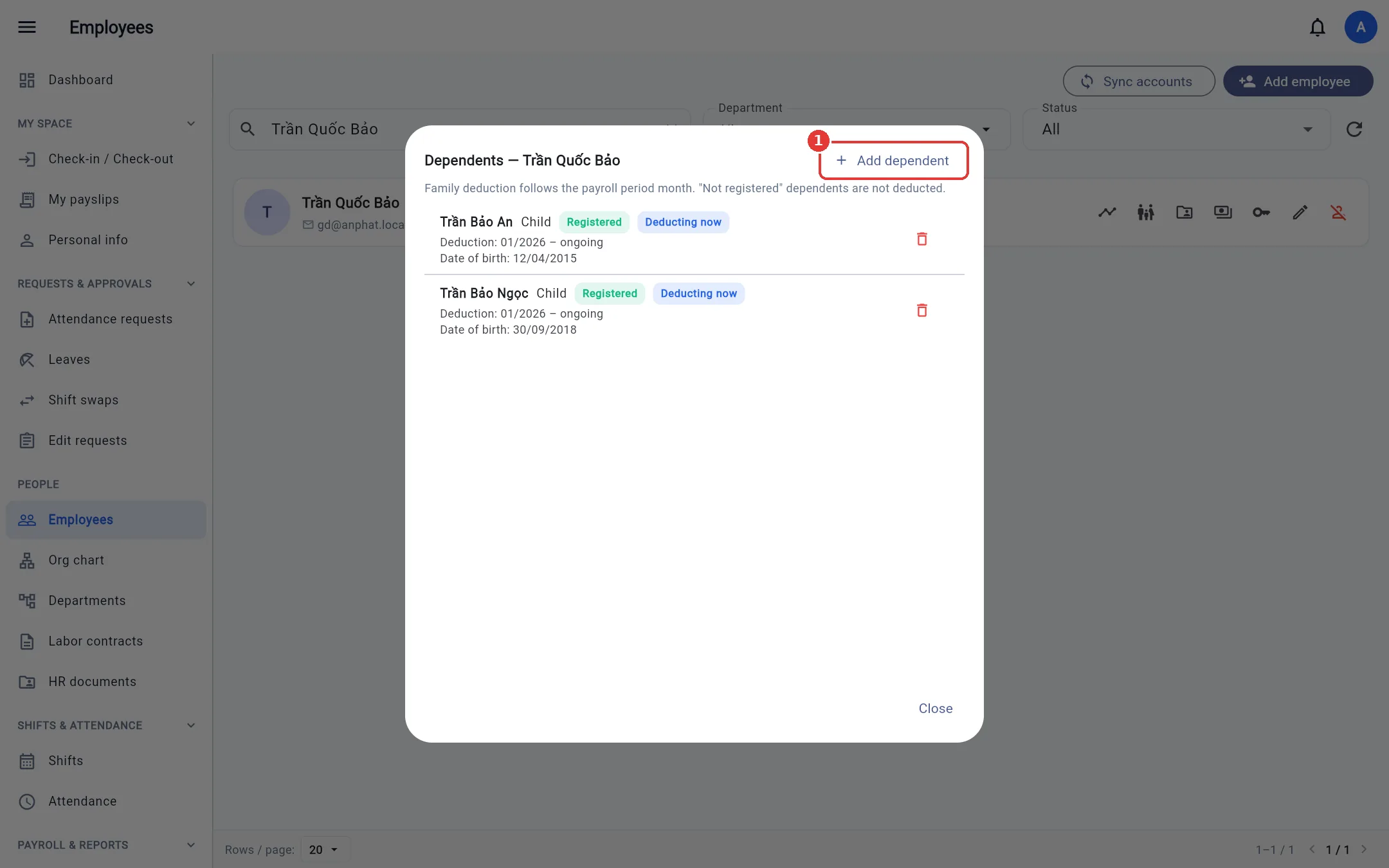
Click 👪, then Add dependent: full name, relationship, date of birth, MST / CCCD, the start and end months of the deduction, and the registration status with the tax authority. A status of Not registered is not counted for deductions; Submitted, awaiting tax code and Registered are counted.
Employee documents
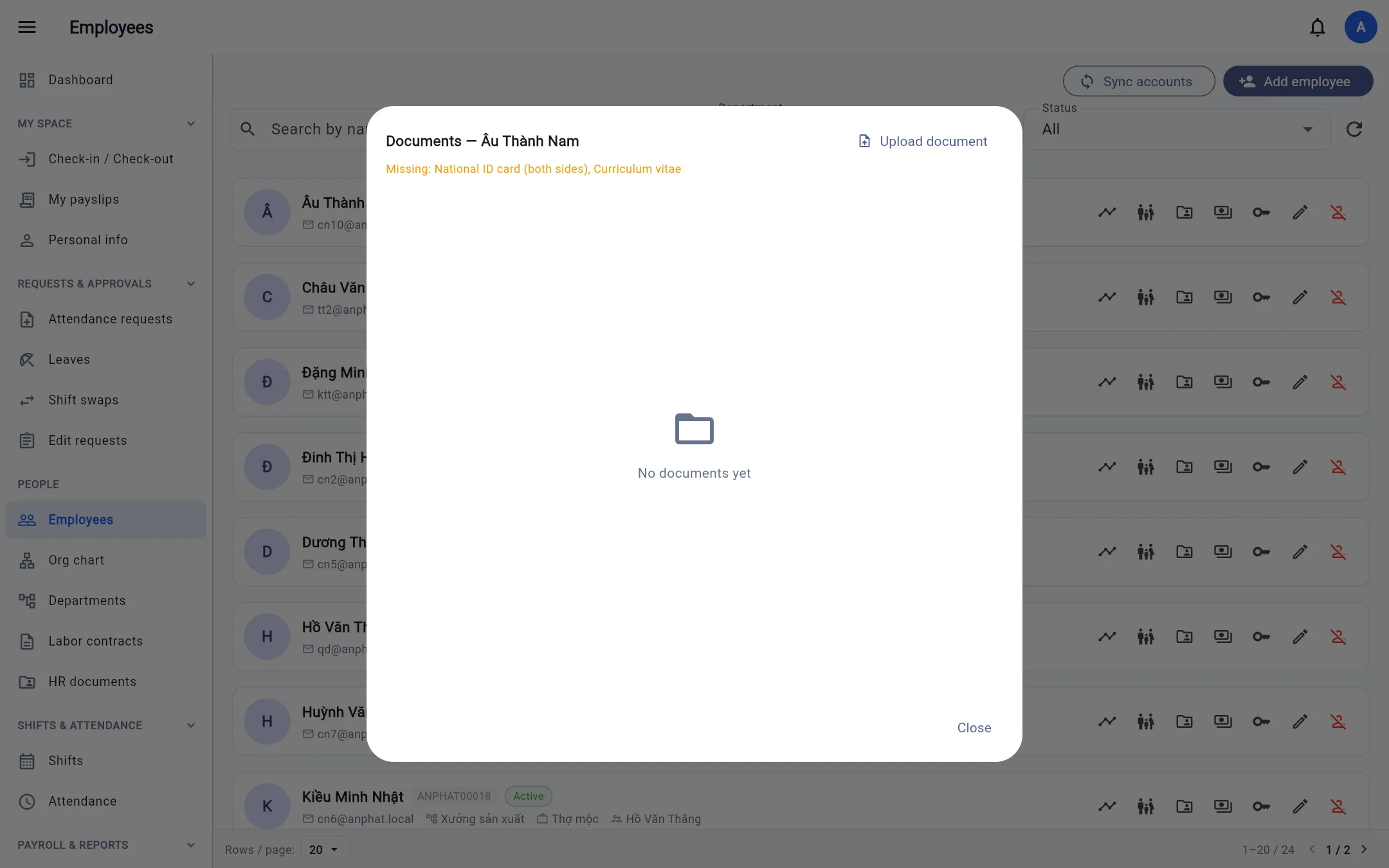
Click 📁 to view / upload that person's papers; an orange row flags a required type that is still missing. Details are in HR documents.
Org chart
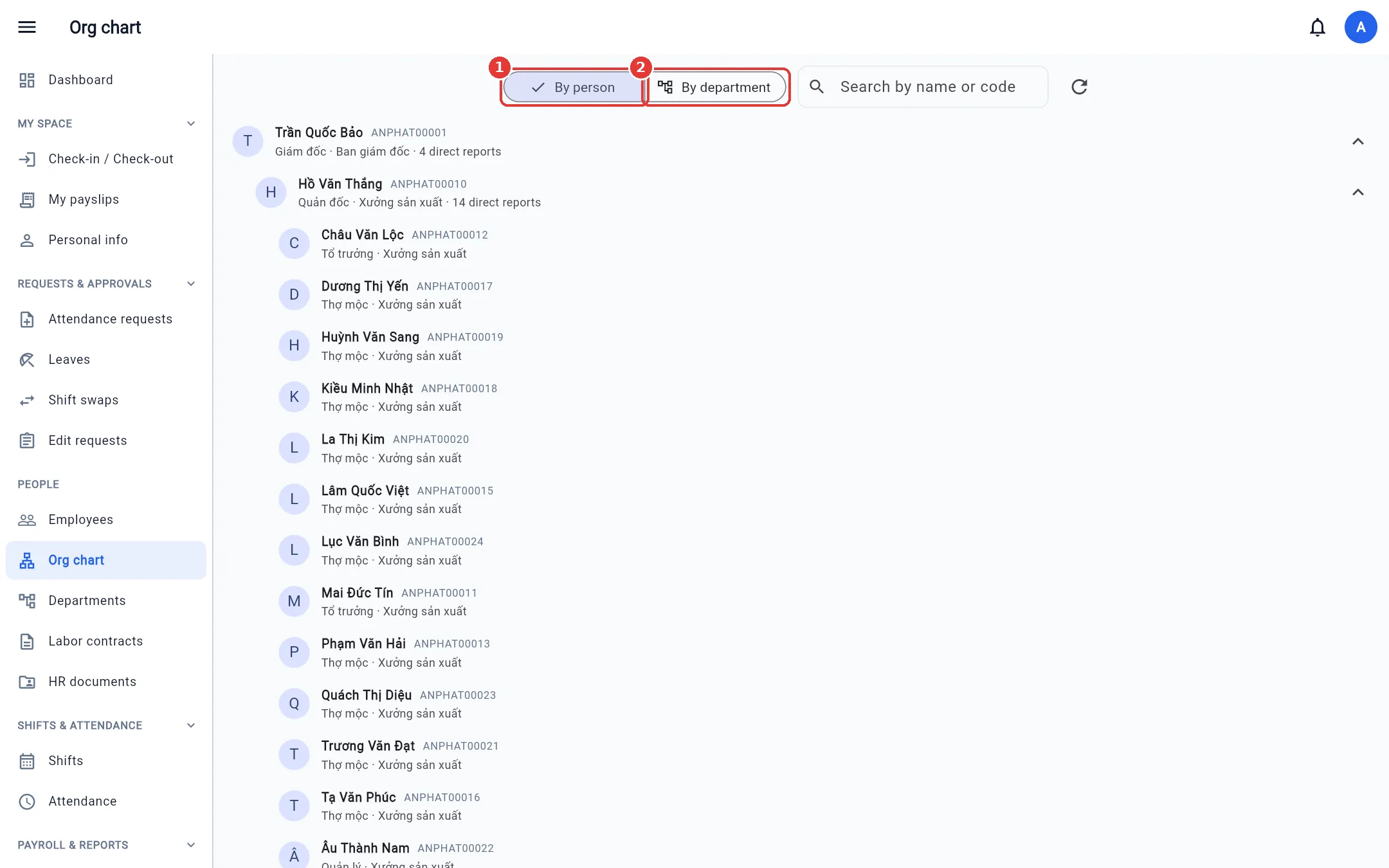
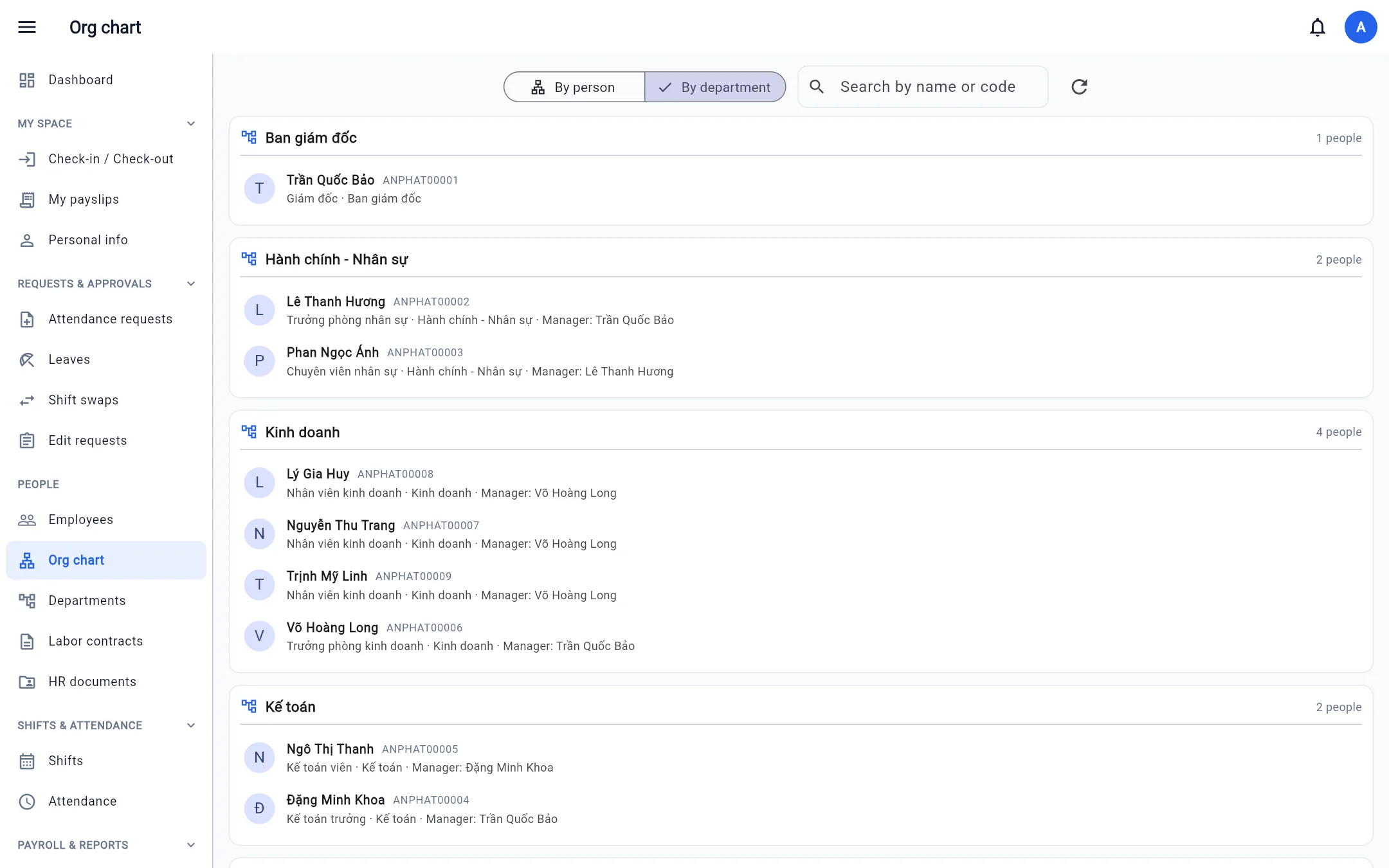
Open Org chart:
- By person — the direct-manager tree (who reports to whom). Click the arrow to expand / collapse a branch.
- By department — each department and the people in it, with each person's manager.