 BossKin
Payroll
Salary grades, variables, formulas; generate payslips by period, adjust manually, approve, mark as paid, export payslips.
For: Accounting, administrators
Open Payroll. It has four tabs: Payroll, Salary Grades, Variables, Formulas. Set up the last three once, then each month you only need to generate, check, approve and pay in the first tab.
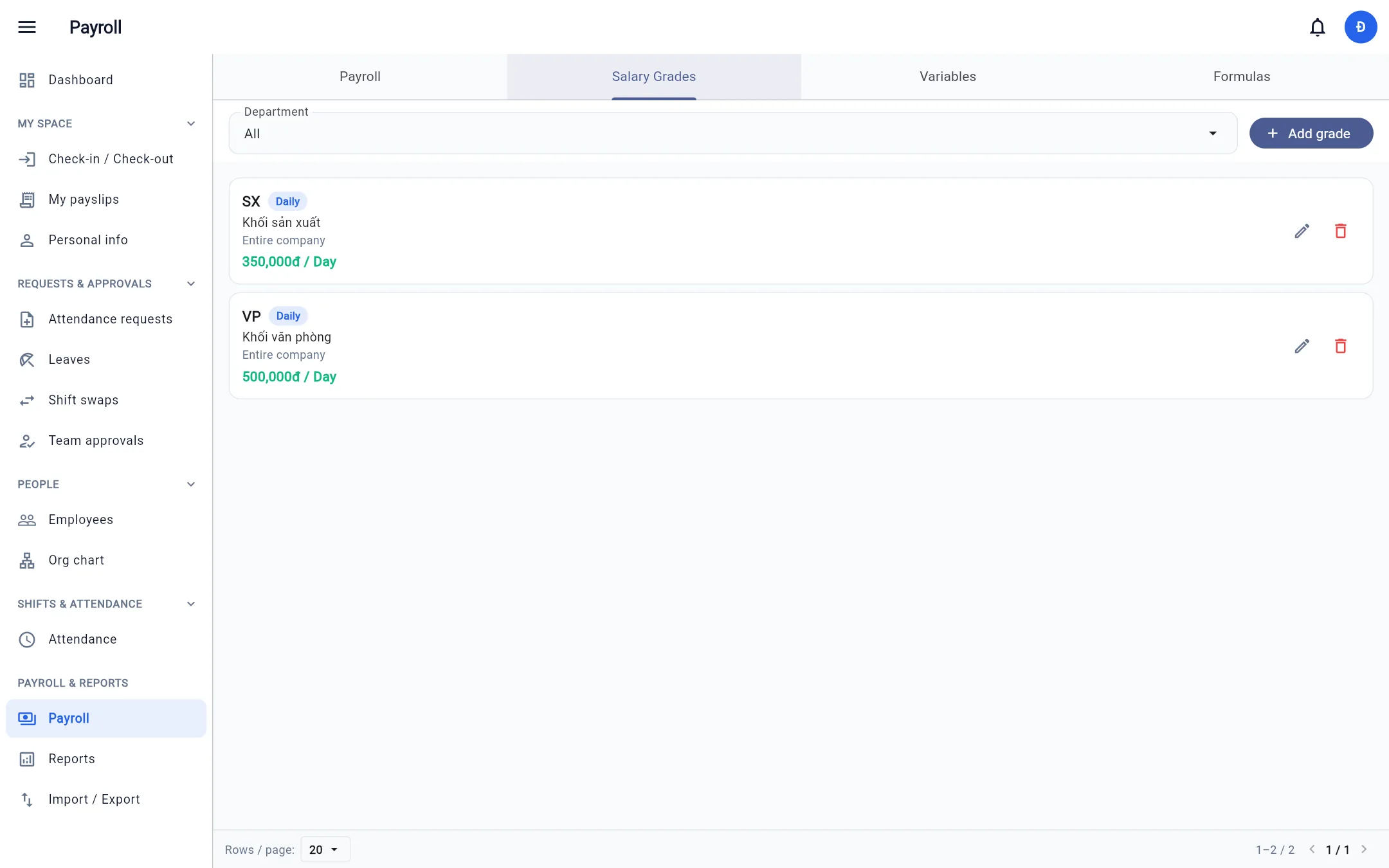
Salary grades
Each grade is a group with its own way of paying: daily, hourly or monthly, with a rate (monthly grade: enter the full monthly salary; daily rate = monthly salary / standard work days, and unpaid leave or a mid-month start is deducted by standard days in the formula, e.g. ROUND(MIN(BASE_RATE, BASE_RATE / STANDARD_WORK_DAYS * (PRESENT_DAYS + PAID_LEAVE_DAYS)))). An employee is linked to one grade (in their profile). A grade that employees use (now or in their job history) cannot be deleted: change those employees' grade first.
Payslip shows 0 although bands exist? Attendance approved before the bands were defined has no band hours. An Admin opens Settings → General → Pay time bands → Recalculate time-band hours for approved attendance (pick a date range), then opens the draft payslip and presses Recalculate by formula.
OT multipliers (150 %, 200 %…) are set by the company: the system has no built-in OT multiplier — <NAME>_OT is only hours, and BAND_OT_PAY = OT hours × band rate (100 %). Create a Global variable (for example OT_FACTOR = 1.5) on the Variables tab and multiply it in the formula, e.g. TIME_17_24_OT * TIME_17_24_RATE * OT_FACTOR. Hours outside every band stay regular hours (DAY_HOURS / NIGHT_HOURS) and are not pushed into any band; subtract them in the formula if you need to separate them.
Rates by time band (when the company enabled Pay time bands in Settings): the salary grade dialog gets a rate field per band (e.g. 07:00–17:00 = 30,000, 17:00–22:00 = 50,000, 22:00–05:00 = 90,000). Empty = rate not set; if some bands have a rate and an employee worked in a band without one, payroll calculation reports an error.
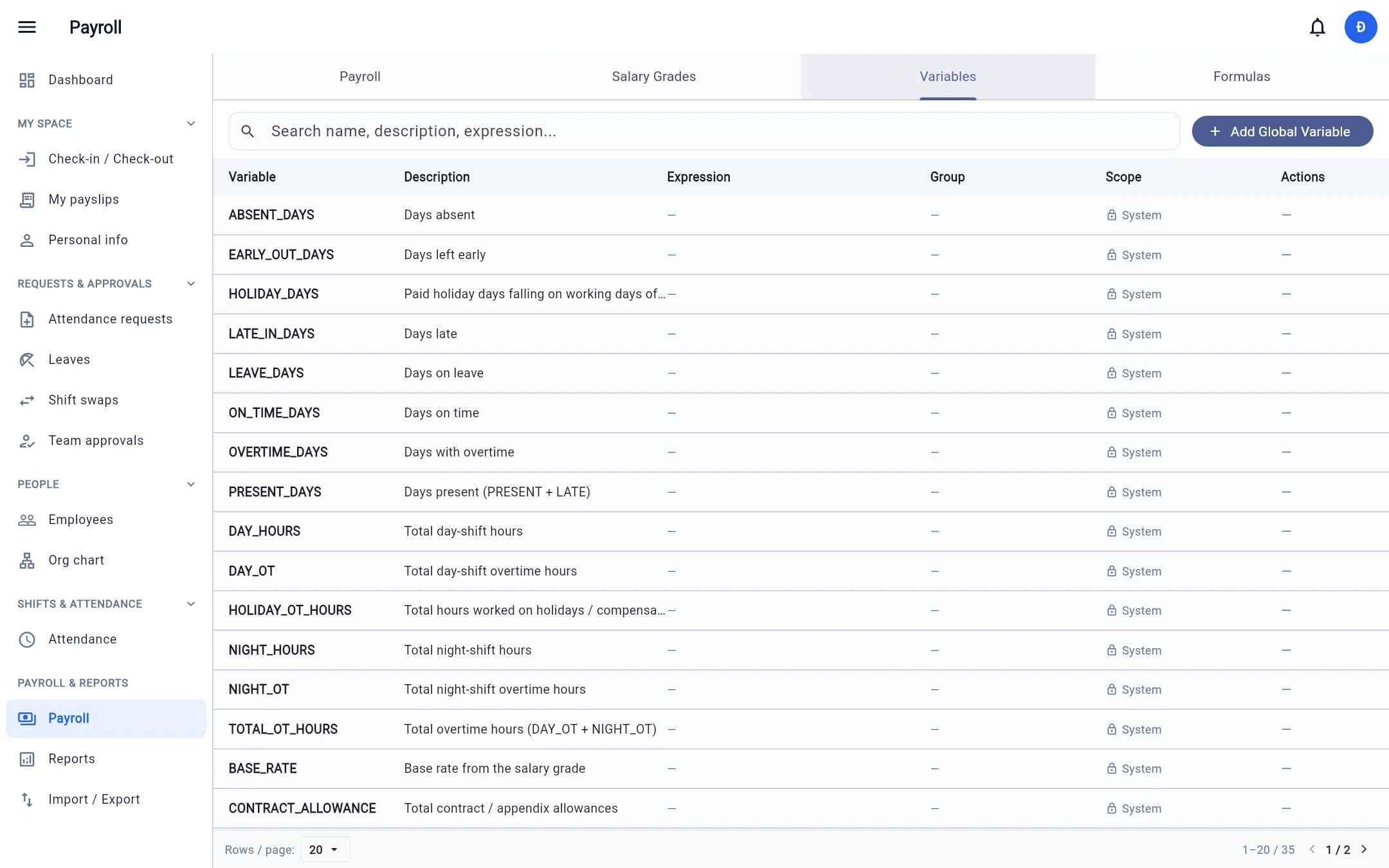
Variables
Custom variables (attendance bonus, coefficients, etc.) used in formulas. There are also built-in system variables that BossKin calculates from data:
| Variable | Meaning |
|---|---|
STANDARD_WORK_DAYS, PRESENT_DAYS |
Standard working days of the period, actual days worked |
PAID_LEAVE_DAYS, UNPAID_LEAVE_DAYS, LATE_IN_DAYS |
Paid / unpaid leave days, number of late days |
DAY_HOURS, NIGHT_HOURS, DAY_OT, NIGHT_OT, TOTAL_OT_HOURS |
Day / night shift hours, overtime hours |
CONTRACT_SALARY, ALLOWANCE_<code> |
Salary and allowances under the contract / appendix in effect during the period |
INSURANCE_BASE, SOCIAL_INS, HEALTH_INS, UNEMPLOYMENT_INS, TOTAL_INSURANCE |
Insurance salary (with floor / cap applied) and each insurance contribution paid by the employee |
PIT |
Personal income tax (PIT) calculated under the current tax table |
BONUS, ALLOWANCE_MANUAL, OTHER_DEDUCTIONS |
Bonus, allowance and other deductions entered by hand on the draft payroll |
A Global variable cannot reuse a system variable name above; only SOCIAL_INS, HEALTH_INS, UNEMPLOYMENT_INS, TOTAL_INSURANCE and PIT may be redefined by the company with a Global variable of the same name.
| PERSONAL_DEDUCTION, DEPENDENTS, FAMILY_DEDUCTION | Personal deduction, number of dependents, total family deduction |
| HOLIDAY_DAYS, HOLIDAY_OT_HOURS | Paid holiday days, hours worked on holidays |
| <NAME>, <NAME>_OT, <NAME>_RATE, BAND_PAY, BAND_OT_PAY | With Pay time bands on: each band has regular hours, overtime hours and the salary grade's rate; BAND_PAY = sum of hours × band rates, BAND_OT_PAY = sum of OT hours × band rates (before any OT multiplier) |
Salary formulas
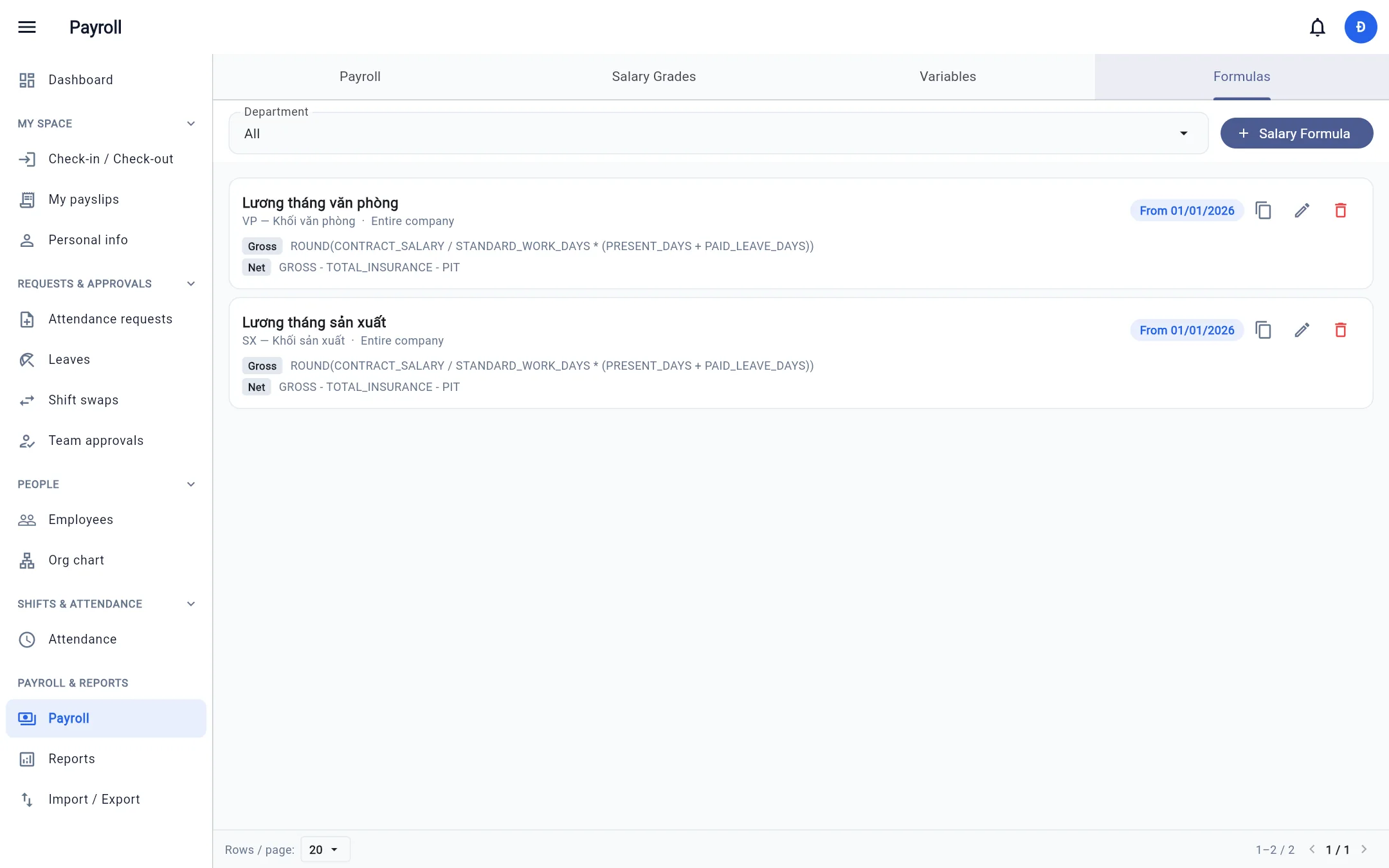
Each salary grade has a GROSS (total pay) and a NET (take-home pay) formula, effective from a date. Write them with variables, operators, IF(...),
ROUND(...) and PIT_VN(taxable income). Example:
GROSS:  CONTRACT_SALARY * PRESENT_DAYS / STANDARD_WORK_DAYS + CONTRACT_ALLOWANCE + BONUS
NET:    GROSS - TOTAL_INSURANCE - PIT
Note: Family deduction amounts, the tax table and insurance caps are updated by the system administrator according to the law (by effective date); a payroll period uses the policy in effect on the last day of the period. Do not hard-code these numbers in formulas.
Payslip header items: the formula editor has a Payslip header items group (next to Income, Allowances and Deduction items): each row is a display
name plus an expression (for example PRESENT_DAYS, TIME_7_17). These rows are only shown at the top of the payslip; they are not added to pay and cannot be used as variables.
Leave it empty to keep the 5 default rows (work days, day / night shift hours, day / night OT). Existing payslips keep their layout; press Recalculate by formula to apply. A formula edited for a single draft payslip has this group too.
Generate the monthly payroll
- Make sure the period's attendance is approved and (preferably) the attendance period is locked.
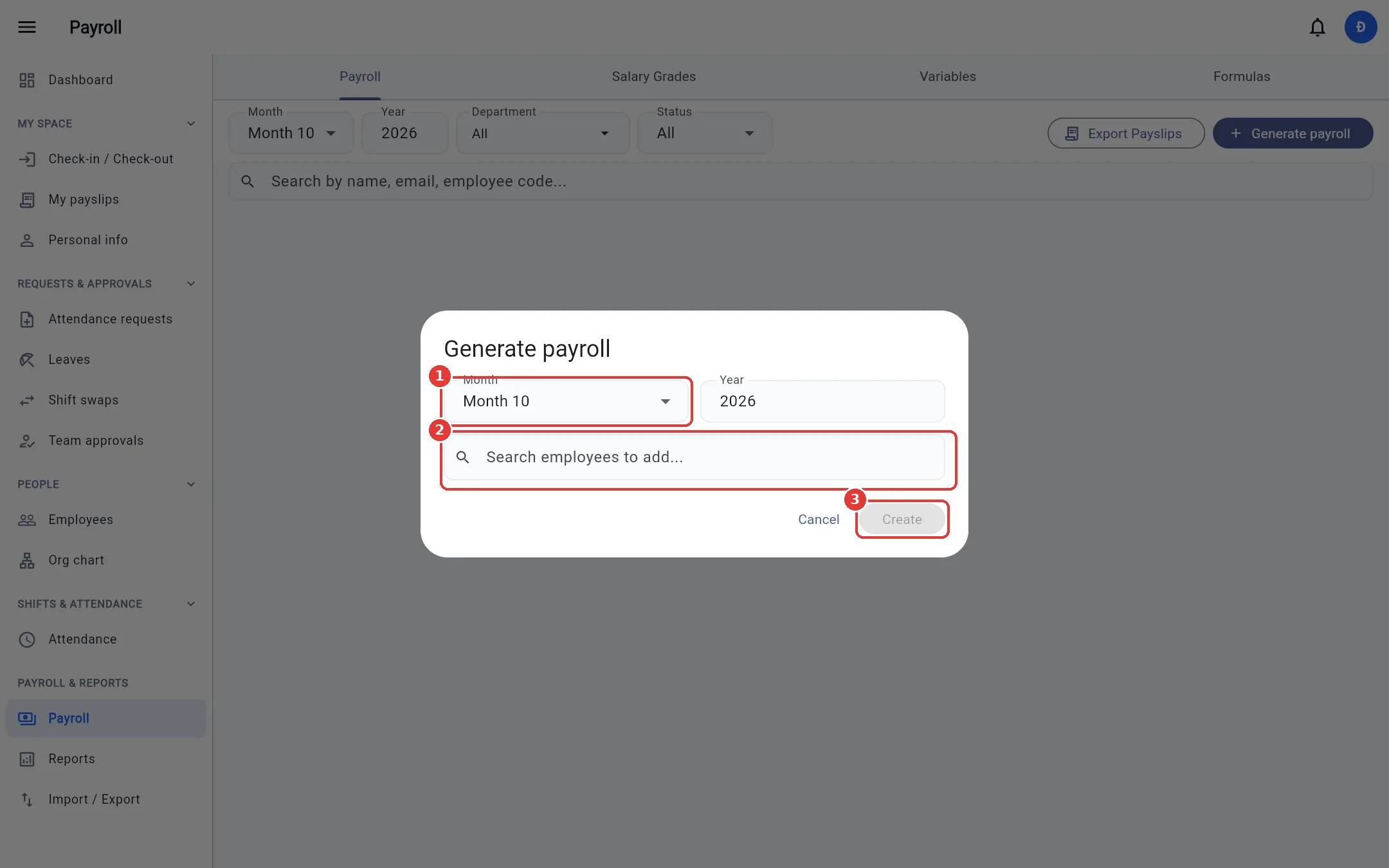
- In the Payroll tab click Generate payroll.
- Choose Month / Year; leave the employee field empty to generate for everyone in your scope, or search and add people one by one, then click Create.
By date range: pick By date range (From date – To date, up to 93 days) instead of the month. The payslip only counts approved attendance in that range; standard days follow the work calendar; the range must not overlap another payslip of the same employee (including monthly ones). Tax / insurance still follow the month of the end date — the payroll formula decides whether to use them.
If a formula fails for someone, the system tells you exactly which person and which variable caused the error.
Check, adjust, approve, pay
The monthly payslip list shows base salary, gross pay, net pay, days worked and the status Draft → Approved → Paid.
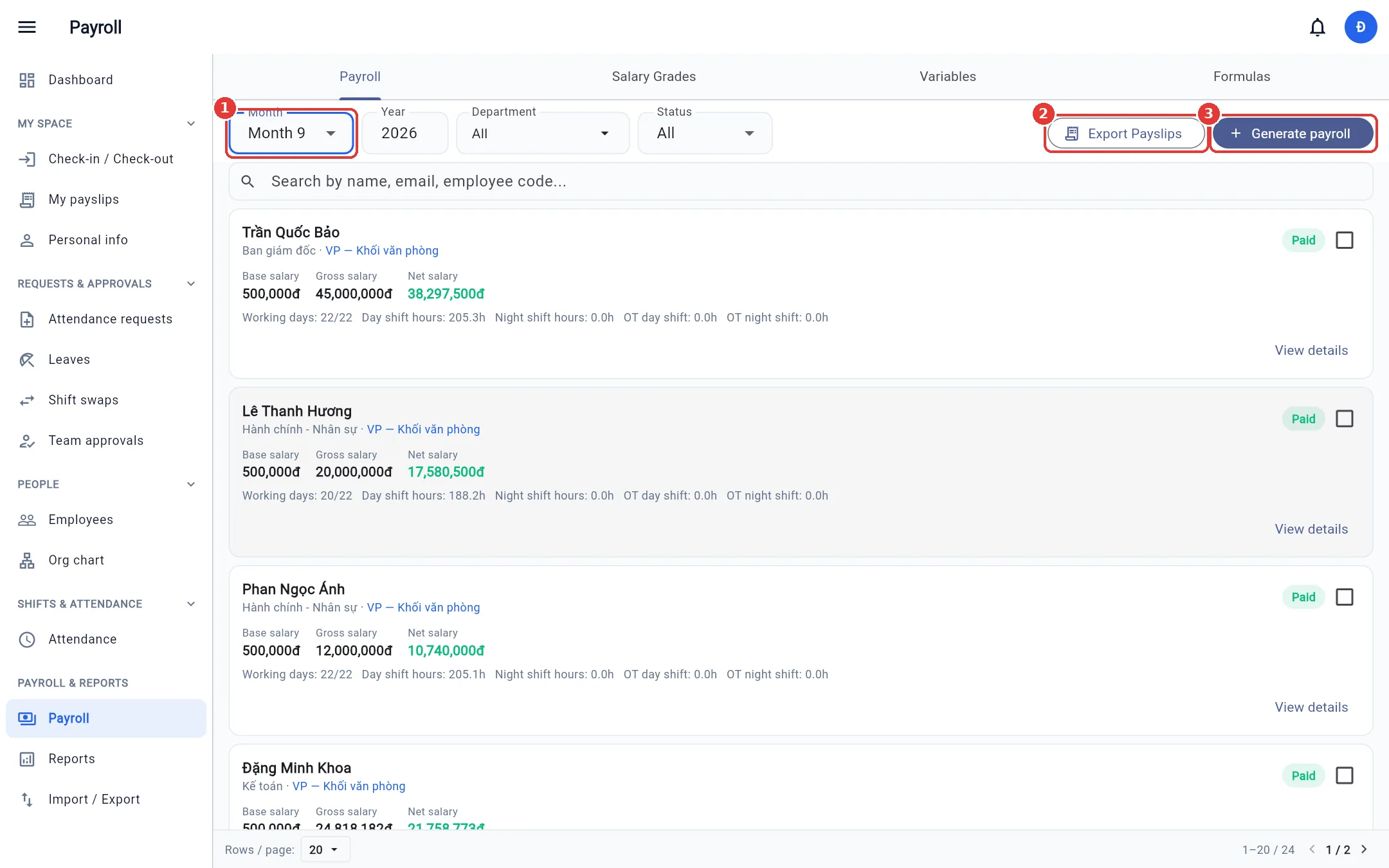
- View details — every line item. A draft payslip can have bonuses / deductions entered manually and then be recalculated.
- Select several payslips (checkbox on the right) to approve or mark as paid in bulk.
- Export payslips to Excel (includes the employer insurance contribution and total cost columns).
Important: No one can approve, edit or pay their own payslip; someone else must do it. Employees only see a payslip once it has been approved.