 BossKin
BossKin › GPS time and attendance
GPS time and attendance: how it works, how to set it up, and its limits
GPS time and attendance records an employee's clock-in and clock-out on their phone and checks that they are actually at the workplace. This article explains how BossKin does that, how to set it up for a small company, and the limits you should know before relying on it.
What is GPS time and attendance?
Instead of swiping a card or pressing a finger on a fixed device, employees open the app on their phone and tap Check-in when they arrive and Check-out when they leave. The app sends the time and the phone's GPS coordinates to the system. The company defines workplaces in advance, each with an allowed radius; if an employee is outside that radius, the clock-in is rejected.
It suits small companies because there is no time clock to buy and install, and it suits staff who work in several places (a warehouse, a shop, a site) because each place can have its own clock-in zone.
What does BossKin check when someone clocks in?
- The position is inside the allowed radius. When the company turns on location checking, employees must be within the radius around the company location, their department's own location, or the work location attached to their shift. Outside it, the app reports that they are out of range and names the location.
- Spoofed locations are rejected. If the phone runs a fake-location app, the clock-in is refused. This relies on the “mock location” flag that the phone's operating system reports.
- Very weak GPS signals are rejected. When the estimated GPS error is larger than 150 m, the system does not accept the coordinates, to avoid recording the wrong place.
- One account, one phone (optional). When the company turns on “Only clock in on the registered device”, the first clock-in registers the phone to the account and other phones are blocked. If someone changes phone, HR removes the old device from the employee's record. This is the most important protection against clocking in for a colleague, because the person would need the registered phone itself.
- Within the shift's time window. On days with a shift, clocking in follows the shift's window; outside it, the employee sends an attendance request for a manager to approve.
Each clock-in can carry a note (for example “visiting a client”), and the company can allow clocking in and out on days when no shift is assigned. Both are optional company settings.
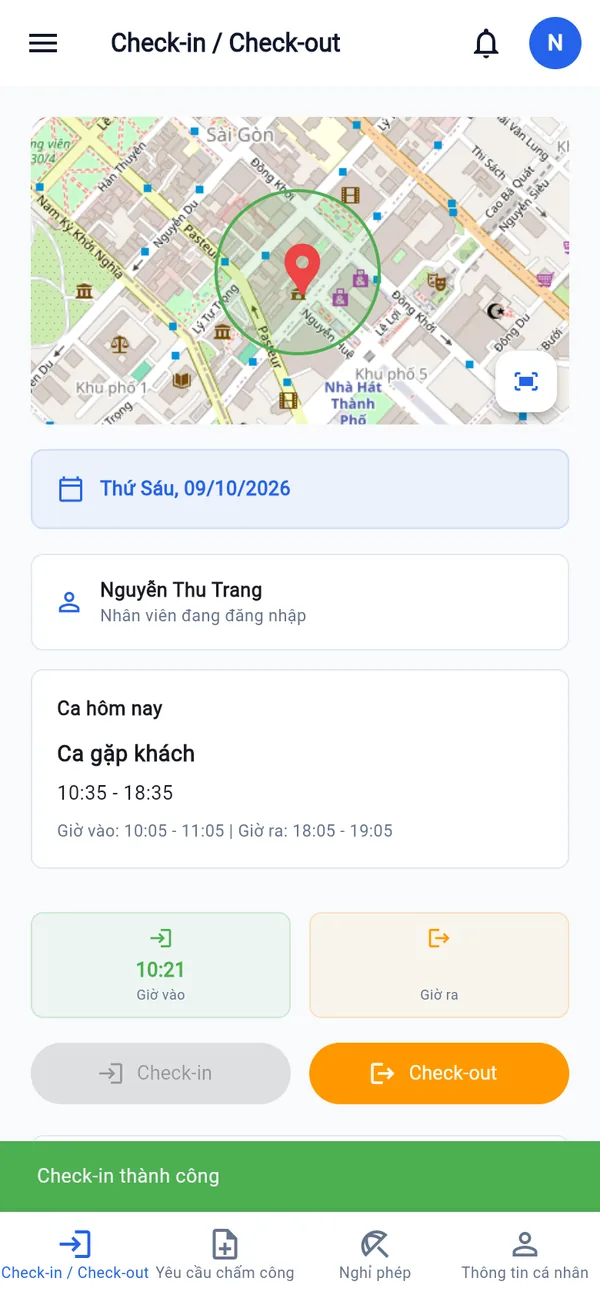
Set up GPS clock-in in 4 steps
- Set the company location. Open Company settings, turn on location checking at clock-in, then choose the location on the map, tap Use current location, paste a Google Maps link (short links work too), or type latitude and longitude. Set a suitable radius.
- Give a department its own location (if needed). A department that works elsewhere can have its own clock-in location in place of the company one.
- Add work locations (if you have several places). Companies that turn on work locations define warehouses, shops and sites with a position and radius, then attach a location to each shift. A shift with a location that has coordinates uses that location's clock-in zone.
- Turn on “Only clock in on the registered device” and run a trial. Ask a few employees to clock in at the workplace to check that the radius fits before rolling it out company-wide.
Step-by-step guides with screenshots are on the Company settings and My attendance help pages.
How managers follow attendance
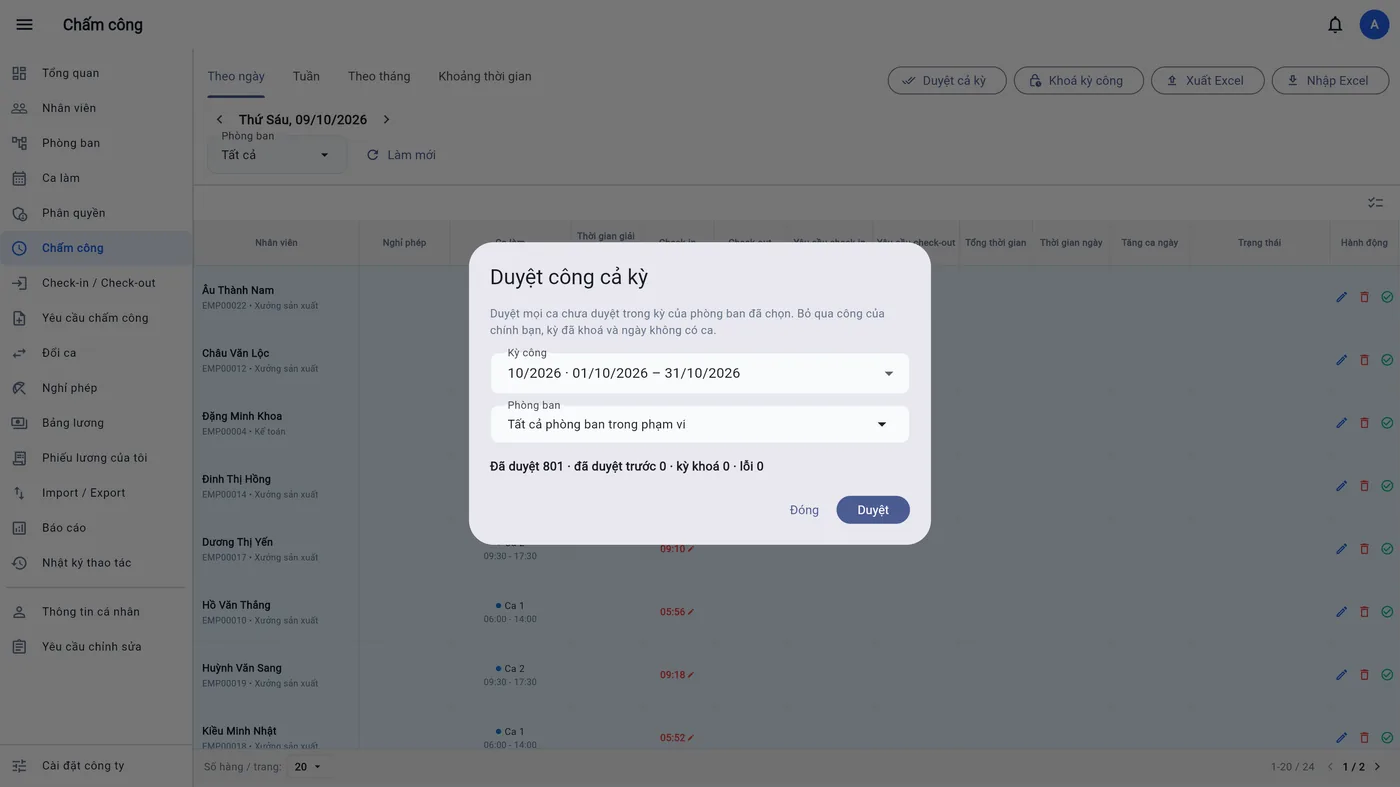
- The timesheet and the daily view show in, out and the on-time / late / early status of each person. Tapping a time opens the details of that clock-in, including the note and a small map with a button to open Google Maps.
- A privacy switch. The company can turn off “Show clock-in location to managers”. When it is off, the server does not return coordinates to managers; employees still see their own location.
- Notifications to the direct manager. Each manager can switch on alerts when an employee is late, leaves early, is absent or forgets to check out.
- Approval and payroll. Approved attendance goes straight into payroll, so nothing is retyped from Excel.
The limits of GPS attendance
GPS is not perfect, so set your policy accordingly:
- Indoors, basements and areas with many tall buildings the signal can be off or weak. Make the radius wide enough for that error, and give employees a way to send an attendance request when clocking in fails.
- Detecting fake locations depends on the phone. The system trusts the flag the operating system reports; combine it with “Only clock in on the registered device” and review unusual clock-ins.
- GPS shows where a phone is, not who is holding it. BossKin does not use face or fingerprint recognition. Protection against clocking in for someone else relies on device registration, the audit log and manager review.
- Remind employees about privacy. The company should tell employees clearly that location is recorded only when they clock in.
Keep reading
- Night, split and flexible shifts
- Leave management: pools, approvals and the deduction ledger
- Payroll, insurance and personal income tax
- Moving employee data from Excel
Frequently asked questions
What about staff on a site with no fixed office?
Define each work location with a position and radius, then attach the location to each shift. A shift whose location has coordinates uses that location's zone.
What if someone forgets to clock in or their phone battery is dead?
They send an attendance request with the actual time for a manager to approve. Edits and approvals are recorded in the audit log.
Do we need to buy a time clock?
No. Employees clock in with their own phones; managers and accountants use the web version on a computer.
Is the trial free?
BossKin offers a free 1-month trial with your real data; afterwards pricing depends on the number of employees and the features you use, from 5,000 VND per employee per month.
Try GPS clock-in with your own company's data
Start a free trial and BossKin helps you set the locations and have employees clock in on day one.
Start free trial