 BossKin
BossKin › Night, split and flexible shifts
Night, split and flexible shifts: how to schedule and calculate hours correctly
Companies with night shifts, split shifts or flexible hours often track attendance by hand or in Excel, because simple software only understands one fixed shift a day. This article explains how BossKin handles each kind of shift, how to schedule them, and what to watch at period close.
Night shifts (overnight)
When you create a shift you enter a start and an end time. A shift that ends after midnight is treated as an overnight shift: for example, a 22:00 – 06:00 shift belongs to the day it starts, and the clock-out that falls on the next day is still matched to that shift rather than split into two days.
- Times are stored with the full date. Clock-in, clock-out and manual corrections all keep their date, so the timesheet shows a small “+1” when the clock-out is on the next day instead of guessing.
- Day / night split. When the company turns on “Day / night mode”, working hours are divided into day-shift and night-shift hours; payroll has the variables
DAY_HOURS,NIGHT_HOURS,DAY_OTandNIGHT_OTso you can set your own rates or multipliers. - Arbitrary time bands (optional). If the company pays different rates at different times of day (for example 07:00–17:00, 17:00–22:00, 22:00–05:00), turn on “Time bands” and enter a rate for each band on the pay grade.
Split shifts (several shifts in one day)
A split shift divides the working day into two or more parts, for example morning and evening in a restaurant or café. In BossKin each part is its own shift, and a day can have at most 4 shifts, which must not overlap. Employees clock in and out for each shift, and the timesheet shows them one by one so managers can check easily.
Illustration: shift A 08:00 – 12:00 and shift B 17:00 – 21:00 on the same day. Create the two shifts once, then assign both to an employee on the days that need a split shift.
Flexible shifts
A flexible shift only requires the employee to work the required number of hours within an allowed window, not to arrive at a fixed time. For example, with a 07:00 – 19:00 window and 8 required hours, arriving at any time is fine as long as the total reaches 8 hours. Working fewer hours than required counts as late. Because there are no fixed in and out times, flexible shifts are also skipped in the “absent” and “forgot to check out” alerts sent to managers.
Scheduling many people quickly
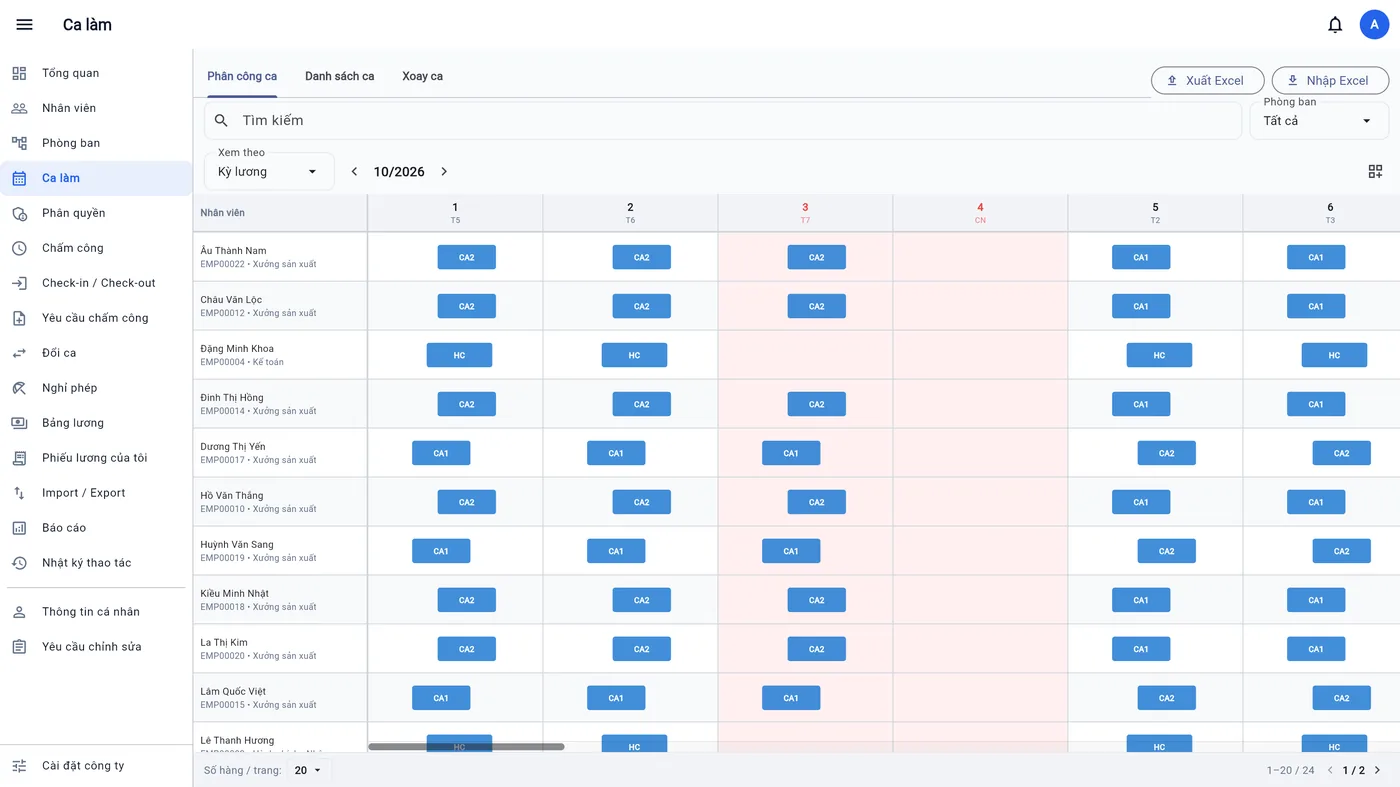
- The assignment grid: rows are employees and columns are the days of the period; click a cell to choose a shift, or use “Quick fill” to click many cells in a row.
- Rotation templates: for teams on a rotating pattern, for example 6 days of shift 1, 6 days of shift 2, 2 days off. Apply a template to a group of employees (each person can start on a different day) and optionally skip public holidays.
- Schedule registration (optional): the company opens a round, employees pick the shifts or time windows they can work, and managers approve by day or cell, which creates the assignments.
- Swapping and handing over shifts: employees request a swap, and someone with approval rights confirms it.
- Excel: export the assignment grid, edit it and import it again; see importing data from Excel.
When an employee has no shift
The company can turn on “Allow clock-in and clock-out when no shift is assigned”. Then on days without a shift an employee can still clock in several times a day, each session being one attendance row; the hours are not tied to a shift, lateness is not assessed, hours follow the actual time, and they still need approval. You can set a maximum length for one session and a maximum number of hours counted, so a forgotten clock-out does not distort the figures.
Things to keep in mind
- A day that already has attendance data (clock-in or clock-out, approved attendance, or an approved time-correction in effect) cannot have its shift removed; time corrections that are still pending must be handled first.
- The standard working days of a period can follow the company's work calendar and holidays (when “Standard days from the work calendar” is on) instead of a fixed number; see payroll.
- Night-shift clock-in can still use location checking; see GPS time and attendance for radius and limits.
- Forgetting to check out is a common night-shift error: direct managers can turn on “forgot to check out” and “absent” alerts to deal with it during the shift.
Frequently asked questions
If a night shift ends the next morning, which day gets the hours?
The hours belong to the day the shift starts. The next day's clock-out is matched to that shift and shown with a “+1” on the timesheet.
How many shifts can I assign in one day?
Up to 4, and they must not overlap.
Do flexible shifts count as late?
Yes, but by hours: if the total worked inside the window is less than the required hours, it counts as short (late). There is no fixed start time.
Try night and split shifts for your own company
Start a free trial and BossKin helps you create shifts and schedule your first group on day one.
Start free trial