 BossKin
BossKin › Moving employee data from Excel into BossKin
Moving employee data from Excel into BossKin: steps and common errors
Moving from Excel to software usually stalls at the initial data entry. BossKin offers two ways: paste straight from Excel into a table, or download a template, fill it in and import it, and there is always a preview step before anything is saved. This article walks through the steps and the errors people hit most.
What to import, and in what order
Later data uses the codes of earlier data, so import in this order: departments → positions → pay grades → shifts → leave types → employees → leave balances → shift assignments. When you import one file, BossKin orders the sheets by dependency itself; you can also put departments and the employees in them into the same file, and the preview understands the departments will be created first.
Way 1: Quick setup — paste from Excel into a table
For a new company, the Quick setup screen walks through 5 steps: company info, departments, positions, salary grades and shifts, and employees. Each step has an input table:
- Click the first cell and paste a block copied from Excel or Google Sheets (columns separated by tabs), or type directly.
- Click Preview: the system shows which rows will be created, which updated, and which have errors and where.
- Fix any errors, then Confirm import to actually save.
Entering a code that already exists updates that row; it does not create a copy.
Way 2: Download the template, fill it in, import it
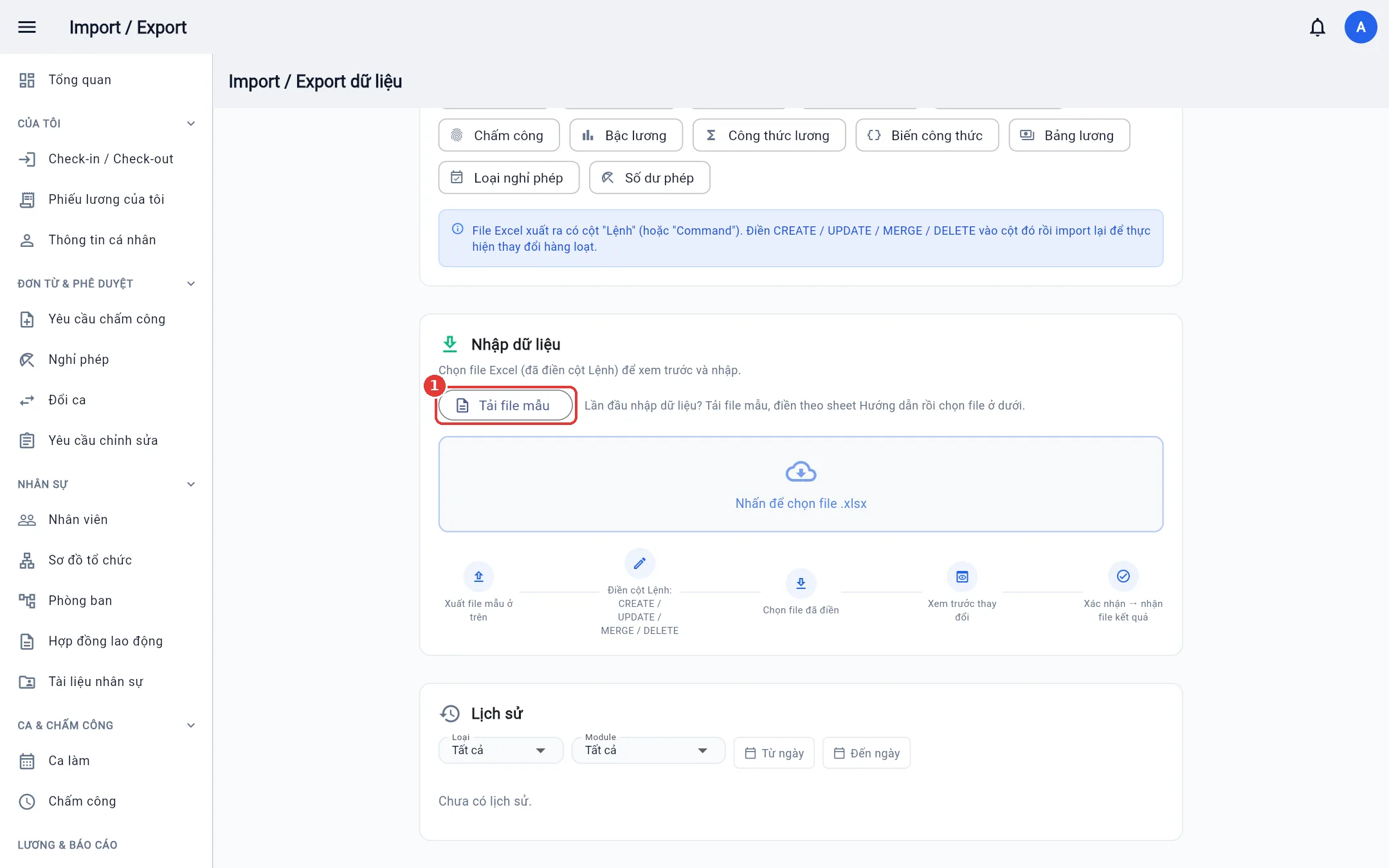
- On the Import / Export screen click Download template. Each kind of data has its own sheet with exactly the importable columns; the last sheet, Guide, says which columns are required and gives examples and format notes.
- Fill from row 2. In the Command column write
MERGE(add or update by code),CREATE,UPDATEorDELETE; rows with an empty Command are skipped. - Choose the
.xlsxfile, review each row in the preview (created, updated with old → new values, deleted, warnings, errors), then confirm. - Download the result file to see the rows with errors, fix them and import again. Importing the same file again does not create duplicates.
Common errors and how to avoid them
- Employee code and email. Leave the code empty for new employees and the system issues one from the company code. If you type your own, it must start with the company code and the email must use the company's email domain, otherwise the preview flags that row.
- Lost leading zeros. Phone and ID columns are text; exported files already use the Text format, so zeros are kept. If you paste from another file and Excel turned them into numbers, 9-digit phone numbers and 10–11-digit ID numbers get the zero restored on import. Bank account numbers cannot be guessed, so keep them as Text.
- Date and time formats. Dates use
dd/MM/yyyy. Clock times typed as7,17h30or7:5are normalised to07:00,17:30and07:05in the preview; hours above 23 or minutes above 59 are reported as errors. - References that do not exist yet. An employee pointing at a department or position that does not exist is an error, unless the same file creates that department in an earlier sheet.
- Permissions. Excel import uses the same permission and department-scope checks as normal actions; someone who can only see one department cannot import for another.
After importing employees: accounts and passwords
Each employee with an email gets an account with a random password. Go to Roles → Users → Export temporary passwords to get a file to hand to each person; everyone must change the password at first login. Exporting again invalidates the earlier temporary passwords. The file is sensitive, so delete it after handing it out and do not post it in a shared chat.
Switching systems without a gap
- Leave balances: enter the days still available at the time of switching (not the full-year entitlement); to correct them later, edit the file and import again.
- Old attendance and payroll: normally you do not import them. Keep them in the old system and run both in parallel for 1–2 pay periods, comparing each person's hours and pay at the end of the period to catch configuration differences (night shifts, holidays, formulas).
- Export, edit, import again: at any time you can export data to Excel, edit it in bulk and import it back; importing the file you just exported reports no changes.
See also: scheduling night and split shifts and payroll for what to configure next.
Frequently asked questions
Can I fix a mistaken import?
Yes. Importing again with MERGE or UPDATE updates by code, and sensitive actions are recorded in the audit log for review.
Can a file exported in English be imported again?
Yes. Column headers follow the exporter's language, and on import the system accepts both Vietnamese and English headers.
Can I import hundreds of employees at once?
Yes, with an Excel file. The in-screen table of Quick setup suits up to a few dozen rows at a time.
Move your data from Excel into BossKin
Start a free trial and import your employee list: there is always a preview, and nothing is saved until you confirm.
Start free trial